
Why Bar Charts Work
Bar charts are the most commonly used chart type in business — and for good reason. Humans compare lengths faster than angles (sorry, pie charts) or positions along a curve (line charts). A bar chart leverages this by encoding values as horizontal or vertical bars.
Cleveland and McGill's 1984 research at Bell Labs ranked visual encodings by accuracy. Length — what bar charts use — came in second only to position on a common scale. That means when someone glances at your bar chart, they get the relative differences almost instantly.
Below are 20 bar chart examples organized by type and use case. Each example highlights when to use that specific bar format. Build any of them at bar chart maker.
Vertical Bar Chart Examples
The standard vertical bar chart (also called a column chart) is the default choice for most datasets. Categories on the x-axis, values on the y-axis.
Example 1: Monthly revenue comparison. 12 bars for Jan–Dec. Each bar is a month's revenue in dollars. The trend is immediately obvious — no annotation needed. This is the chart your finance team pastes into every board deck.
Example 2: Survey results. Five bars for five response options (Strongly Agree → Strongly Disagree). Height = number of respondents. Sort bars by value for clarity, not alphabetically.
Example 3: Website traffic by page. Top 10 landing pages as bars, sorted tallest-to-shortest. This Pareto-style layout makes the 80/20 pattern visible — usually 2-3 pages drive most traffic. Combine with a stat card maker widget to highlight the #1 page.

Horizontal Bar Chart Examples
Use horizontal bars when category labels are long. "Customer Satisfaction with After-Sales Support" doesn't fit under a narrow column. Flip the chart horizontal and labels sit neatly on the left.
Example 4: Feature comparison. Features listed vertically, bars showing usage percentage. Labels read naturally left-to-right. This is the standard format for SaaS product analytics dashboards.
Example 5: Country rankings. Top 15 countries by GDP, population, or any metric. Horizontal bars with flags or country codes on the left. Sort descending — always. Nobody wants to hunt for the longest bar.
Example 6: Employee skills assessment. Skills on the left (Python, SQL, Communication, etc.), proficiency bars on the right. Color-code by skill category. Build this format at bar chart maker and pair it with an infographic resume layout.
Grouped Bar Chart Examples
Grouped (clustered) bars place two or more bars side-by-side per category. Use them when you need to compare multiple series across categories — like revenue by product line per quarter.
Example 7: Q1 vs Q2 performance. Each category (Sales, Marketing, Support, Engineering) gets two bars — one for Q1, one for Q2. Color-coded. The visual instantly shows which departments improved.
Example 8: A/B test results. Control vs variant bars for each metric (conversion rate, bounce rate, time on page). Grouped bars make the before/after comparison unmissable.
Example 9: Competitor pricing. Your product vs 3 competitors across pricing tiers. Four grouped bars per tier. This is powerful in sales decks — see comparison maker for an alternative comparison layout.
Rule of thumb: max 4 bars per group. More than that and readers can't distinguish colors. If you have 6 series, use a stacked bar chart maker instead.

Stacked Bar Chart Examples
Stacked bars show composition within each category. Each bar is divided into colored segments that add up to the total.
Example 10: Budget allocation by department. Each bar is a year. Segments show what percentage went to Engineering, Marketing, Sales, Operations. You see both the total and the breakdown.
Example 11: Traffic sources over time. Monthly bars stacked by channel — organic, paid, social, direct, referral. The total bar height shows overall growth while segments reveal channel shifts.
Example 12: Survey demographics. Each response option stacked by age group. Shows how opinions differ across demographics. Use the stacked bar chart maker for this format.
Warning: stacked bars are hard to compare segments that don't share a baseline. The bottom segment is easy to read, but middle segments float. If comparing specific segments matters, use grouped bars instead.
Diverging and Negative Bar Chart Examples
Example 13: Profit and loss by product. Bar chart with a zero baseline in the center. Profitable products extend right (green), money-losers extend left (red). The visual immediately splits winners from losers.
Example 14: Net Promoter Score breakdown. Promoters extend right, detractors extend left, passives sit near zero. This diverging format is the standard NPS visualization.
Example 15: Year-over-year growth. Each category shows percentage change. Positive bars go up (green), negative bars go down (red). CEOs love this chart because it answers "what grew and what shrank?" in one glance.
Ready to build?
Open the free editor and start creating — no signup needed.
Creative and Infographic Bar Charts
Standard bar charts work — but sometimes you need visual punch for a presentation, social post, or infographic.
Example 16: Icon bars. Replace solid bars with rows of icons (people, dollars, stars). 10 people icons per row, filled proportionally. This pictogram approach works well for audience-facing content. Build it with bar chart maker and layer icons from editor.
Example 17: Progress bars in stat cards. Mini horizontal bars inside stat card maker cards showing KPI progress toward goals. "Revenue: $840K / $1M" with an 84% filled bar. Compact and dashboard-ready.
Example 18: Comparison infographic. Two horizontal bars per row, extending from center outward (left = Product A, right = Product B). Labels in the center. This "butterfly chart" format is great for head-to-head comparisons — try comparison maker.
Example 19: Rounded bars with gradients. Same data, but bars have rounded ends and subtle gradients instead of flat fills. Looks modern in slide decks. Our bar chart maker supports border-radius customization.
Example 20: Bar chart within a timeline. Combine timeline maker with bar charts at each milestone showing metrics at that point. Great for "company journey" infographics — browse templates for pre-built layouts.

Bar Chart Design Tips
Always start the y-axis at zero. Truncating the axis exaggerates differences and misleads readers. If the differences are small, that's the truth — don't distort it.
Sort bars by value, not alphabetically — unless the categories have inherent order (months, age groups). Sorted bars make patterns visible instantly.
Limit to 10-12 bars. More than that creates clutter. If you have 30 categories, show the top 10 and group the rest into "Other." Use pie chart maker for the "Other" breakdown if needed.
Use one color unless comparing groups. A rainbow of colors on a single-series bar chart adds noise, not information. Color should encode meaning, not decoration. Pick your palette at color palette maker.
Composite: Bar Chart + Stat Cards + Annotation
A bar chart alone answers "who's on top?" — a composite dashboard answers "who's on top, why, and what does it mean?" Place a Bar Chart widget as the centerpiece, surround it with four Stat Cards calling out the headline number (total revenue), top performer, fastest grower, and under-performer. Add a Callout widget with an arrow pointing to a specific bar and the context behind it ("+42% — Singapore expansion paid off").
The example above shows Q4 revenue by region with the APAC bar highlighted in green (growth winner) and the LATAM bar highlighted in red (underperforming target). The stat cards at the top reinforce the story in numbers; the annotation explains what the reader should do with the insight. This is the format for exec updates, board decks, and quarterly business reviews — built on one canvas at editor using the bar chart maker + stat card maker widgets.

Composite: Leaderboard With Ranks, Avatars, and Trends
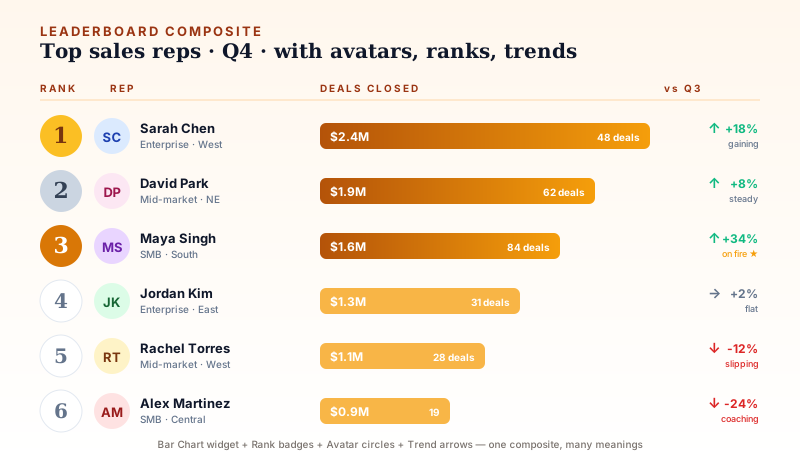
A bare horizontal bar chart ranks categories by value. A composite leaderboard adds WHO, HOW MUCH, and WHERE THEY'RE HEADED — in a single row per entry. Each row combines a rank badge (gold/silver/bronze for the podium), an avatar circle with initials, name + segment, the bar itself with two numbers (dollar value + count), and a trend indicator (↑/→/↓ with percent change).
The example above shows six top sales reps with gold/silver/bronze podium, neutral badges for positions 4-6, and red down-arrows on the two reps who slipped. Readers instantly scan for who's on fire (Maya Singh at #3 with +34%), who's plateaued (Jordan Kim at #4 flat), and who needs coaching (Alex Martinez at #6 down 24%). Built from the Bar Chart widget + Shape widgets for rank badges + Text Blocks for names + small colored Text Blocks for trend arrows. This is the format for sales dashboards, customer-success scorecards, and any ranked list where the rank alone isn't the whole story.
Build Your Bar Chart
Every example above can be built at bar chart maker. Enter your data, customize colors and labels, and export as PNG — free, no signup.
For stacked variants, use stacked bar chart maker. For comparisons, try comparison maker. Want the bar chart inside a full infographic? Open editor and combine it with stat cards, timelines, and text blocks from 60+ widget types.
More chart inspiration at how to create infographic or browse templates for ready-made layouts.