Skip the Blank Canvas Anxiety
Most people give up on infographics before they start because staring at a blank canvas is paralyzing. The fix is simple: don't start with design. Start with what you want to say.
This guide walks through the process we've seen work best, from first idea to exported PNG.
Step 1: Nail Down Your One Main Point
Here's the mistake most people make: they try to cram everything they know into a single infographic. The result is a wall of charts that nobody reads.
Pick one takeaway. "Our support response time dropped 40% this quarter." "Remote workers report higher satisfaction but more burnout." One clear sentence. Everything else in the infographic exists to support that sentence.
If you can't state your point in one sentence, you're probably trying to make two infographics. That's fine — make two.
Step 2: Pull Together Your Data
Grab the numbers, facts, or steps that back up your main point. Spreadsheets, survey results, internal reports, published research — whatever you've got.
Now cut it down. Five strong data points will always beat twenty mediocre ones. For each number, ask: "Does this support my main point?" If the answer is "sort of," cut it.
Group what's left into 2-4 sections. Common groupings: a few headline stats up top, a chart or two in the middle, and a conclusion or call-to-action at the bottom.

Step 3: Pick Widgets That Match Your Data
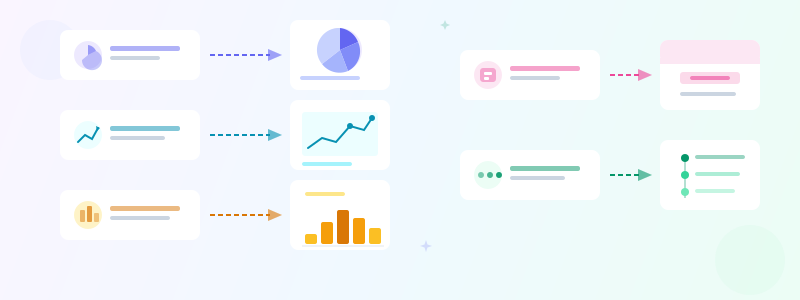
Different data calls for different visuals. Comparing two things? Use a comparison bar. Showing proportions? Pie or donut chart. Got a sequence of events? Use our free timeline maker for project milestones. Got one big impressive number? Stat card — make it huge.
In GraphMake, drag widgets from the left panel onto the canvas. Use our free chart maker to pick the right chart type, or try the full editor for maximum flexibility. A typical infographic layout: heading at the top, 2-3 stat cards, a chart or timeline in the middle, and a text block or callout at the bottom.
Not sure what to pick? Paste your raw data into the AI Generate feature and it'll suggest a layout for you.
Ready to build?
Open the free editor and start creating — no signup needed.
Step 4: Make It Look Intentional
You don't need to be a designer. You just need consistency. Pick one color palette and stick with it — GraphMake has 15 pre-built ones (see color psychology infographics for help choosing). Pick two fonts max: one for headings, one for everything else.
The biggest amateur tell is cramming things together. Leave space between your widgets. If it feels like there's too much empty space, there probably isn't — you're just not used to it yet. That breathing room is the difference between "designed" and "thrown together in PowerPoint."

Step 5: Export It
Click Export, pick your format, and you're done. PNG is the safe choice for most situations — it works everywhere. If you need to scale it up for print or a poster, use SVG. For emailing a report, PDF.
One thing people forget: match your canvas size to where it'll be posted. 1080x1080 for Instagram, 735x1102 for Pinterest, 1920x1080 for slides. Getting this right upfront means you won't have to redo everything later.