What Is a Bar Chart?
A bar chart uses rectangular bars to represent data values. The length or height of each bar is proportional to the value it represents. The format answers one fundamental question: how do these categories compare? Whether you're showing sales by region, survey responses, or population by country, it turns raw numbers into a visual ranking anyone can read in seconds.
Unlike pie charts, this layout handles large numbers of categories without becoming unreadable. Unlike line charts, it doesn't imply a continuous connection between data points. Build one quickly at bar chart maker.
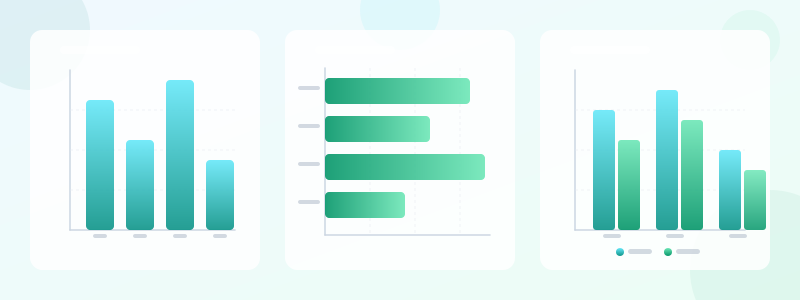
Types: Vertical, Horizontal, Stacked, Grouped
Vertical layouts (column charts) place categories on the x-axis. Best for short labels and fewer than 15 categories. Work well for time-based data since left-to-right reading matches time progression.
Horizontal layouts flip the axes. Superior for long category names and more than 10 categories. The longest bar at the top naturally reads as "first place" — great for rankings.
Stacked layouts divide each bar into segments for sub-categories. Powerful for showing totals and composition simultaneously, but hard to read with more than 4-5 segments.
Grouped layouts place multiple bars side by side per category. Better than stacking when comparing sub-categories directly, but uses more horizontal space. For help choosing, see chart types guide.
When to Use a Bar Chart
Use them for comparing discrete categories: sales by product, votes by candidate, scores by team. They handle negative values well — bars can extend below the baseline to show losses.
Don't use them for continuous time-series with many data points — a line chart is better. And if you have only one or two data points, use a stat card instead. If you want to show parts of a whole with just 2-5 categories, a how to make pie chart might work better.
Step-by-Step: Make a Bar Chart
Step 1: Organize your data — categories and values. Remove duplicates, handle missing values.
Step 2: Choose your type. Comparing totals? Simple vertical/horizontal. Showing composition? Stacked. Comparing sub-categories? Grouped.
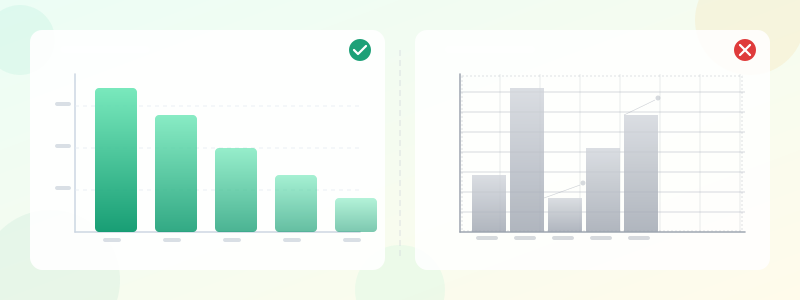
Step 3: Always start the value axis at zero. Truncating the baseline exaggerates differences and misleads readers.
Step 4: Use color intentionally. Single color for simple charts. Multiple colors only when they encode meaning. See data visualization best practices.
Step 5: Add a clear title that states the insight ("Q4 Sales Exceeded Q3 by 23%"), not just the data label ("Quarterly Sales"). Include data labels when precision matters.
Ready to build?
Open the free editor and start creating — no signup needed.
Design Tips
Bar spacing: gap between bars should be 50-70% of bar width. Too close looks cramped, too far wastes space.
Sort intentionally. If categories have no natural order, sort by value (largest to smallest). If they have order (months, age groups), preserve it.
Color: a single-color chart with one highlighted bar tells a clearer story than a rainbow. Check accessibility — 8% of men have color vision deficiency.
Typography: use sans-serif fonts, consistent sizes. Rotate labels only as a last resort — better yet, switch to horizontal bars.
Common Mistakes
Truncating the baseline — the most common and most misleading mistake. A bar twice as tall should represent twice the value. Always.
Using 3D effects — they distort perception and add zero information. Keep charts flat.
Overloading with 30+ categories — show top 10 and group the rest as "Other."
Missing context — always include a title, axis labels, and source citation.
Build Your Bar Chart
Open bar chart maker — paste your data and generate a polished result in under a minute. Vertical, horizontal, stacked, or grouped layouts, custom colors and fonts.
Need it in a larger infographic? Open the editor and combine the chart with stat card maker widgets, timeline maker milestones, pie charts, and any of our 60+ widget types. Create a poster maker layout for presentations, or use comparison maker to put two side by side. Try chart maker for a general-purpose tool.