Stop Guessing, Start Matching
Every chart type exists because it's the best way to show a specific kind of relationship in data. A pie chart shows parts of a whole. A line chart shows change over time. A bar chart shows comparisons across categories. When you pick the right chart, the data clicks instantly. When you pick the wrong one, the reader has to work to understand what you're saying.
This guide covers the most common chart types, what data they're designed for, and the mistakes people make with each one.
Bar Charts: The Workhorse
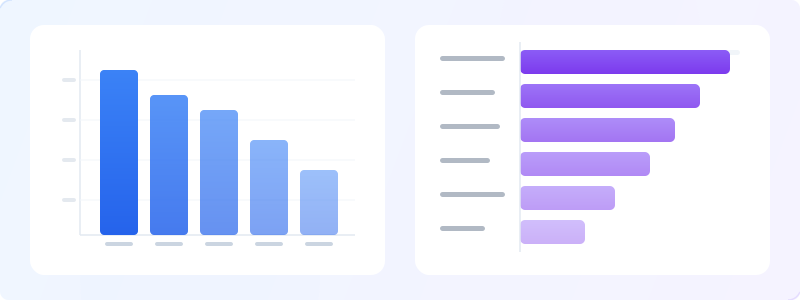
Best for: comparing values across categories. "Sales by region," "satisfaction scores by department," "votes by candidate." The bar's length maps directly to the value, making comparisons intuitive. Create one at bar chart maker.
Horizontal or vertical? Use horizontal bars when your category labels are long (they're easier to read). Use vertical when you have a natural order (like months or rankings). Either way, sort the bars by value unless there's a reason not to (chronological data, for instance).
Common mistake: too many bars. A bar chart with 30 categories is a wall of noise. If you have more than 10-12 categories, consider grouping small ones into "Other" or splitting into multiple charts.
Line Charts: The Trend Tracker
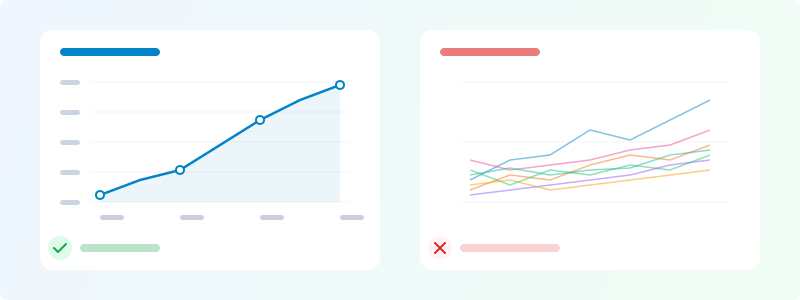
Best for: showing how values change over a continuous variable — usually time. Revenue over 12 months, temperature across a year, user growth since launch.
The line implies continuity. Between two data points, the line suggests the value changed gradually. This is why line charts work for time series but feel wrong for categorical data — there's nothing "between" apples and oranges.
Common mistake: too many lines. Three lines on one chart is fine. Seven lines on one chart is spaghetti. If you need to compare many trends, use a "small multiples" approach — the same chart repeated for each category, stacked vertically.
Pie and Donut Charts: The Part-of-a-Whole Show
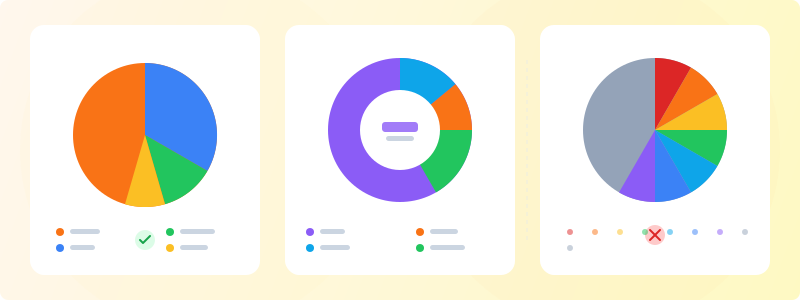
Best for: showing how a total breaks down into components. Market share distribution, budget allocation, survey response breakdown. The key constraint: the slices must add up to 100%. Try our pie chart maker to build one.
These charts get a lot of hate from data viz purists, and honestly, most of the criticism is fair. Humans are bad at comparing slice angles. A bar chart showing the same data is almost always easier to read accurately.
But pies and donuts do one thing well: they instantly communicate "this is part of a whole." If your main point is "one category dominates" (80% of revenue comes from one product), a pie chart with one big slice and several tiny ones makes that obvious. For everything else, consider a bar chart. And never — ever — use a pie chart with more than 5-6 slices. If you're unsure which colors to assign to each slice, our color psychology infographics guide covers palette selection in detail.
Comparison Bars and Progress Bars
Comparison bars show two values side by side on the same scale — "Plan A vs. Plan B," "This Year vs. Last Year." They're a stripped-down, focused version of a grouped bar chart, and they're great for infographics because they're scannable.
Progress bars show completion toward a goal: "72% of target reached," "3 of 5 milestones completed." They work because the full bar represents 100%, and the filled portion shows progress at a glance.
Both of these are underused. People reach for pie charts when a comparison bar would be clearer, or dump numbers in a table when a progress bar would show the story instantly.

Ready to build?
Open the free editor and start creating — no signup needed.
Stat Cards and Number Counters
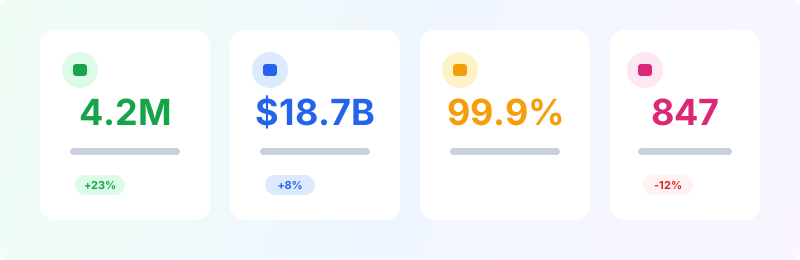
Not technically "charts," but stat cards are the most effective data viz element for infographics. A big number, a label, maybe an icon. "4.2M users." "$18.7B market." "99.9% uptime."
Use stat cards for headline numbers that don't need a chart. If the number alone is impressive, a chart just dilutes it. The number should be large — physically large on the canvas — with a smaller label explaining what it measures.
Number counters add a trend indicator: an arrow showing the number is up or down, or a percentage change. "Revenue: $2.4M ↑ 23% YoY." These add context without adding a whole chart.
Timelines and Process Steps
Timelines show events in chronological order. Process steps show actions in sequential order. They look similar but serve different purposes — timelines are descriptive (what happened), process steps are prescriptive (what to do).
For timelines, space events proportionally to the actual time gaps, or at least group them by era. For process steps, keep each step to one action and use consistent formatting — if step 1 has an icon, they all should.

Funnels and Pyramids
Funnels show narrowing — filtering, conversion, drop-off. The visual shape does most of the communication: it gets smaller, so the reader knows things are being lost or filtered at each stage. Sales pipelines, conversion funnels, hiring processes.
Pyramids show hierarchy — with the broadest or most foundational category at the base and the narrowest at the top. Organizational structures, needs hierarchies, market segmentation by size.
Both depend on the shape matching the data. A "funnel" where the numbers don't actually decrease isn't a funnel — it's a confusing cylinder. Use a stacked bar chart instead.

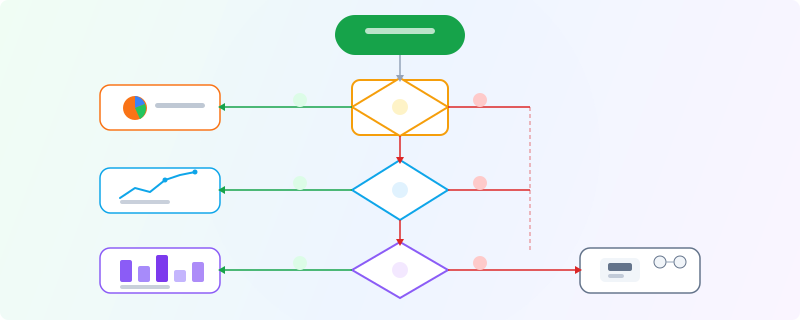
The Decision Flowchart: Picking Your Chart
When you're stuck, answer these questions in order. What's the relationship? If composition (parts of a whole) → pie/donut. If comparison (values across categories) → bar chart. If trend (change over time) → line chart. If distribution (spread of values) → histogram. If relationship between two variables → scatter plot. For decision-based process flows, try our flowchart maker.
How many data points? A few (2-5) → stat cards or comparison bars. A moderate number (5-15) → standard charts. Many (15+) → tables, heatmaps, or small multiples.
Try it in GraphMake at editor — drag a chart widget onto the canvas, plug in your data, and swap between chart types until the data clicks. Sometimes seeing the same numbers in three different formats makes the right choice obvious.