Good Data Viz Isn't About Being Pretty
The goal of data visualization is comprehension, not decoration. A chart should make a number easier to understand than reading it in a table. If your chart requires a paragraph of explanation to interpret, it's failed at its one job.
These six rules won't make you a data artist. They'll make your charts clear enough that people actually get the point. That matters more.
Rule 1: Pick the Right Chart for Your Data
This is where most people go wrong. They pick a chart type they like, not the one their data needs. A pie chart showing 12 near-equal slices is unreadable. A line chart with two data points is pointless. A bar chart comparing hundreds of items is a wall.
The cheat sheet: comparing a few categories? Bar chart. Showing proportions that add to 100%? Pie or donut (try our pie chart maker), but only if you have 5 or fewer slices. Showing change over time? Line chart. Got one impressive number? Just show the number — stat cards exist for a reason. For deeper guidance on chart selection, read our chart types guide.
When in doubt, a bar chart is almost always the safe choice. It's boring, but boring is readable. Try different chart types in our free chart maker to see what works best for your data.

Rule 2: Use Color With Purpose
Color should encode meaning, not just look nice. If every bar in your chart is a different color for no reason, you're adding noise. Use one color for the main data and a contrasting color to highlight the thing you want people to notice.
Pick a palette with 2-3 primary colors and stick with it across all your charts. Consistency builds comprehension — if blue always means "revenue" in your infographic, the reader stops needing to check the legend. For a deeper dive on picking palettes that match your message, see color psychology infographics.
Avoid red/green combinations. About 8% of men are red-green colorblind. Use blue/orange or blue/red instead.
Rule 3: Label Directly, Kill the Legend
Legends force readers to bounce their eyes back and forth between the chart and a key. That's a tax on comprehension. Wherever possible, label data directly on the chart.
Put the category name next to or inside the bar. Put the value above the data point. If your pie chart has 3 slices, label each slice instead of putting a legend off to the side. The reader should never have to decode your chart — the information should be right where they're already looking.

Ready to build?
Open the free editor and start creating — no signup needed.
Rule 4: Cut the Clutter
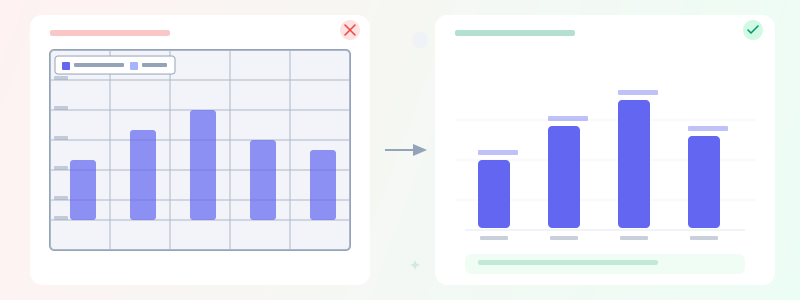
Remove gridlines, borders, background colors, and decorative elements unless they actively help comprehension. Every pixel that doesn't communicate data is a pixel that makes the data harder to see.
Edward Tufte calls this the "data-ink ratio" — maximize the ink spent on data, minimize everything else. In practice: remove the chart border, lighten or remove gridlines, drop the background color, and delete the legend if you can label directly. What's left is a cleaner, more readable chart.
Rule 5: Don't Start Your Axis at Zero (Sometimes)
This one's controversial. The conventional wisdom is "always start bar charts at zero." That's mostly right — truncating the y-axis on a bar chart exaggerates differences and misleads the reader. A bar that looks twice as tall should represent a value that's twice as large.
But for line charts showing trends, starting at zero often wastes space and hides meaningful variation. A line chart tracking stock prices from $95 to $105 is unreadable if the y-axis goes from $0. The key: bar charts should start at zero. Line charts can start wherever makes the trend visible. And if you truncate, make it obvious.
Rule 6: Tell Them What to See
Every chart should have a title that states the takeaway, not just the topic. "Revenue by Quarter" is a topic. "Revenue Grew 40% in Q4" is a takeaway. The title tells the reader what to look for, and the chart provides the evidence.
This single change — writing insight-driven titles — does more for chart readability than any design trick. The reader knows what the chart is trying to say before they even look at the data.
Try building a chart in the GraphMake editor at editor. Drop in a bar chart or stat card, apply these rules, and see the difference. Most charts go from confusing to clear in under two minutes.