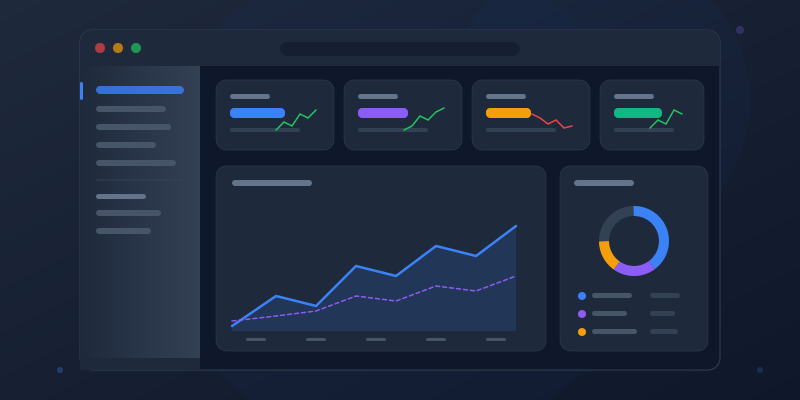
What Makes a Dashboard Actually Useful
A dashboard has one job: give someone the information they need to make a decision, as fast as possible. If your dashboard requires more than 10 seconds to scan, it's not doing its job.
The best dashboards look simple. Not because they show less data, but because the data is organized so clearly that complexity becomes invisible. That's what we're building toward.
Lead With Stat Cards
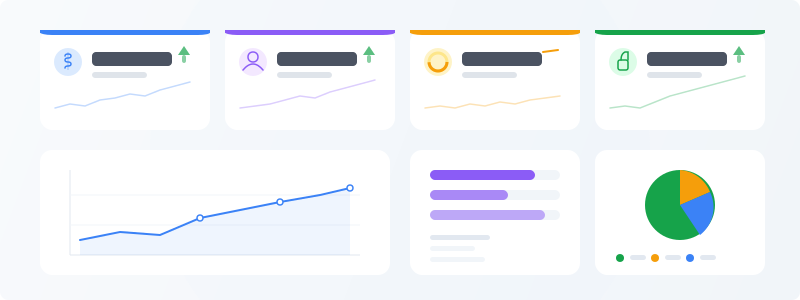
The top of your dashboard should answer the question "how are things going?" with 3-5 key metrics displayed as stat cards (create them at stat card maker). Revenue. Users. Conversion rate. NPS score. Whatever your audience checks first.
These numbers should be scannable in under 2 seconds. Big font, clear labels, trend indicators (up/down arrows or percentage changes). If someone glances at the top row and knows whether things are good or bad, you've already succeeded.
Don't put charts at the top. Charts require analysis. Stat cards require a glance. The hierarchy should be: headlines first, detail charts below.
Pair Charts Intentionally
Every chart on a dashboard should relate to the stat cards above it or to the charts beside it. Build your charts with chart maker and pair them with stat cards. A revenue stat card paired with a revenue-over-time line chart below it tells a complete story: here's the number, here's the trend.
Common pairings that work: stat card + line chart (headline number + trend), pie chart + bar chart (composition + comparison), progress bars + stat cards (how close to target + the target itself).
Don't just throw every available metric onto the dashboard. Ask: "If someone only had 30 seconds with this, what 5 things should they walk away knowing?" Those are your dashboard elements. Everything else is a drill-down page, not the main view.
Color Coding That Helps, Not Confuses
Use color to encode status, not decoration. Green for on-target, amber for at-risk, red for off-target. This is so universal that deviating from it actively confuses people.
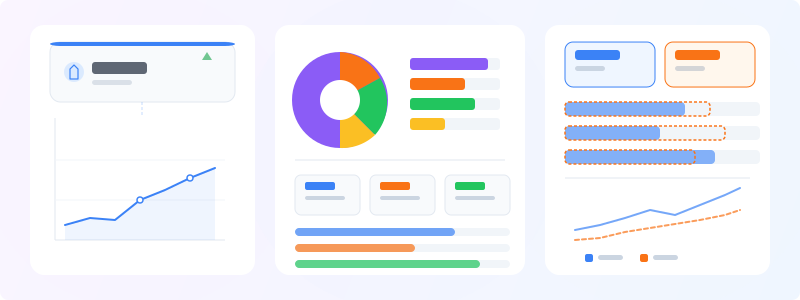
Beyond status colors, keep the palette minimal. One primary color for your main data series, gray for secondary data, and accent colors only for elements that need attention. If everything is colorful, nothing stands out.
Consistency across the dashboard matters more than any individual chart looking pretty. If "revenue" is blue in the stat card, it should be blue in the line chart, blue in the bar chart. The reader builds a mental model — don't break it.
Ready to build?
Open the free editor and start creating — no signup needed.
White Space Is Not Wasted Space
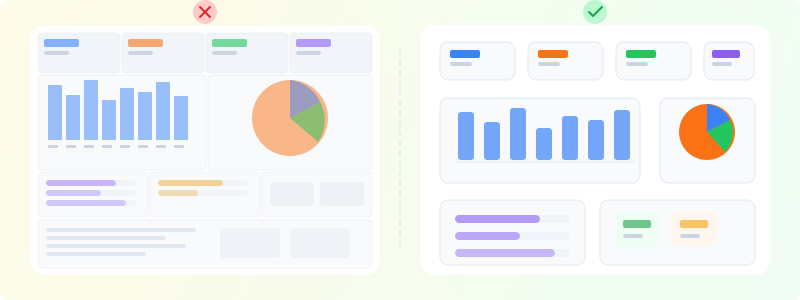
The instinct is to fill every pixel with data. Resist it. White space between dashboard sections creates visual grouping — it tells the reader "these things belong together, and those things are a different topic."
A dashboard with generous padding and clear sections feels calm and organized. A dashboard where charts are crammed edge-to-edge feels overwhelming, even if it contains the same information.
In practice: use consistent margins between widgets. Separate sections with divider lines or subtle background color shifts. If two charts are related, put them side by side with a small gap. If they're in different sections, add more space.
Build Your Dashboard Infographic
Start with the Square (1080x1080) or Wide (1200x1600) canvas in GraphMake. Drop 3-4 stat cards across the top row. Below that, add a line or bar chart for your primary trend. Fill the bottom section with secondary metrics — progress bars, comparison bars, or a small pie chart.
Apply a single color palette across all widgets. Add a heading at the top with the dashboard title and date range. Done. A clean, professional dashboard infographic in ten minutes.
Open editor and start with the Business Stats template if you want a head start — it's pre-laid-out as a dashboard with stat cards, charts, and a clean hierarchy. For a metrics-focused layout, try the performance dashboard template.



