Why Comparison Infographics Work So Well
People make decisions by comparing options. Should I pick A or B? Is this plan better than that one? How does this year compare to last year? Comparison infographics tap into this natural decision-making process by placing options side by side with clear visual cues.
The reason they're so effective is that they reduce cognitive load. Instead of reading two separate descriptions and mentally tracking differences, readers see both options at once with the differences highlighted. The conclusion almost draws itself.
Comparison infographics are among the most shared infographic types on social media precisely because they're immediately useful. "React vs Vue," "Remote vs Office," "iPhone vs Android" — people share them because they help their audience make better decisions.
Choosing What to Compare
The best comparisons have two to three options with four to eight comparison criteria. Fewer than four criteria and the comparison feels shallow. More than eight and the infographic becomes a spreadsheet.
Pick criteria that matter to your audience. If you're comparing project management tools for small teams, "enterprise SSO support" isn't a relevant criterion. Focus on what actually drives the decision: price, ease of use, key features, limitations.
Make sure the comparison is fair. Cherry-picking criteria where one option always wins isn't a comparison — it's an advertisement. Include at least one criterion where each option has a genuine advantage. Readers trust balanced comparisons more than one-sided ones.
Comparison Formats and When to Use Each
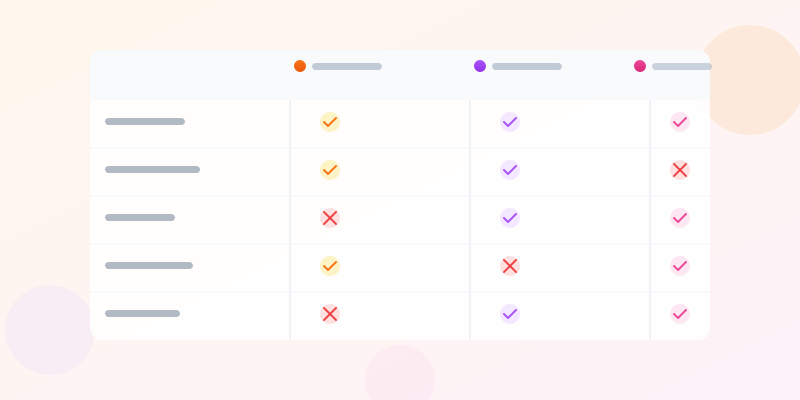
Side-by-side columns: the classic format. Two columns, shared criteria rows, visual indicators showing which option wins each row. Works best for two options. Use the Comparison Bar widget at comparison maker for this layout.
Comparison bars: horizontal bars that show two values on the same row. Great for numerical comparisons — "Product A: 85 points, Product B: 72 points." The visual length difference makes the winner instantly obvious.
Stat card grids: place matching stat cards for each option — revenue, users, rating, etc. This works well when you have discrete metrics rather than continuous scales.
Before/after: technically a comparison between two states. Use a split layout with "Before" on the left and "After" on the right. Timelines and progress bars work well here to show improvement over time.

Design Tips for Clear Comparisons
Use consistent color coding. Assign one color to Option A and another to Option B, then use those colors throughout the entire infographic. Readers learn the color association once and can scan the rest of the chart effortlessly. See color psychology infographics for guidance on choosing effective color pairs.
Align everything vertically. Comparison criteria should sit on the same horizontal line for both options. Misaligned rows force readers to hunt for the matching data point, which defeats the purpose of a side-by-side layout.
Highlight the winner for each criterion. Use a checkmark, a bold font, a larger bar, or a subtle background color to show which option is stronger on each point. Don't make readers figure out the winner by squinting at numbers.
Include a summary verdict at the bottom. After showing the detailed comparison, add a conclusion: "Best for budget-conscious teams: Option A. Best for enterprise scale: Option B." This gives readers a clear takeaway.

Ready to build?
Open the free editor and start creating — no signup needed.
Comparison Infographic Examples
Product comparison: pricing tiers, feature sets, customer ratings, support options. Check our comparison template for a pre-built layout you can customize with your own products.
Year-over-year performance: revenue, user growth, NPS score, churn rate. Place last year on the left and this year on the right. Use progress bars and stat cards to make growth or decline immediately visible.
Methodology comparison: Agile vs Waterfall, React vs Angular, PostgreSQL vs MongoDB. Focus on qualitative criteria — learning curve, community size, best use cases — since these aren't purely numerical.
Cost analysis: total cost of ownership for two solutions over 1, 3, and 5 years. Bar charts work well here, with grouped bars showing each time horizon.
Build Your Comparison Infographic
Open the comparison maker to start building your side-by-side comparison immediately — no signup needed. Add comparison bars, stat cards, and progress bars to create a clear, visual comparison.
Want more flexibility? Open the full editor and combine comparison widgets with headings, charts, icons, and any of our 60+ widget types. Drag and drop to arrange everything exactly how you want it, then export as PNG — free, no watermark.