What Is a List Infographic?
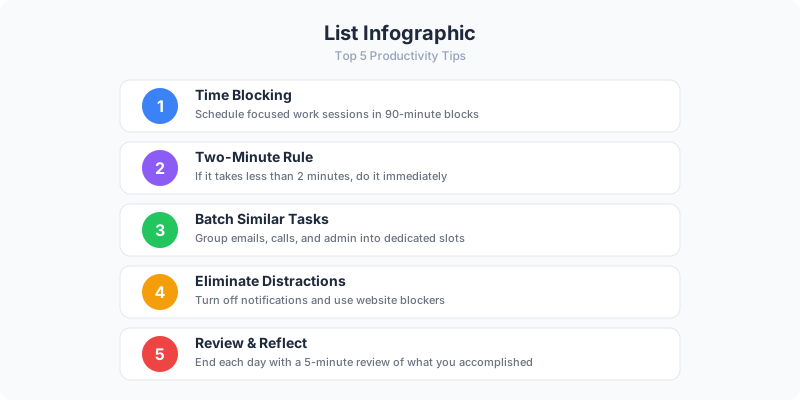
A list infographic presents a set of items — tips, facts, resources, steps, or rankings — as a visual layout instead of plain text. Each item gets its own visual block with an icon, number, or color accent, making the content scannable and shareable.
List infographics are the most popular infographic format on the web. They work because they match how people naturally consume content: one item at a time, in order, with clear visual separation between items. A "7 Tips for Better Sleep" infographic gets shared far more than the same tips as a paragraph of text.
Common types include: numbered lists (top 10, top 5), tips and advice lists, resource roundups, fact collections, step-by-step guides, and checklists. If your content has discrete items that benefit from being grouped, it is a candidate for a list infographic.
Why List Infographics Work So Well
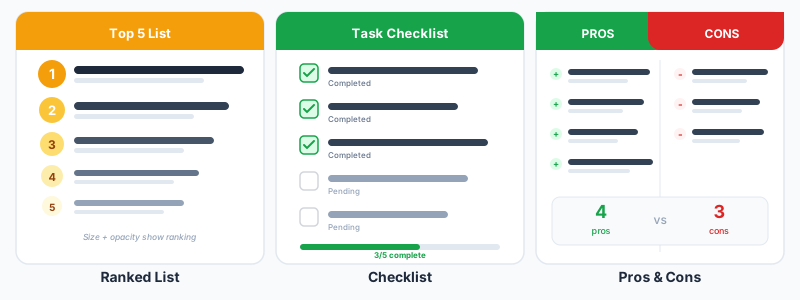
Scannable structure. Readers can skim the entire infographic in seconds and jump to the item that interests them. Each list item stands on its own — you do not need to read item 3 to understand item 7.
Easy to create. Unlike data-heavy chart infographics, list infographics do not require datasets or statistical analysis. If you can write a bullet list, you can make a list infographic. The visual design does the heavy lifting.
Highly shareable. Lists with odd numbers (5, 7, 9) and strong titles ("10 Things Every Developer Should Know") perform well on social media and Pinterest. The numbered format creates curiosity and a sense of completeness.
Step 1: Choose Your List Type
Numbered rankings work when order matters — "Top 10 Productivity Apps" or "5 Best Practices for Remote Work." The numbers create a natural reading flow and a sense of hierarchy.
Unordered lists work when all items have equal weight — "8 Foods That Boost Energy" or "6 Types of Marketing Channels." Use icons or bullet points instead of numbers.
Step-by-step lists work when the items must be followed in sequence — "How to Set Up a Home Office in 5 Steps." These are essentially process infographics presented in a list format. For complex processes with branching decisions, try flowchart maker instead.
Step 2: Write Tight List Items
Each list item needs two things: a headline (3-6 words) and a description (1-2 sentences). The headline is what readers scan. The description is what they read when an item catches their attention.
Keep descriptions consistent in length. If item 1 has a two-sentence description and item 5 has a full paragraph, the infographic will look unbalanced. Aim for the same word count across all items.
Cut ruthlessly. "Use a project management tool to organize tasks and deadlines" becomes "Use a project management tool." The infographic format rewards brevity. If an item needs a paragraph to explain, it might be too complex for a list infographic — consider a blog post instead.
Step 3: Design the Layout
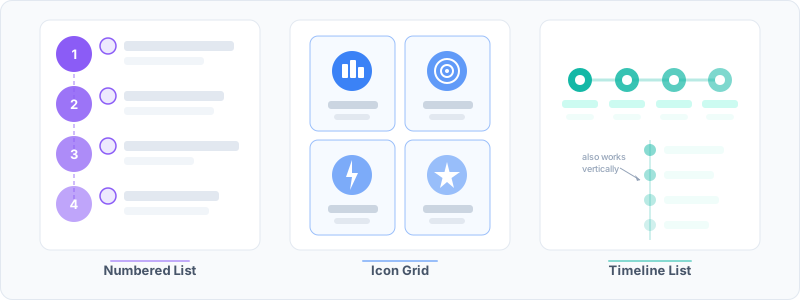
Vertical stack is the most common layout: items arranged top to bottom, each in its own row. This works for any number of items and fits naturally in the standard tall infographic format. Use the list infographic maker to build this layout instantly.
Two-column grid works for 6-10 items when you want a more compact design. Items alternate left and right, creating a zigzag reading pattern. This works well for square social media formats.
Numbered sidebar places large numbers on the left edge with content blocks on the right. This emphasizes the ranking order and gives the infographic a strong visual rhythm. The top 10 list template uses this layout.
Step 4: Add Visual Elements
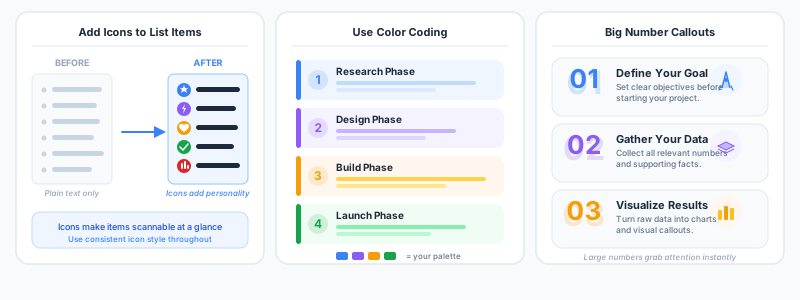
Icons make list items instantly recognizable. A small icon next to each item gives readers a visual anchor before they read the text. Use consistent icon styles — do not mix outline icons with filled icons.
Numbers or badges at the start of each item create visual rhythm. Large, bold numbers in a contrasting color draw the eye down the list. The Icon Grid widget in GraphMake makes this easy.
Color coding groups related items or adds visual interest. Assign each item a unique accent color, or use one color for odd items and another for even items. Check color psychology infographics for palette ideas.
Ready to build?
Open the free editor and start creating — no signup needed.
Step 5: Build in GraphMake
Open list infographic maker and start with a template or build from scratch. Add Bullet List widgets for the main content, a Heading widget for the title, and Icon widgets for visual accents.
For numbered rankings, use the Stat Card widget — set the value to the rank number and the label to the item title. Stack them vertically for a clean countdown layout.
Adjust spacing between items so the infographic breathes. Equal spacing between all items keeps the layout balanced. Add a Divider widget between items if you want clear visual separation.
List Infographic Best Practices
Use 5-10 items. Fewer than 5 feels incomplete. More than 10 and readers lose interest before reaching the end. If you have 15 items, split into two infographics or cut the weakest five.
Start with the strongest item. Unlike blog listicles where you might save the best for last, infographic readers often only see the first few items before scrolling away. Put your best content at the top.
Include a clear title that tells readers exactly what the list covers and how many items it contains. "7 Ways to Reduce Meeting Time" is better than "Meetings Tips." The number in the title sets expectations.
Add a call to action at the bottom. After the last list item, include a text block with a next step: a link to a related resource, an invitation to try a tool, or a prompt to share the infographic.
Common Mistakes
Inconsistent item lengths. When some items have one line and others have four lines, the visual rhythm breaks. Readers expect uniformity in a list. Edit until all items are roughly the same length.
Too much text. A list infographic is not a blog post in image form. If each item needs three paragraphs to explain, the content is too complex for this format. Use a blog post with embedded visuals instead.
No visual differentiation between items. A wall of text blocks with no icons, numbers, or color accents is just a document, not an infographic. Each item needs at least one visual element to stand apart.
Weak title. "Things" and "Stuff" are not list titles. Be specific and include a number. "12 CSS Tricks for Faster Load Times" tells readers exactly what they will get.
Build Your List Infographic
Start at list infographic maker for a focused building experience, or open the full editor to combine list widgets with charts, stat cards, and other visual elements.
Browse the list infographic and top 10 list templates for ready-made layouts you can customize with your own content. Both are free to use and export.
For list-style content that includes data or statistics alongside each item, combine Bullet List widgets with Stat Card widgets in the full editor. Export as PNG — free, no watermark.



