The Most Misused Chart in Existence
Pie charts get a bad reputation — mostly because people use them wrong. They show up in reports with 15 tiny slices, no labels, and colors that blur together. That's not a pie chart problem. That's a decision-making problem.
A well-made pie chart does one thing exceptionally well: it shows how parts make up a whole. If your data fits that description, a pie chart is hard to beat. If it doesn't, use something else. This guide covers how to tell the difference and how to build one that works.
When a Pie Chart Is the Right Choice
Use a pie chart when all of these are true: your values add up to a meaningful total (100%, a budget, total respondents), you have 2 to 6 categories, and the differences between slices are large enough to see. "Revenue by region" with 4 regions? Perfect. "Browser market share" with 3 dominant players? Great.
Don't use a pie chart when: you have more than 7 categories, the slices are nearly equal in size (a bar chart shows small differences much better), or the values don't represent parts of a whole. Comparing revenue across years? That's a bar chart or line chart — try our bar chart maker or chart maker instead.
Structure Your Data First
Before you touch any tool, get your numbers right. You need a label and a value for each slice. The values should sum to something meaningful — if they don't, your pie chart will be misleading.
Order matters. Put the largest slice starting at 12 o'clock and arrange the rest clockwise by size. This makes the chart instantly scannable. If you have one "Other" category, put it last regardless of size — readers expect it there.
Keep your labels short. "North America" not "North American Sales Region Q4 FY2026." The chart is a visual — the details belong in a table or footnote.

Step-by-Step: Build a Pie Chart in GraphMake
Open the pie chart maker and click the Pie Chart widget from the Data category in the left panel. It drops onto the canvas with sample data so you can see the format immediately.
Click the chart to open the properties panel on the right. Replace the sample labels and values with your own data. Each row is one slice — add a label, a numeric value, and pick a color. The chart updates live as you type.
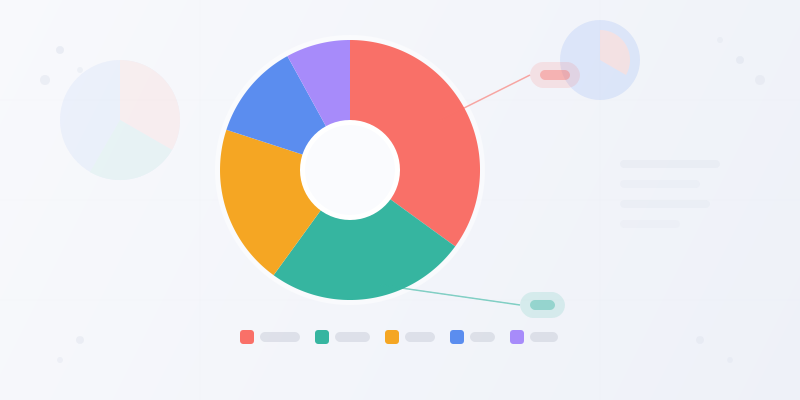
Toggle options: show percentages on the slices, show or hide the legend, and pick the legend position. If you want a donut chart instead, increase the inner radius — anything above 0 cuts a hole in the center. When it looks right, hit Export and download as PNG.
Ready to build?
Open the free editor and start creating — no signup needed.
Design Tips That Make a Difference
Use contrasting colors for adjacent slices. If two similar-sized slices sit next to each other in similar colors, readers can't tell them apart. Our built-in color palettes handle this automatically, but if you're picking custom colors, check the contrast. See color psychology infographics for palette guidance.
Always show percentages or values on the slices — not just in the legend. Making readers cross-reference a legend defeats the purpose of a visual chart. If the slices are too small for labels, that's a sign you have too many categories.
Skip 3D effects. They distort the proportions and make the front slices look larger than they are. Flat, clean pie charts are more accurate and look more professional.
Pie Chart vs. Donut Chart: Which One?
A donut chart is just a pie chart with a hole in the middle. The hole doesn't add information — it's an aesthetic choice. But it does create a useful center space where you can put a total number, a label, or an icon.
Donut charts work especially well in dashboards where you're showing multiple metrics side by side. The center label gives each ring instant context without needing a title above it. In GraphMake, switch between pie and donut by adjusting the inner radius slider — 0 gives you a pie, anything higher gives you a donut.
For standalone charts in reports or presentations, either works. For infographics with multiple charts, donut tends to look cleaner because it's visually lighter. See data visualization best practices for more on choosing chart types.

Make Your Pie Chart in GraphMake
Open the pie chart maker to build a pie chart right in your browser — no signup, no watermark. Enter your data, pick colors, toggle labels, and export as PNG in under a minute.
Want to use your pie chart inside a full infographic? Open the editor, add a pie chart alongside stat cards, timelines, comparison bars, and any of our 60+ widget types. Start from scratch or grab a template from templates to save time.