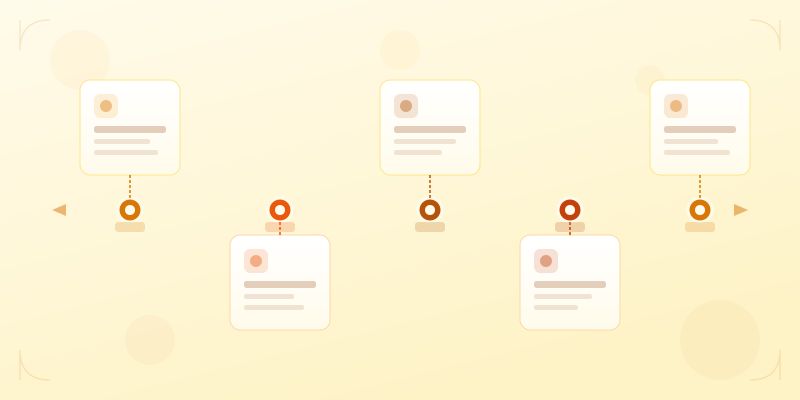
What Is a Timeline Infographic?
A timeline infographic arranges events, milestones, or steps along a chronological axis. It answers "what happened and when?" in a single visual. Unlike a bullet list of dates, a timeline shows the spacing between events — readers instantly see whether milestones were clustered together or spread across decades.
Timelines are one of the most versatile infographic formats. Project managers use them for roadmaps. Marketers use them for campaign recaps. Educators use them for history lessons. Startups use them in pitch decks to show traction. If your content has a time dimension, a timeline is almost always the right format.
When to Use a Timeline vs Other Formats
Use a timeline when the chronological order matters — when the sequence of events tells a story that wouldn't make sense shuffled. Company history, product evolution, project milestones, career progression, historical events.
Don't use a timeline for processes where the order is logical rather than chronological. "Step 1, Step 2, Step 3" is a process diagram (process diagram maker), not a timeline. The difference: a timeline has dates, a process has steps.
Don't use a timeline for decision flows with branching paths — that's a flowchart (flowchart maker). And don't use a timeline for repeating cycles — that's a cycle diagram. Timelines are linear by nature: they have a start, a direction, and an end.
Choosing Your Timeline Layout
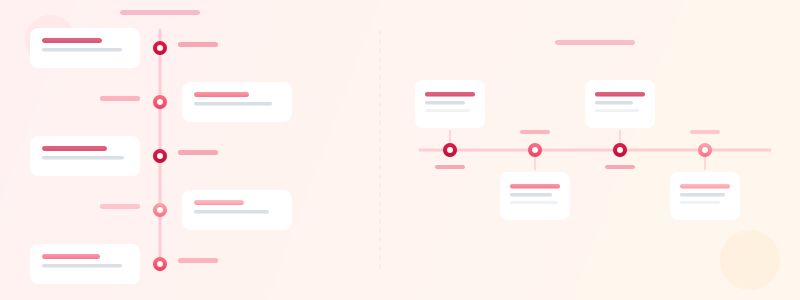
Vertical timelines are the most common and the most readable. Events stack top-to-bottom, earliest at the top. This matches natural reading direction and works well in tall infographic formats (800x2000 or similar). Use vertical when you have more than 6 events or when each event needs a description.
Horizontal timelines work best for shorter sequences — 4 to 8 events — and for presentation slides (1920x1080). They feel more like a journey or a roadmap. Use horizontal when the timeline is part of a larger infographic and you need it to share horizontal space with other widgets.
Alternating timelines place events on alternating sides of the center line. This uses space efficiently and creates visual rhythm. It works well when all events are roughly equal in importance and description length.
How to Build a Timeline Step by Step
Step 1: List your events. Write down every milestone with its date, a short title, and an optional one-sentence description. Don't edit yet — get everything down first.
Step 2: Cut ruthlessly. A timeline with 30 events is a spreadsheet pretending to be a graphic. Aim for 5 to 12 events. Keep only the milestones that a reader would actually care about. "Founded company" matters. "Updated the README" does not.
Step 3: Open timeline maker and add a timeline widget. Enter each event with its date, title, and description. Choose vertical or horizontal orientation based on your canvas size.
Step 4: Style for clarity. Assign colors to events — use a single accent color for all events, or color-code by category (product launches in blue, funding rounds in green, team milestones in purple). See color psychology infographics for palette guidance. Add icons to make events scannable at a glance.
Step 5: Check the spacing. Events should be spaced proportionally to the time gaps between them, or at minimum grouped by era. A timeline where "2010" and "2024" are the same distance apart as "2024" and "2025" misleads the reader about pacing.
Ready to build?
Open the free editor and start creating — no signup needed.
Timeline Examples for Common Use Cases
Company history: founding, key hires, product launches, funding rounds, major partnerships. Start with the founding date, end with the present or a future goal. The year in review template works well for annual recaps of company milestones.
Product roadmap: past releases, current sprint, and planned features. Color-code by status — shipped (green), in progress (blue), planned (gray). This gives stakeholders a single visual for "where are we and where are we going?" Try the product roadmap template for a pre-built layout.
Project timeline: kickoff, major deliverables, review checkpoints, launch date. Include both completed and upcoming milestones. Use checkmarks or status indicators to show progress.
Career timeline: education, jobs, promotions, certifications, key achievements. This is the backbone of an infographic resume — pair it with stat cards for measurable accomplishments. See infographic resume guide for the full approach.
Design Tips for Better Timelines
Keep event descriptions short. One sentence per event is ideal. Two sentences maximum. If an event needs a paragraph of explanation, it belongs in a document, not a timeline. The timeline's job is to give the overview — not tell the whole story.
Use consistent formatting. If one event has an icon, they all should. If one event has a description, they all should (even if some descriptions are just one line). Inconsistency makes readers wonder if the missing elements are intentional or just forgotten.
Highlight key moments. Make the most important events visually distinct — a larger node, a bolder color, a different icon. Not every milestone is equally significant. Give readers a visual signal for "this one matters most." For more on using color strategically, see data visualization best practices.
Add context between events. If there's a long gap between two milestones, that gap itself might be part of the story. A startup timeline that jumps from "Series A" to "Series B" three years later raises a question. Consider adding a brief note for significant gaps.

Build Your Timeline in GraphMake
Open the timeline maker and start building immediately — no signup needed. Add events with dates, titles, descriptions, and icons. Switch between vertical and horizontal layouts. Customize colors to match your brand or presentation.
Want a head start? Browse the year in review template for an annual recap layout, or the product roadmap template for a forward-looking project timeline. Both come with pre-positioned widgets you can customize with your own data.
Need more than just a timeline? Open the full editor and combine your timeline with stat cards, charts, progress bars, and any of our 60+ widget types. Export as PNG — free, no watermark.



