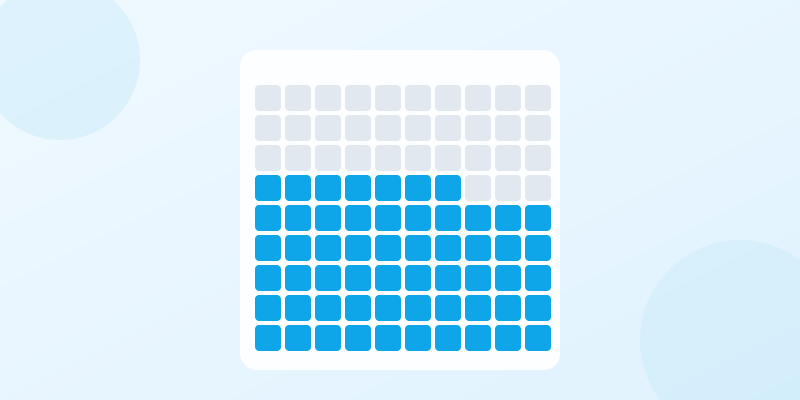
What Is a Waffle Chart?
A waffle chart is a 10×10 grid of small squares where each square represents 1% of the total. Filled squares show the value, empty squares show the remainder. It is one of the simplest and most intuitive ways to display a percentage or proportion — anyone can glance at it and understand "about three quarters" without reading a number.
The format goes by several names: waffle diagram, square chart, percentage grid chart, or waffle plot. They all mean the same thing — a grid-based visualization that trades the angles of a pie chart for countable squares. Research consistently shows people estimate proportions more accurately from this layout than from pie charts, especially for values between 20% and 80%.
You will see them in infographics, annual reports, dashboards, and data journalism. They work best when you need to communicate a single percentage clearly — survey results, completion rates, market share, budget allocation, or any "X out of 100" story.
Waffle Chart vs Pie Chart: When to Use Which
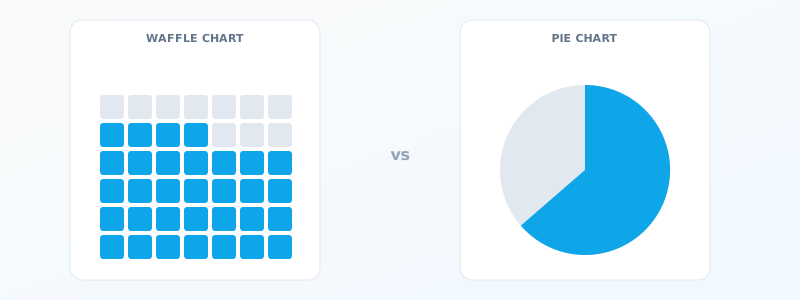
Pie charts encode proportions as angles. Humans are bad at comparing angles — is that slice 28% or 33%? Waffles encode proportions as area on a regular grid. Counting filled squares is trivially easy. For a single value like "67% of users prefer dark mode," this format communicates faster and more accurately than a pie chart.
Pie charts win when you need to show the relationship between multiple categories at once — revenue split across 5 product lines, for example. A pie shows all slices in one shape. A waffle would need 5 separate grids or a multi-colored grid that is harder to parse. For comparing multiple segments, consider a bar chart maker or stacked bar instead.
Use it when: you have one percentage to highlight, the audience includes non-technical readers, you want a moderneditorial look, or the exact value matters more than the relationship between categories. Use a pie chart when: you need to show 3-6 categories in one visual and approximate proportions are sufficient.
For showing progress toward a goal (like "78% complete"), the format works but a progress bar maker may be more compact. For exact single values with dramatic impact ("$4.2M revenue"), a stat card maker is better. Choose the chart type that matches the story you are telling.
How to Design an Effective Waffle Chart
Start with a clean 10×10 grid. The standard has 100 squares because it maps directly to percentages — 1 square = 1%. You can use other grid sizes (5×5 for 25 units, 5×20 for 100 in a wider format) but 10×10 is the convention and readers expect it. Deviating from 100 squares means you need to label the scale, which defeats the simplicity.
Choose two colors: one for the filled portion, one for the empty portion. The filled color should be your brand or accent color — something that pops. The empty color should be subtle — light gray, off-white, or a very faint tint of the filled color. High contrast between filled and empty is critical. If a reader squints, they should still see the proportion clearly.
Fill from bottom-left to top-right (reading order). This is the most intuitive fill pattern — it matches how we scan grids. Some designs fill from top-left down, which also works. Avoid random fill patterns — they make counting harder and look chaotic. The waffle chart maker handles fill order automatically.
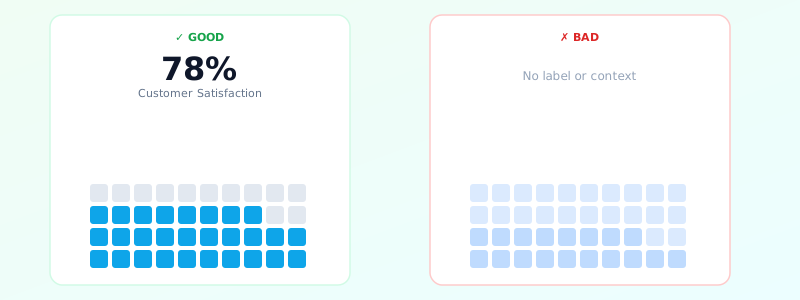
Add a clear label: the percentage number, a descriptive title, and optionally a subtitle explaining what the number means. "78%" alone means nothing. "78% — Customer Satisfaction Score" tells the whole story. Put the number large and bold, the title smaller below it.
Real-World Waffle Chart Examples
Survey results: "64% of respondents prefer remote work." This makes the data immediately visual — readers see roughly two-thirds of the grid filled without needing to interpret an axis or angle. This is why data journalists at outlets like The New York Times and The Guardian use it in polling coverage.
Budget allocation: "42% of the city budget goes to education." Fill 42 squares in blue for education against 58 gray squares for everything else. This is more impactful than a bar chart for a single standout number because the grid gives a visceral sense of proportion — "almost half."
Goal tracking: "We have hit 83% of our annual fundraising target." Use a green-to-gray grid in a donor report or a project dashboard. The visual gap — those 17 unfilled squares — creates motivation in a way that a simple number does not.
Health statistics: "1 in 4 adults experience anxiety." Fill 25 squares in a different color. Medical infographics use this format because it humanizes statistics — each square can represent a person. For related health infographic layouts, browse the templates category for health-themed designs.
Ready to build?
Open the free editor and start creating — no signup needed.
Common Waffle Chart Mistakes
Using more than two colors in a single waffle. If you want to show multiple categories (30% A, 25% B, 45% C), you technically can color the squares differently — but it turns into a confusing quilt. For multi-category comparisons, use a pie chart maker or a stacked bar chart instead. Keep this format to one value vs. the remainder.
Forgetting to label the chart. A grid of colored squares without context is meaningless decoration. Always include the percentage value, what it measures, and enough context for the reader to understand why this number matters. The best examples have a bold number, a concise title, and a one-sentence explanation.
Non-standard grid sizes without explanation. If you use a 5×4 grid (20 squares), each square represents 5%. That is not obvious. Readers will assume 1 square = 1% and get confused. Either stick to 100 squares or prominently label "Each square = 5%." The cognitive overhead of unusual grids is rarely worth the space savings.
Poor color contrast. Light blue on white, or light gray on slightly darker gray — these make the filled and empty portions indistinguishable. Test your chart at arm's length. If you cannot instantly tell the proportion, the contrast is too low. For accessible color choices, see data visualization best practices.
Build Your Waffle Chart in GraphMake
Open the waffle chart maker and set your value, total, and colors — no signup needed. The generator creates a clean 10×10 grid with your proportion filled automatically. Customize the filled and empty colors, add a title and label, and adjust the grid size if needed.
Want one as part of a larger infographic? Open the full editor, add a Waffle Chart widget from the Data category, and position it alongside stat cards, progress bars, charts, and text blocks. Combine multiple instances to compare metrics side by side — "Employee Satisfaction: 87%" next to "Customer Satisfaction: 73%."
Need a template to start from? Browse the templates gallery — the business stats and survey results designs both include the format alongside other data visualizations. Export as PNG when done — free, no watermark.



