
What Is a Tech Stack Diagram
A tech stack diagram is a visual map of the technologies your product or team uses, organized by layer or function. It answers "what's our stack?" in a single image instead of a bullet list in a wiki that nobody reads.
Teams build them for multiple audiences. Engineering uses them during onboarding so new developers understand the landscape before day one. Hiring managers include them in job postings to attract engineers who want to work with those specific tools. Architecture review boards use them to spot redundancy — "why do we have three different message queues?"
The best tech stack diagrams are opinionated about structure. They don't just list tools — they show how the layers relate to each other, which services talk to which databases, and where the boundaries between teams or domains fall.
What to Include in a Tech Stack Diagram
Most tech stacks organize into five or six layers. Frontend: the frameworks, libraries, and tools that run in the browser or app — React, Next.js, Tailwind, TypeScript. Backend: server-side frameworks, APIs, and business logic — Node.js, Django, Go, GraphQL.
Database: your data stores — PostgreSQL, Redis, MongoDB, Elasticsearch. Infrastructure: where everything runs — AWS, GCP, Vercel, Docker, Kubernetes. DevOps and CI/CD: how you build, test, and deploy — GitHub Actions, Terraform, Datadog, PagerDuty.
Third-party services: the external APIs and SaaS tools you depend on — Stripe for payments, SendGrid for email, Auth0 for authentication, Segment for analytics. Don't forget this layer. Most production systems depend on a dozen third-party services that aren't visible in the codebase.
You don't need to list every npm package. Include the tools that a new engineer or a technical evaluator would want to know about. If removing it would change how someone thinks about your architecture, include it. If it's a utility library that nobody thinks about, skip it.
Common Tech Stack Diagram Layouts
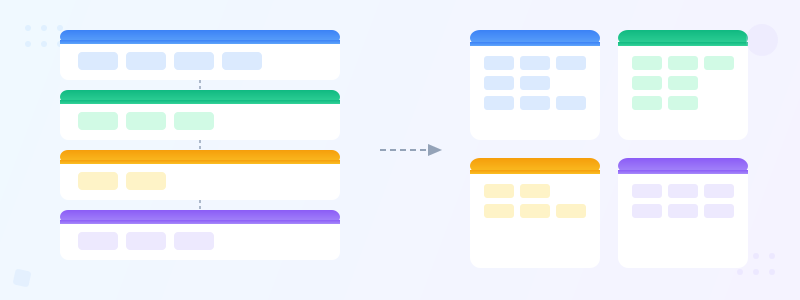
Layered/stacked: the most popular layout. Each layer sits in a horizontal band — frontend on top, backend in the middle, database and infrastructure at the bottom. Tools are listed or shown as icons within their band. This works because it mirrors how requests flow through the system: users interact with the frontend, which calls the backend, which reads from the database.
Grouped by function: instead of horizontal layers, group tools into category boxes arranged in a grid — "Frontend," "API Layer," "Storage," "Monitoring," "CI/CD." This works better when your layers don't map cleanly to the standard frontend-backend-database model, or when you have many cross-cutting tools.
Flow-based (request lifecycle): shows the path of a single request from user to response. The user hits a CDN, which serves the React app, which calls an API gateway, which routes to a microservice, which queries PostgreSQL, and the response flows back. This layout is more architectural than a simple tool list — it shows how the pieces connect, not just what they are.
How to Build One Step by Step
Start by listing every technology your team uses. Open your package.json, Dockerfile, CI config, and infrastructure-as-code files. You'll find tools you forgot about. Group them into categories as you go.
Choose your layout. If you have a standard web app with clear layers, use the stacked layout. If you have a complex microservices architecture with cross-cutting concerns, use the grouped layout. If you're explaining the system to a non-technical audience, use the flow-based layout.
Arrange the groups on your canvas. Put the user-facing layer at the top or left side. Keep related groups adjacent — the backend should sit between the frontend and the database, not off to the side. Leave enough spacing between groups to keep the diagram scannable.
Add labels and optional icons. Tool logos are nice but not required — the name is what matters. Use consistent icon sizing (all 32px or all 48px, not a mix). Color-code each layer so readers can quickly distinguish frontend tools from backend tools from infrastructure.
Ready to build?
Open the free editor and start creating — no signup needed.
Real-World Examples
SaaS startup stack: React + Next.js on the frontend, Node.js + Express for the API, PostgreSQL + Redis for storage, deployed on Vercel and AWS. Stripe for payments, Resend for email, Clerk for auth, PostHog for analytics. Five layers, twelve tools — clean and focused.
Enterprise stack: Angular frontend, Java Spring Boot microservices behind an API gateway, Oracle DB and Elasticsearch, hosted on AWS EKS with Terraform provisioning. Datadog for monitoring, Jenkins for CI/CD, Vault for secrets. More tools per layer, but the structure is the same.
Data engineering stack: Airflow for orchestration, dbt for transformations, Snowflake as the warehouse, Fivetran for ingestion, Looker for visualization. This stack doesn't fit the traditional frontend-backend model, so the grouped layout works better — "Ingestion," "Storage," "Transformation," "Orchestration," "Visualization."
Design Tips for Better Tech Stack Diagrams
Color-code by layer. Pick one color per category and use it consistently — blue for frontend, green for backend, orange for infrastructure. This lets readers scan by color instead of reading every label. See data visualization best practices for more on using color effectively in diagrams.
Keep icon sizes consistent. Nothing looks more amateur than a tech stack diagram where the React logo is 64px and the PostgreSQL logo is 24px. Use a fixed size for all icons — 32px or 40px works well. If you don't have icons for every tool, use text labels for all of them instead of mixing.
Don't list every library. Your diagram should show the 10-20 tools that define your architecture, not the 200 entries in your package.json. If a tool is interchangeable with its alternatives (one date library is as good as another), it probably doesn't belong in the stack diagram.
Include version numbers only for critical components. "PostgreSQL 16" matters because major versions have different capabilities. "Tailwind CSS 3.4.1" doesn't — nobody makes an architectural decision based on the Tailwind patch version.

Build Your Tech Stack Diagram in GraphMake
Open the tech stack architecture template to start with a pre-built layered layout — swap in your own tools and colors. The template includes labeled sections for frontend, backend, database, and infrastructure that you can customize or rearrange.
Need charts alongside your stack diagram? Open the full editor and combine the layout with bar charts for performance benchmarks, stat cards for system metrics, or timelines for migration plans. Use the chart maker for standalone charts.
For general tips on building effective infographics, read data visualization best practices. When you're done, export as PNG — free, no watermark, no signup.



