What Makes a Dashboard Infographic Different
Most infographics tell a story from top to bottom. Dashboards do the opposite. They show everything at once so the reader's eye can jump to whatever metric matters most. A dashboard answers "how are we doing right now?" without scrolling, clicking, or reading paragraphs.
Dashboard infographics sit between live software dashboards (Tableau, Looker) and static PDF reports. They're snapshot views — frozen at a point in time — that you can drop into presentations, emails, Slack messages, or printed board packets. Weekly team updates, quarterly reviews, investor reports: all perfect dashboard territory.
The design rules are strict. Every element must answer a question. No decorative illustrations, no filler text, no charts that exist because the space felt empty. If a widget doesn't help someone make a decision, delete it. The best dashboards feel dense but scannable — packed with data, yet instantly readable.
1. Executive Summary Dashboard
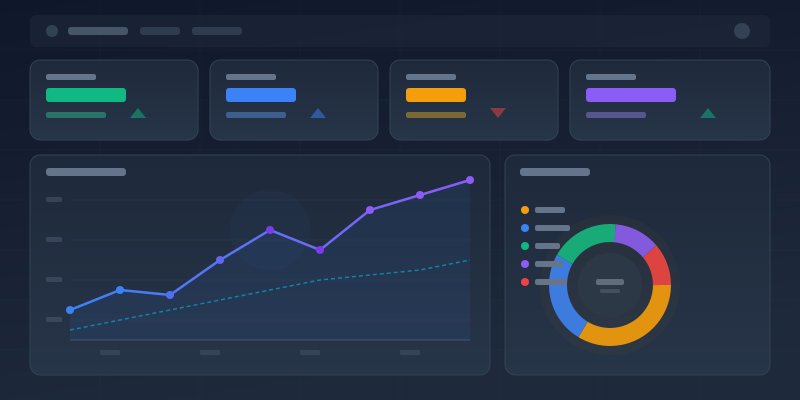
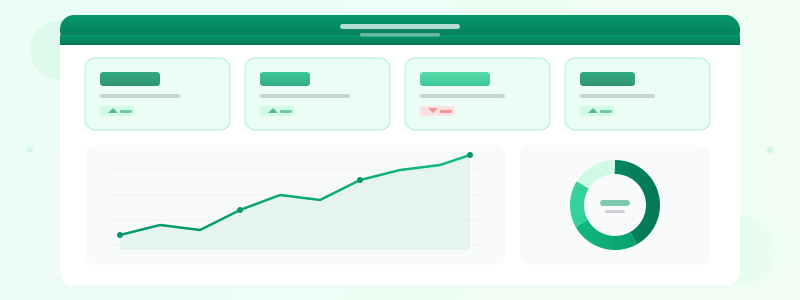
The executive summary is the most common dashboard layout and the one you should master first. Three to five large stat cards across the top showing headline KPIs — revenue, active users, NPS, conversion rate — followed by one or two charts below that add context. A trend line shows direction. A pie chart shows breakdown. Together, the top row answers "what's the number?" and the bottom answers "what's the trend?"
Keep stat cards large with bold typography. The numbers should be readable from across a conference room when projected. Use color to signal performance: green for on-target, red for below-target, gray for neutral. This isn't decoration — it's information. A CEO scanning the dashboard should know within two seconds whether things are healthy.
Below the stat cards, add a single line chart showing the most important metric over the last 12 weeks or 6 months. Don't clutter it with multiple series. One line, one story. If you need a breakdown, put a donut chart or bar chart beside it. Build your stat cards with the stat card maker and pair them with a chart maker.
2. Sales Pipeline Dashboard
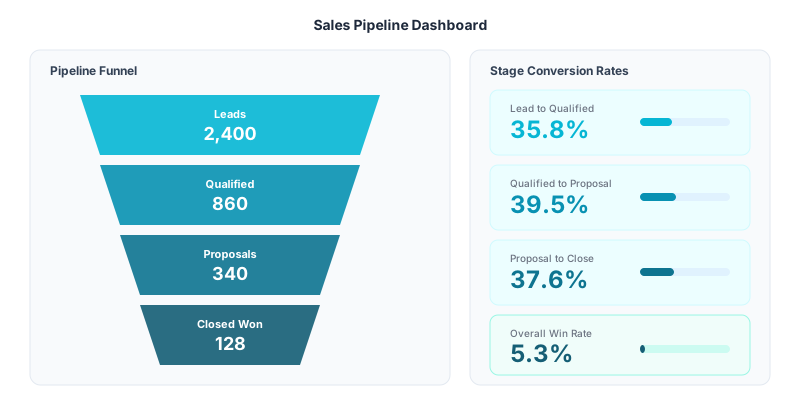
Sales dashboards live and die by the funnel. Place a funnel chart maker prominently in the center showing stage-by-stage conversion: Visitors → Leads → Qualified → Proposals → Closed Won. Surround it with stat cards showing the conversion rate between each stage and the absolute deal count.
The most useful addition is a period comparison. Show this month's funnel beside last month's. Overlay the conversion rates so readers instantly see "our lead-to-qualified rate dropped 12% — that's where we're leaking." Without comparison, a funnel is just a pretty shape. With comparison, it's an action item.
Add a stat card for total pipeline value (e.g., "$2.4M in pipeline"), average deal size, and win rate. These three numbers plus the funnel give a sales leader everything they need for a Monday morning standup. Use the number counter maker for animated pipeline values that grab attention in presentations.
3. Marketing Performance Dashboard
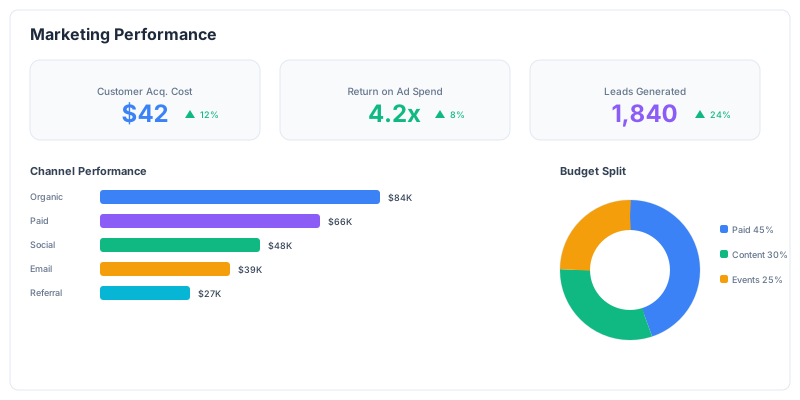
Marketing dashboards need to answer two questions: where is traffic coming from, and what's converting? Start with a bar chart maker breaking down traffic or spend by channel — organic search, paid ads, social, email, referrals. Then add stat cards showing cost-per-acquisition and ROI for each channel.
A pie chart maker works well for budget allocation — showing what percentage of spend goes to each channel. Pair it with a comparison bar showing planned vs actual spend. This immediately surfaces overspend before it becomes a quarterly surprise.
For content marketing dashboards, swap the channel breakdown for a top-performing content table: page title, pageviews, conversions, and conversion rate. Keep it to the top 5 — dashboards aren't spreadsheets. The goal is to highlight what's working so the team doubles down on it.
4. Project Status Dashboard
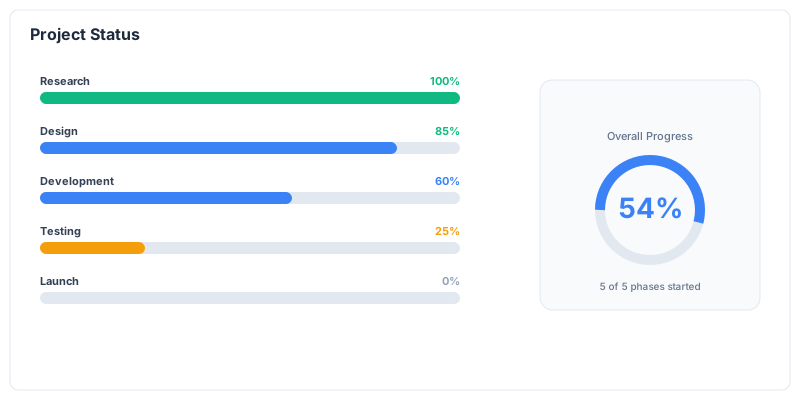
Project dashboards revolve around progress bar maker. Line up five to eight bars vertically, each representing a workstream or milestone with its current completion percentage. Sort by completion — lowest first to focus attention on what needs help, not what's already done.
Add a single large stat card at the top: "67% Overall Complete" or "14 of 21 Milestones Hit." This anchors the dashboard with a single number that stakeholders remember. Below the progress bars, include a compact timeline showing upcoming deadlines for the next 30 days.
Color-code the progress bars by status: green (on track), amber (at risk), red (behind). Don't use more than these three colors — more granularity creates confusion, not clarity. A project sponsor glancing at this dashboard should know in five seconds which workstreams need intervention.
5. Financial Overview Dashboard
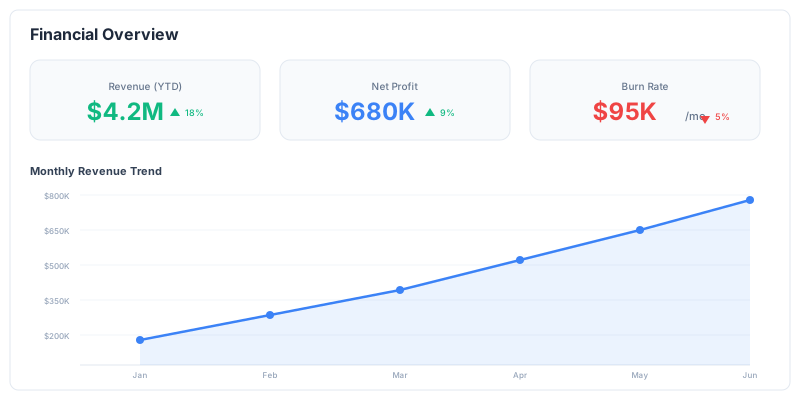
Financial dashboards demand precision. Start with a chart maker showing monthly revenue over the last 12 months — this is the heartbeat of the business. Add stat cards for total revenue, net profit, burn rate, and runway (for startups) or operating margin (for established companies).
Below the revenue trend, add a bar chart maker for expense breakdown by category: payroll, infrastructure, marketing, operations. This answers "where is the money going?" at a glance. For SaaS companies, add MRR, ARR, and churn rate as dedicated stat cards.
Keep financial dashboards conservative in style. Use dark text on white backgrounds, minimal color, and precise numbers (not rounded). Executives and board members expect financial data to look serious. Save the playful color palettes for marketing dashboards.
6. Customer Analytics Dashboard
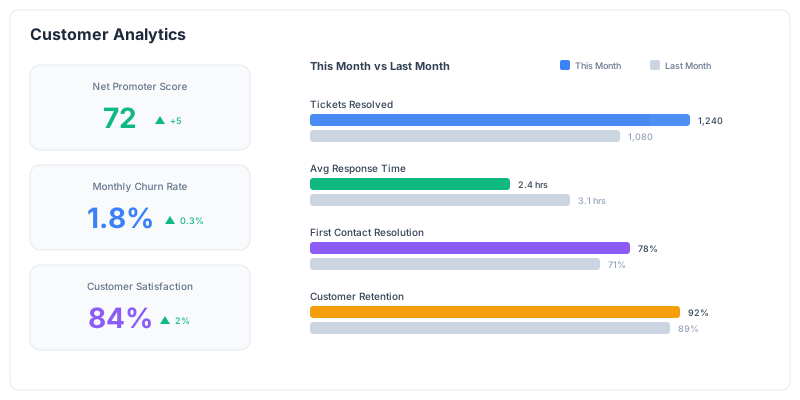
Customer dashboards center on three metrics: NPS (loyalty), churn rate (retention), and satisfaction score (experience). Display each as a large gauge maker with a trend arrow showing month-over-month direction. These three numbers tell the entire customer health story.
Add a bar chart showing NPS distribution — the percentage of promoters, passives, and detractors. This is more useful than the NPS number alone because it shows the shape of customer sentiment. A company with 40% promoters and 10% detractors is healthier than one with 50% promoters and 20% detractors, even if both have the same NPS.
For support-focused dashboards, include average resolution time, ticket volume trend, and first-response time. Use comparison maker to show this month vs target for each metric.
7. HR and People Dashboard
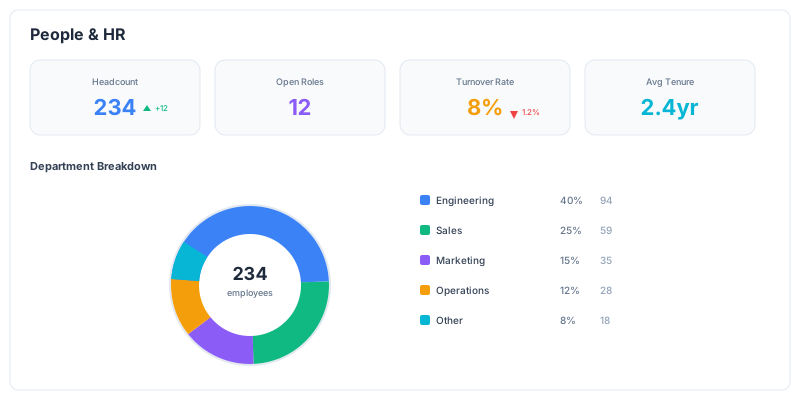
HR dashboards track the health of the organization itself. Top-row stat cards should show total headcount, open positions, new hires this quarter, and voluntary turnover rate. These four numbers give leadership an instant read on workforce stability.
Below the headline stats, add a bar chart showing headcount by department and a trend line showing hiring velocity over time. For companies focused on diversity, include a breakdown chart — but present it respectfully with clear context, not as a decoration.
Turnover is the metric that matters most here. Show it as a trend line, not just a number. A 15% annual turnover rate might be acceptable, but if the line is pointing sharply upward over the last three months, that's a crisis. Add a progress bar maker for hiring pipeline fill rate — how many open roles have candidates in final stages.
Ready to build?
Open the free editor and start creating — no signup needed.
8. Product Analytics Dashboard
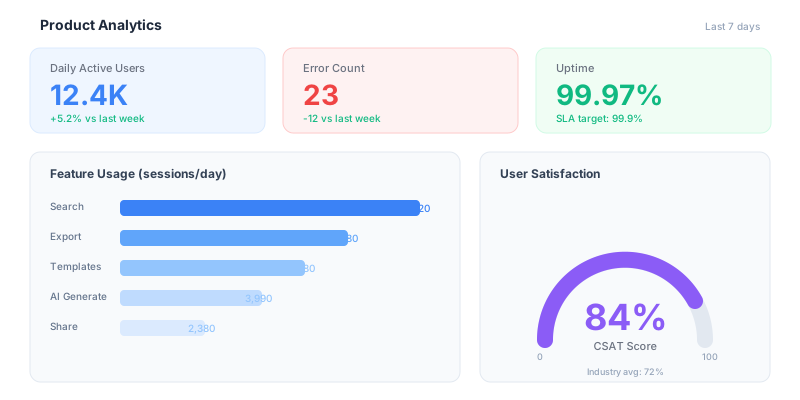
Product dashboards answer: who is using the product, how much, and where are they struggling? Lead with DAU/WAU/MAU as stat cards with trend arrows. A chart maker showing the DAU/MAU ratio over time reveals engagement health — a declining ratio means users sign up but don't stick.
Add a horizontal bar chart for feature adoption: what percentage of active users have tried each major feature. This surfaces underused features that might need better onboarding or deprecation. Sort by adoption rate, highest first.
Error rate and crash-free sessions deserve a dedicated section. Show them as stat card maker with color coding: green below 0.5%, amber at 0.5–1%, red above 1%. For mobile apps, break this down by platform (iOS vs Android). Product managers live in these dashboards — make them dense and data-rich.
9. Social Media Dashboard
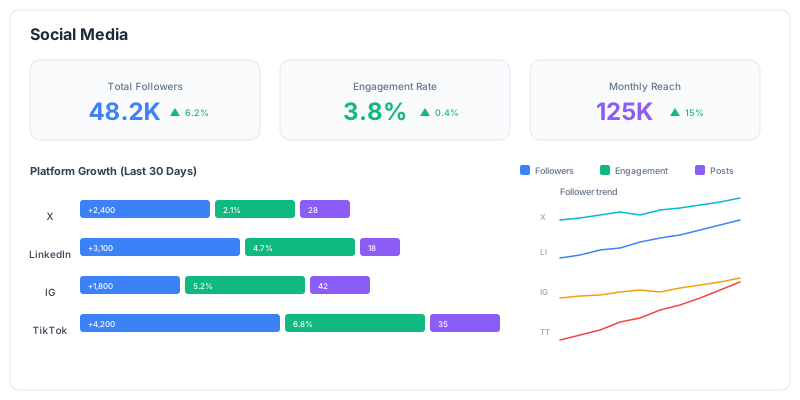
Social dashboards need to cover multiple platforms without becoming a spreadsheet. Use one row of stat cards per platform — followers, engagement rate, and reach — with platform icons for instant recognition. Keep the layout consistent: same metrics in the same order for every platform.
Below the per-platform stats, add a bar chart maker comparing performance across platforms. Which platform drives the most engagement? Which has the fastest follower growth? These cross-platform comparisons are where the strategic insights live.
Include a "top post" section showing your best-performing content this period with its key metrics. This turns the dashboard from a monitoring tool into a learning tool — the team sees what content resonates and replicates it. Use number counter maker for total reach and impressions across all platforms.
10. OKR Tracker Dashboard
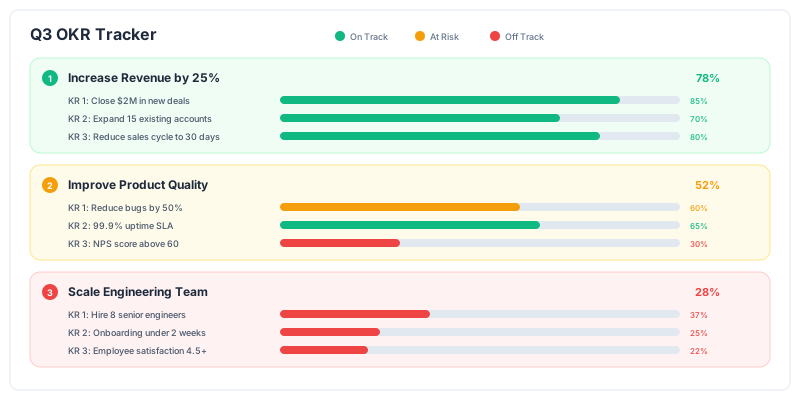
OKR dashboards map directly to progress bar maker. Each Objective gets a section header, and its Key Results are listed below as progress bars showing current vs target. Color-code by confidence: green (will hit), amber (stretch), red (at risk).
Add a stat card at the top showing "X of Y Key Results on track" and the overall OKR completion percentage. This single number is what leadership cares about — the detail below supports it.
The best OKR dashboards include a brief text label on each Key Result showing the actual number, not just the percentage. "Revenue: $1.8M of $2M target (90%)" is more useful than just "90%." Context matters. Build your OKR tracker in the editor where you can combine progress bars, stat cards, and text blocks freely.
11. Website Analytics Dashboard
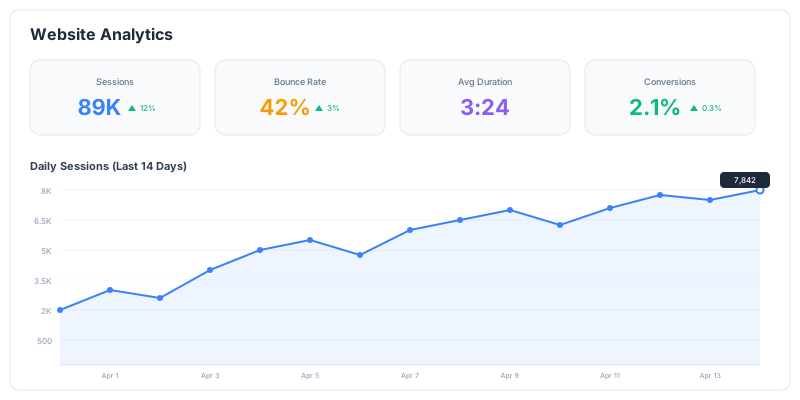
Website dashboards distill Google Analytics into something a non-analyst can understand. Lead with four stat cards: total sessions, unique visitors, bounce rate, and average session duration. These are the vital signs. Add trend arrows showing week-over-week change.
A pie chart maker for traffic source breakdown (organic, direct, referral, social, paid) answers "where are visitors coming from?" without requiring anyone to log into GA. Beside it, a bar chart maker showing top 5 landing pages by sessions reveals what content is pulling people in.
For conversion-focused sites, add a dedicated row showing conversion rate, total conversions, and cost per conversion. Use a funnel chart maker to show the visitor → signup → activation → purchase journey. This connects traffic metrics to business outcomes — which is what actually matters.
12. Competitive Analysis Dashboard
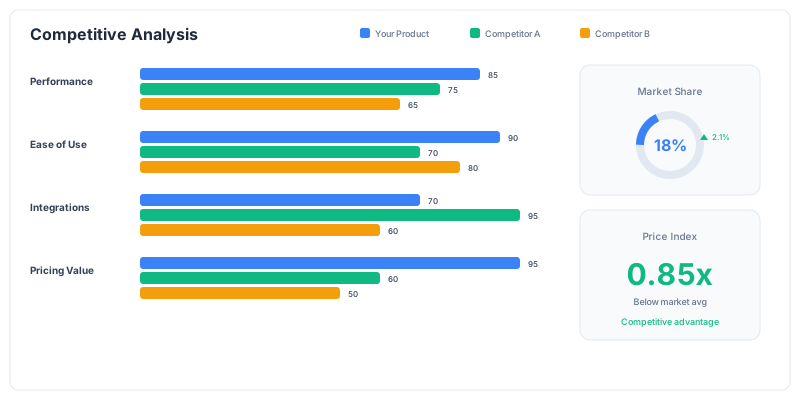
Competitive dashboards use comparison maker heavily. Set up a matrix layout: competitors as columns, metrics as rows. Market share, pricing, feature count, customer rating, growth rate — each metric gets a row of comparison bars showing how you stack up.
A pie chart maker for market share distribution is the single most impactful widget here. Your slice should be visually highlighted — use your brand color while competitors get muted tones. This creates an instant visual anchor.
Add stat cards for your key advantages: "2x faster than Competitor B," "40% lower price than market average," "#1 rated on G2." These aren't just metrics — they're talking points for the sales team. Competitive dashboards are as much internal marketing tools as they are analytical ones. Browse our templates for pre-built competitive layouts.
Combining Widgets: The Composite Dashboard Technique
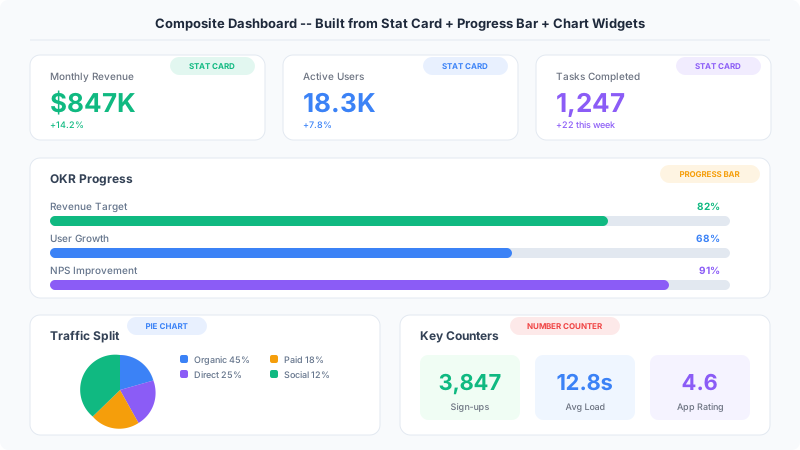
The most effective dashboards don't just place widgets side by side — they combine stat cards, charts, and progress bars into composite groups that tell a richer story than any single widget could. A stat card showing "$1.2M Revenue" is useful. That same stat card sitting above a sparkline trend and beside a progress bar showing "60% of $2M target" is powerful.
Start by grouping related metrics. Place a large stat card (the headline number) at the top of a section, a small chart maker below it showing the trend, and a progress bar maker at the bottom showing goal completion. This three-layer stack — number, trend, progress — answers what, where, and how far in a single visual unit.
You can build these composite groups in the editor by dragging widgets into tight vertical arrangements. Use consistent spacing (20px gaps) and align everything to the same left edge. Group three or four of these composite stacks horizontally across the dashboard for a professional, information-dense layout.
For more on choosing the right chart types guide and data visualization best practices, check our companion guides. These techniques apply to every dashboard type above — executive, sales, product, or any other category.
Build Your Dashboard Infographic
Open the editor and start building your dashboard by dragging stat cards, charts, progress bars, and funnel widgets onto the canvas. Pick the layout that matches your use case from the 12 examples above — or combine elements from multiple layouts to create something custom.
For tips on choosing the right metrics and avoiding common dashboard mistakes, read our dashboard design tips guide. When you're done, export as PNG for presentations or PDF for printed reports — free, no watermark. Every widget is fully customizable with colors, fonts, and data — no design skills required.



