What Makes a Poster Effective?
A poster has one job: grab attention and communicate a message in seconds. Whether it's an event announcement, a conference presentation, or a data-driven infographic poster, the design needs to work from across the room. If someone has to squint or spend thirty seconds finding the main point, the poster has failed.
Effective posters share three traits: a clear visual hierarchy (your eye goes where the designer intended), high contrast between text and background, and restraint — saying more with less. The best posters are the ones where you can remove nothing without losing meaning.
You don't need Photoshop or Illustrator. The poster maker lets you design posters with pre-built layouts and data widgets, export as PNG, and iterate in minutes. For data-heavy posters, the full editor gives you 60+ widget types — charts, stat cards, timelines, progress bars — on a single canvas.
Choosing the Right Poster Size
Your poster size depends on where it will be displayed. For print: A3 (297×420mm) is the standard for event flyers and classroom posters, A2 (420×594mm) for conference posters. For digital: 1080×1080 for Instagram, 1080×1920 for stories, 735×1102 for Pinterest pins, 1920×1080 for presentation slides.
When in doubt, go portrait. Portrait posters naturally create top-to-bottom reading flow — headline at top, supporting content in the middle, call-to-action at the bottom. Landscape works for presentation-style posters where content spreads horizontally across columns.
In the poster maker you can switch between portrait, landscape, square, and Pinterest sizes instantly. If you need a custom size, open the editor and set exact pixel dimensions for your canvas.
Poster Layout: The Visual Hierarchy
Every poster needs three levels of hierarchy. Level 1: the headline — this is what people read first. It should be readable from 3 meters away on a printed poster, or instantly scannable on a phone screen. Level 2: supporting information like dates, locations, key stats. Level 3: details like fine print, URLs, social handles.
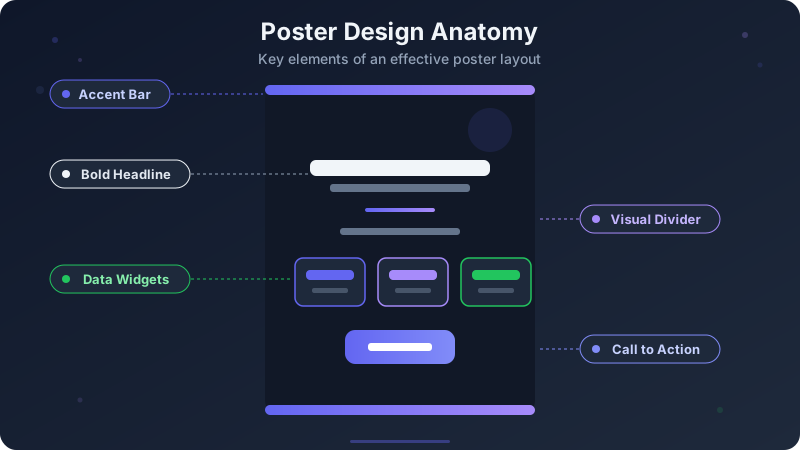
The classic poster layout is stacked: accent bar at the top for brand color, giant headline in the upper third, a visual divider (line, shape, or whitespace), supporting content in the middle, and a call-to-action button or URL at the bottom. This structure works for events, promotions, and data posters alike.
Don't center-align everything. Center alignment works for the headline, but body text and data sections are easier to scan when left-aligned. Mix alignment intentionally — centered headlines pull attention, left-aligned details are easier to read.
Typography: Choosing Poster Fonts
Use two fonts maximum. A bold display font for the headline (Poppins, Montserrat, Oswald — anything heavy and wide) and a clean sans-serif for body text (Inter, Open Sans, Lato). Using three or more fonts makes the poster feel chaotic.
Size matters more on posters than any other format. Your headline should be at least 3× the size of your body text. If your body text is 14px, your headline should be 42px or larger. For print posters, the headline needs to be 60-100pt to be readable at distance.
Letter spacing (tracking) opens up headlines. Adding 2-5% tracking to an all-caps headline makes it feel more premium and easier to read from a distance. Don't add tracking to body text — it makes paragraphs harder to scan.
Color Palettes for Posters
High contrast is non-negotiable. Light text on dark backgrounds or dark text on light backgrounds. The middle ground — medium gray on white, or light blue on slightly lighter blue — kills readability. Use the color contrast checker to verify your text-background combinations meet accessibility standards.
Limit your palette to 3-4 colors: a background color, a text color, an accent color for headlines and CTAs, and optionally a secondary accent for data elements. More colors create visual noise. Check color psychology infographics for guidance on choosing colors that match your message.
Dark backgrounds (navy, charcoal, deep purple) make posters feel premium and modern. They also make data visualizations pop — colored chart bars and stat cards contrast beautifully against dark surfaces. Light backgrounds feel clean and professional but need strong accent colors to avoid looking bland.
Ready to build?
Open the free editor and start creating — no signup needed.
Adding Data to Your Poster
Data-driven posters — infographic posters — are more engaging than text-only designs. A poster with "87% customer satisfaction" in a big stat card is more compelling than a paragraph saying "our customers are generally satisfied." Numbers catch eyes; paragraphs don't.
Use stat cards for hero metrics (the 2-3 numbers you want people to remember), bar or donut charts for breakdowns, and progress bars for completion or comparison data. Keep data sections to 3-5 elements — a poster with 15 charts is a report, not a poster.
The poster maker gives you a starting layout. For data-heavy posters, click "Customize in Editor" to open the full editor where you can drag in pie charts (pie chart maker), bar charts (bar chart maker), timelines (timeline maker), and 30+ other widgets.
Common Poster Design Mistakes
Too much text. If your poster has more than 50 words (excluding data labels), you're writing an article, not designing a poster. Cut ruthlessly. Every word should earn its spot. If a sentence can be replaced with a stat card or icon, replace it.
No whitespace. Cramming content to the edges makes the poster feel suffocating. Leave generous margins (at least 10% of the poster width on each side) and space between sections. Whitespace isn't wasted space — it's breathing room that makes the content digestible.
Weak call-to-action. Every poster should answer "what do I do next?" — visit a URL, scan a QR code, register for an event, contact someone. Make the CTA visually distinct (button shape, accent color, larger size) and place it in the bottom third where eyes naturally finish.
Ignoring print resolution. A poster that looks sharp on screen at 800px wide will print blurry on an A3 sheet. For print, design at 2× or 3× resolution, or use the editor's high-DPI export. For digital-only posters, 1080px width is sufficient for most screens.
Poster Types and When to Use Each
Event posters: bold headline with event name, date, location, and one striking visual. Keep it simple — the goal is to make someone stop and note the date. Use the accent bar and a single hero stat or image.
Conference and academic posters: structured layouts with sections (Introduction, Methods, Results, Conclusions). These are information-dense by nature — use columns, charts, and numbered sections to organize content. Our templates gallery has layouts built for this.
Infographic posters: data-driven storytelling in poster format. Combine charts, stat cards, and text blocks to tell a visual story. This is where GraphMake excels — build with the full editor using any combination of 60+ widget types.
Promotional posters: product launches, sales, announcements. Lead with the offer or key benefit as the headline, add supporting details below, and close with a clear CTA. Dark backgrounds with bright accent colors work best for promotional impact.
Design Your Poster with GraphMake
Open poster maker to start with a curated layout — pick your size, enter your text, choose a palette, and export as PNG in under two minutes. No signup needed.
For full creative control, click "Customize in Editor" to open the poster in the editor. Add charts, stat cards, timelines, icons, and any of our 60+ widget types. Drag, resize, and layer everything on a single canvas.
Browse templates for pre-designed poster-friendly layouts — event recaps, project proposals, and data dashboards that work beautifully in poster format. Export as PNG — free, no watermark.



