What Is a Gantt Chart and Why Should You Care?
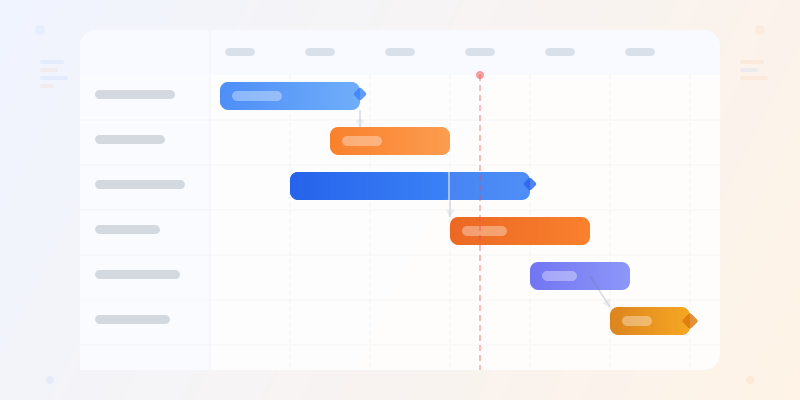
A Gantt chart is a horizontal bar chart that maps tasks against time. Each bar represents a task — its position shows when it starts, its length shows how long it takes, and the rows stack tasks vertically so you can see everything happening in a project at once. It answers the question every project manager hears daily: "Where are we and what's next?"
Gantt charts were invented by Henry Gantt in the 1910s for tracking industrial production schedules. Over a century later, they're still the most widely used project visualization format — because nothing else shows the intersection of tasks, time, and dependencies as clearly.
You don't need expensive project management software to build one. A well-structured Gantt chart infographic communicates your project plan to stakeholders, clients, and team members in a single image they can reference without logging into any tool.
When to Use a Gantt Chart vs Other Formats
Use a Gantt chart when your project has multiple tasks that overlap in time and you need to show the schedule visually. Software launches, marketing campaigns, construction timelines, event planning, product roadmaps — any project where tasks run in parallel and timing matters.
Don't use a Gantt chart for simple sequential processes. If your "project" is five steps done one after the other with no overlap, a process diagram is simpler and cleaner — try process diagram maker instead.
Don't use a Gantt chart for decision flows with branching logic — that's a flowchart (flowchart maker). And don't use one for historical events where the point is the story, not the schedule — that's a timeline (timeline maker). Gantt charts are specifically for planning and tracking work that happens in parallel.
Step 1: Break Down Your Project Into Tasks
Before you touch any tool, list every task in your project. Not milestones, not phases — tasks. "Design homepage mockup," "Write API endpoints," "Set up CI/CD pipeline," "User testing round 1." Each task should be a concrete piece of work with a clear start and end.
Group related tasks into phases or categories. A typical software project might have: Planning, Design, Development, Testing, Launch. A marketing campaign might have: Research, Content Creation, Design, Distribution, Analysis. These groups become your row sections in the Gantt chart.
For each task, estimate the duration (in days or weeks) and identify dependencies — which tasks can't start until another task finishes. "QA testing" can't start until "Development" is done. "Content writing" and "Design" might run in parallel. These relationships are what make a Gantt chart more useful than a simple to-do list.
Step 2: Define Your Timeline Scale
Your timeline scale depends on the project length. A two-week sprint? Use days as your unit. A six-month product launch? Use weeks. A multi-year construction project? Use months.
Pick the scale that shows meaningful progress without cramming too many divisions onto the chart. If your Gantt chart has 180 daily columns for a six-month project, it's unreadable. Thirty weekly columns is much cleaner.
Mark key dates on the timeline: project kickoff, major deadlines, external dependencies (client review dates, third-party deliverables), and the final delivery date. These become your reference points when reading the chart.
Step 3: Build Your Gantt Chart
Open the gantt chart maker and start from one of its four plans. Enter your tasks with the week each one starts, how many weeks it runs, and an owner. The chart renders task bars along a weeks (or quarters) axis automatically.
Arrange tasks by phase or category. Put the earliest tasks at the top and let the chart flow chronologically downward. Within each phase, order tasks by their start date so the visual progression feels natural.
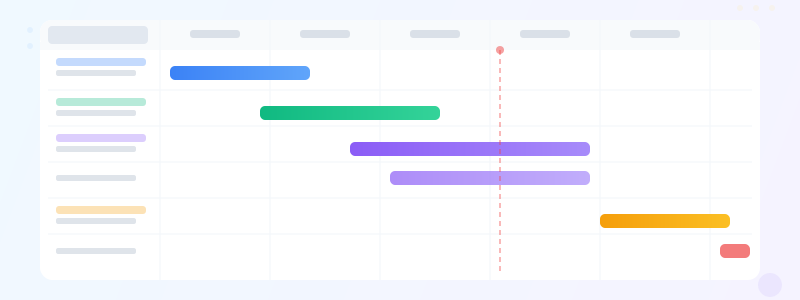
Color-code by phase or team. If all design tasks are blue and all development tasks are green, readers can scan the chart by color to see where each team's work sits in the timeline. See color psychology infographics for help choosing effective color combinations.
Step 4: Add Dependencies and Milestones
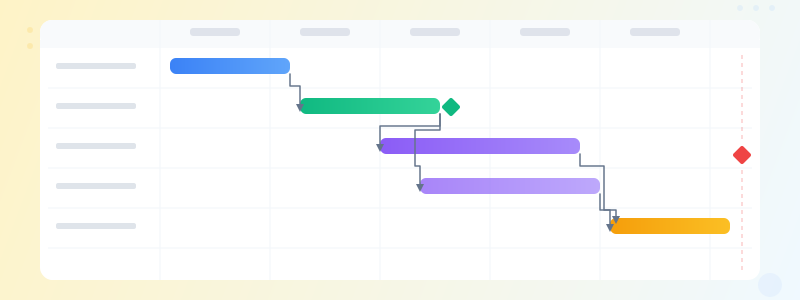
Dependencies show which tasks are blocked by other tasks. In a Gantt chart, these typically appear as arrows connecting the end of one bar to the start of another. "Backend API" must finish before "Frontend integration" can start — an arrow makes that constraint visible.
Not every task needs a visible dependency arrow. Only show dependencies that matter for understanding the critical path — the sequence of dependent tasks that determines the earliest possible project completion. Too many arrows turn the chart into a spider web.
Milestones are key checkpoints that don't have duration — they're moments, not tasks. "Design approved," "Beta release," "Go live." Show them as diamond markers on the timeline. They help stakeholders focus on what matters without getting lost in task-level detail.
Ready to build?
Open the free editor and start creating — no signup needed.
Gantt Chart Examples for Common Projects
Software development: Planning (2 weeks) followed by Design (3 weeks, overlaps with planning tail), then Backend development (6 weeks) and Frontend development (5 weeks, starts 1 week after backend) in parallel, followed by Testing (3 weeks), Bug fixes (2 weeks), and Launch (milestone). Dependencies: testing depends on both backend and frontend completion.
Marketing campaign: Research and strategy (2 weeks), then Content creation (4 weeks) and Design (3 weeks) in parallel, followed by Review and approval (1 week), Distribution across channels (3 weeks), and Performance analysis (2 weeks). The parallel content and design tracks are exactly the kind of overlap that makes Gantt charts valuable.
Event planning: Venue selection (month 1), Vendor contracts (month 2), Marketing and promotion (months 2-4), Content and speaker prep (months 2-3), Logistics and setup (month 4), Event day (milestone), Post-event follow-up (2 weeks). Long lead times and overlapping workstreams make this a perfect Gantt chart use case.
Product roadmap: show quarterly releases with feature development timelines running in parallel. Color-code by product area — core platform in blue, mobile app in green, integrations in purple. Add milestone diamonds for each release date. This gives leadership a single view of everything in flight.
Design Tips for Better Gantt Charts
Keep the task count manageable. A Gantt chart with 50 tasks is a project plan, not a visual communication tool. For infographics and presentations, aim for 10 to 20 tasks grouped into 3 to 5 phases. Summarize detailed work into higher-level tasks — "Frontend development" instead of listing every component.
Use consistent bar heights and spacing. Cramped rows make the chart hard to scan. Give each task enough vertical space for its label to be readable. If you need to fit more tasks, make the chart taller rather than shrinking the rows.
Show today's date as a vertical line. This immediately separates "done" from "in progress" from "upcoming." Stakeholders glance at the today line and instantly understand where the project stands. Color completed tasks differently from future tasks to reinforce the distinction.
Label the bars directly. Don't make readers cross-reference a legend or count rows to figure out which bar is which. Put the task name inside or next to each bar. If the bar is too short for text, extend the label outside the bar with a subtle connector line.
Common Gantt Chart Mistakes
No buffer time. Every task in your Gantt chart finishing exactly on its estimated end date is a fantasy. Build in buffer — either as explicit "buffer" tasks between phases, or by padding estimates by 20-30%. A Gantt chart that shows a realistic schedule is more useful than one that shows an optimistic fiction.
Ignoring dependencies. A Gantt chart without dependencies is just a list of bars on a timeline. The dependencies are what make it a planning tool — they show the critical path, reveal bottlenecks, and tell you which delays will cascade. If you skip dependencies, you'll miss the whole point.
Too much detail for the audience. A project manager needs task-level Gantt charts. An executive needs phase-level Gantt charts. A client needs milestone-level Gantt charts. Match the detail level to the audience. Showing a CEO 40 development tasks is noise — show them 5 phases and 3 milestones.
Not updating it. A Gantt chart that was accurate three weeks ago is actively misleading today. If you're using the chart for ongoing project communication, update it at least weekly. If it's a one-time infographic for a presentation, note the "as of" date clearly.
Gantt Charts vs Other Project Visuals
Gantt chart vs timeline: a timeline shows events along a time axis, but events are point-in-time or short descriptions — they don't have duration bars. A Gantt chart shows tasks with duration, making it better for project planning where "how long does this take?" matters as much as "when does it happen?" Use a timeline (timeline maker) for milestones and history, a Gantt chart for task scheduling.
Gantt chart vs Kanban board: Kanban shows what's in progress right now but doesn't show when things are expected to finish. A Gantt chart is time-based — it shows the plan across weeks or months. Use Kanban for daily workflow management, Gantt charts for communicating the overall schedule to stakeholders.
Gantt chart vs process diagram: a process diagram shows the sequence of steps without a time axis. It answers "what's the order?" but not "how long does each step take?" If timing matters, use a Gantt chart. If the process is the same regardless of timeline, a process diagram (process diagram maker) is simpler.
Build Your Gantt Chart in GraphMake
Open the gantt chart maker to create your project timeline instantly — no signup needed. Add tasks with a start week, a length, and an owner. Give each task its own color, add milestone markers, and export as PNG.
Need the Gantt chart as part of a larger project overview? Open the full editor and combine it with stat cards showing project metrics, progress bars for phase completion, and text blocks for status notes. All 60+ widget types work together on one canvas.
For more on structuring your project data visually, read data visualization best practices. For timeline-based visualizations that focus on events rather than tasks, check how to make timeline. Export your Gantt chart as PNG — free, no watermark.