When a Scatter Plot Is the Right Choice
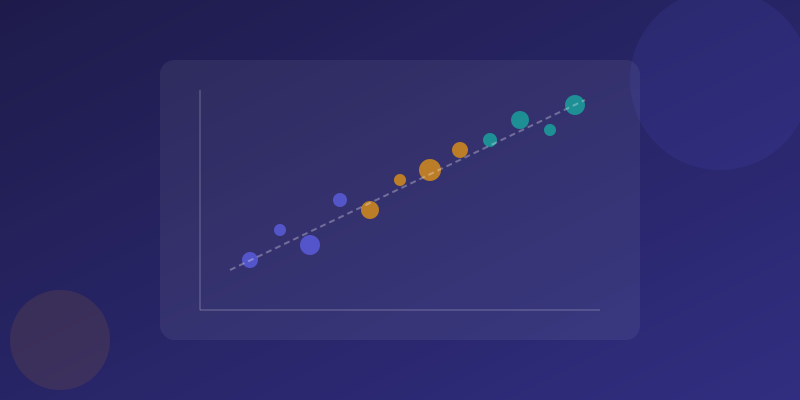
A scatter plot shows the relationship between two numerical variables. Each data point gets a position based on its X and Y value, and the pattern of dots reveals whether the two variables are related. It is the only standard chart type designed specifically to answer: "Do these two things move together?"
Use a scatter plot when you have paired numerical data and want to explore correlation. Ad spend vs. revenue. Study hours vs. exam score. Temperature vs. ice cream sales. If one variable is categorical, a bar chart is a better fit. If you are showing change over time, a line chart is clearer.
Scatter plots are underused because they feel "statistical" — but they are one of the most honest chart types. They show the full data, including outliers and noise, without smoothing anything away.
Preparing Your Data
You need two columns of numerical data with a one-to-one mapping. Each row is one data point: column A is the X variable, column B is the Y variable.
Clean your data before plotting. Remove rows where either value is missing. Check for obvious data entry errors: a single point at 10x the expected value will compress the rest of your data into a tight cluster in one corner.
Sample size matters. A scatter plot with 5 points does not reveal a meaningful pattern. With 30+ points, patterns emerge. With 100+, you can be confident about the relationship.
Reading Correlations
Dots sloping upward from left to right suggest positive correlation — as X increases, Y tends to increase. A downward slope suggests negative correlation. A random cloud means no correlation — and that is a useful finding too.
Strength shows up as tightness. Dots clustered tightly around an imaginary line = strong correlation. A loose, wide cloud = weak. A correlation coefficient (r) of 0.8+ is strong; 0.5-0.8 is moderate; below 0.3 is weak. The scatter plot maker can calculate this automatically.
One critical warning: correlation is not causation. Ice cream sales correlate with drowning deaths — both are caused by summer heat. State what the chart shows, not what it proves.
Trend Lines and Regression
A trend line summarizes the overall direction of the data. Adding one transforms a cloud of dots into a clear visual statement: "the relationship goes this way, at roughly this rate."
For most purposes, a linear trend line is sufficient. If the relationship is clearly curved, a polynomial trend line fits better but is harder for general audiences to interpret.
Show the R-squared value alongside the trend line. R-squared of 0.72 means 72% of the variation is explained — strong. R-squared of 0.15 means the trend line is barely better than guessing — remove it.
Ready to build?
Open the free editor and start creating — no signup needed.
Labeling and Formatting
Label axes clearly with the variable name and unit. "Marketing Spend ($)" on X, "New Customers" on Y. Without units, the reader cannot interpret the scale.
Do not connect the dots — that implies a sequential relationship that does not exist. Use consistent dot sizes unless encoding a third variable. See data visualization best practices for more on chart clarity.
Color can encode categories. If your scatter plot includes data from three segments, color each differently. Use a colorblind-safe palette — blue, orange, and dark gray work well together.
Common Mistakes
Overplotting: hundreds of stacked dots become a dark blob. Fix with 30-50% opacity or use a density heatmap instead.
Misleading axis scales: starting the X axis at 50 when data ranges from 50-100 exaggerates the spread. Start at zero unless there is a clear reason not to.
Cherry-picking: showing only data points that support your narrative. Always plot the full dataset first. See chart types guide for choosing the right chart type.
Build Your Scatter Plot
Open the scatter plot maker, paste your data, and you'll have a scatter plot in under a minute. The tool handles axis scaling, dot sizing, and optional trend lines automatically.
For scatter plots in a larger infographic, use the full editor. Drop a scatter plot widget alongside other chart types to build a complete data story.



