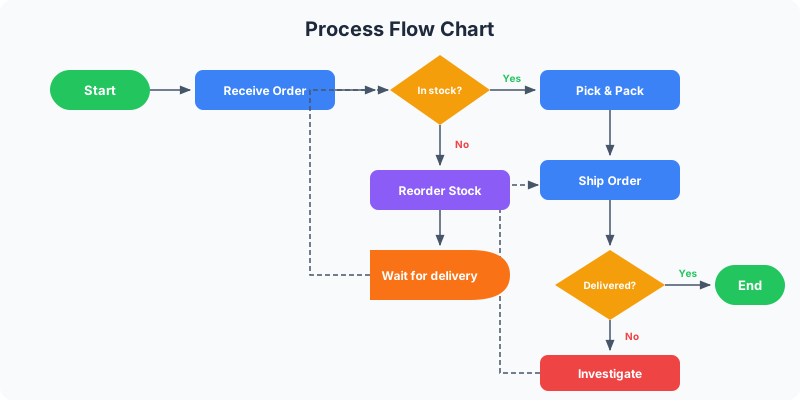
What Is a Workflow Chart?
A workflow chart is a visual diagram that maps the sequence of tasks, decisions, and handoffs in a business process. It shows who does what, in what order, and what happens when things branch or loop back. Unlike a simple to-do list, a workflow chart captures the flow of work across people, teams, or systems — making bottlenecks, redundancies, and gaps visible at a glance.
Workflow charts go by many names: process flow charts, workflow diagrams, business process maps, and operational flow diagrams. The terminology varies by industry, but the core idea is the same — you are drawing the path that work takes from start to finish, including every handoff and decision along the way.
If you have ever tried to explain a multi-step process in a meeting and watched people's eyes glaze over, a workflow chart is the fix. Turning a verbal description into a visual diagram forces precision and eliminates ambiguity. People can see the entire process at once instead of trying to hold it in their heads.
Workflow Charts vs Flowcharts: What Is the Difference?
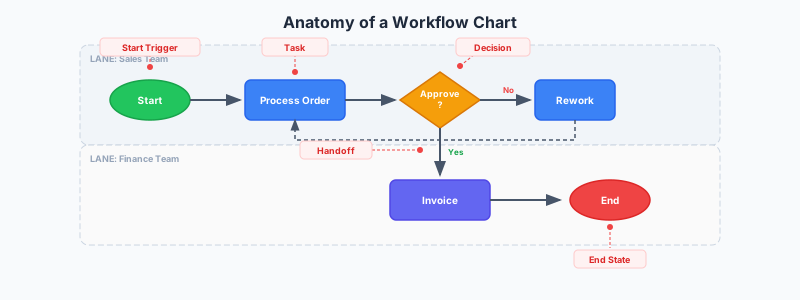
Workflow charts and flowcharts are close cousins, but they serve different purposes. A flowchart maps the logic of a process — it focuses on decisions, branching paths, and conditional outcomes. A workflow chart maps the operational flow — it focuses on tasks, responsibilities, and the sequence of handoffs between people or systems.
Here is the practical distinction: a flowchart might show "Is the invoice approved? Yes: process payment. No: return to requester." A workflow chart shows "Finance team receives invoice, Manager reviews, Accounting processes payment, System sends confirmation." The flowchart emphasizes the decision. The workflow chart emphasizes who does the work and in what order.
In practice, most workflow charts include some decision points, and most flowcharts include some task descriptions. The difference is emphasis. If your primary goal is showing the path work takes through your team or organization, you are making a workflow chart. If your primary goal is mapping conditional logic, you are making a flowchart. For pure decision-based flows, try our flowchart maker instead.
When You Need a Workflow Chart
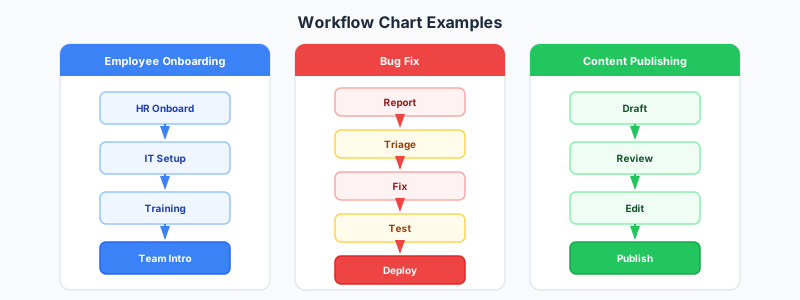
Employee onboarding: mapping every step from offer acceptance to first-day setup, spanning HR, IT, the hiring manager, and facilities. Without a workflow chart, something always falls through the cracks — the laptop is not ready, the badge is not printed, nobody booked the orientation room.
Content publishing: the path from first draft through editing, design, legal review, scheduling, and publishing. Content teams with more than two people almost always need this mapped out, because each person needs to know when the baton passes to them.
Order fulfillment: from the moment a customer places an order through payment processing, inventory check, packing, shipping, and delivery confirmation. E-commerce operations live and die by how well this workflow runs.
Customer support escalation, IT change management, procurement approval chains, bug triage processes, marketing campaign launches — any process that involves multiple people or stages benefits from a workflow chart.
Step 1: Define the Boundaries
Before you draw anything, answer two questions: where does this workflow start, and where does it end? A clear scope prevents your chart from sprawling into a diagram of your entire organization.
For an employee onboarding workflow, the start might be "Offer letter signed" and the end might be "Employee completes first-week checklist." Everything before and after is out of scope. Resist the urge to include the hiring process and the 90-day review — those are separate workflows.
Write the start and end points down. Then list the people or teams involved. For onboarding, that might be HR, IT, the hiring manager, and the new employee. These become the lanes or labels in your workflow chart. Knowing the participants up front prevents you from discovering halfway through that you forgot an entire team.
Step 2: List Every Task in Order
Walk through the process from start to finish and write down every task. Be specific: "HR sends welcome email with first-day instructions" is better than "HR communicates." For each task, note who is responsible and roughly how long it takes.
Common tasks in workflows: creating something (a document, a ticket, an account), reviewing or approving something, sending a notification, updating a system, handing off to the next person, and waiting for an external response.
Do not worry about perfection in this step. You are building a first draft. It is easier to combine or remove tasks later than to realize you forgot a critical step after you have already built the visual.
Step 3: Identify Handoffs and Decision Points
Handoffs are where most workflows break down. Every time work passes from one person or team to another, there is a risk of delay, miscommunication, or the ball getting dropped entirely. Mark every handoff in your task list.
Decision points are moments where the workflow branches. "Manager approves?" leads to either "proceed to next step" or "return with revisions." "Inventory in stock?" leads to either "ship immediately" or "backorder and notify customer." Each decision creates a fork in your workflow.
Count your handoffs. If a workflow has more than 6-8 handoffs, it is probably more complex than it needs to be. Each handoff is a potential failure point. When you draw the chart, these handoffs will be the connections between lanes, making them easy to spot and optimize.
Step 4: Draw the Workflow Chart
Open the flowchart maker or the full editor in GraphMake. Flowchart widgets work perfectly for workflow charts — you get process nodes, decision diamonds, and directional arrows.
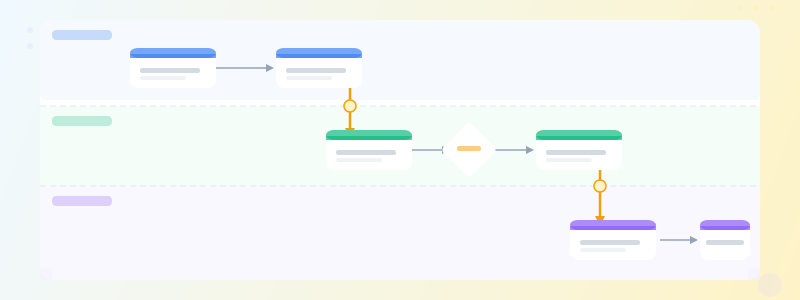
Start with your first task at the top. Add each subsequent task as a new node. Connect them with arrows showing the direction of flow. When you hit a decision point, add a diamond node and branch into two or more paths. When you hit a handoff, make the transition clear — use color coding or labels to show which team takes over.
For complex workflows with multiple teams, consider a swim lane layout: each team gets a horizontal or vertical lane, and tasks sit within the lane of the responsible team. Arrows crossing between lanes clearly show handoffs. The process diagram maker is also useful for simpler, linear portions of your workflow.

Step 5: Simplify and Validate
Your first draft will almost certainly have too many nodes. Look for tasks that can be combined — "Write email" and "Send email" is one task, not two. Remove steps that are obvious and do not need to be documented. Aim for 10-20 nodes in a single workflow chart.
Now validate it. Walk through the chart with someone who actually does the work. Not a manager — the person on the ground. They will immediately spot steps that are missing, steps that are wrong, and steps that only exist in theory but never actually happen. This review usually catches 3-5 issues.
Ask specifically about edge cases: "What happens when the manager is on vacation?" "What if the system is down?" You do not need to map every edge case, but the common ones should have a path in your chart.
Ready to build?
Open the free editor and start creating — no signup needed.
Workflow Chart Best Practices
Keep the flow direction consistent. Top-to-bottom or left-to-right, pick one and stick with it. Mixing directions makes the chart confusing. For tall infographic formats, top-to-bottom works best and fits naturally in GraphMake's standard canvas sizes.
Use color intentionally. Assign a color to each team or role, then use that color for all their tasks. The reader can scan the chart by color alone to understand workload distribution. Check color psychology infographics for palette guidance.
Label every arrow that carries a condition. An unlabeled arrow leaving a decision diamond forces the reader to guess which branch is "yes" and which is "no." Arrows between sequential tasks can stay unlabeled — the direction is enough. Arrows from decisions must be labeled.
Include time estimates where relevant. Adding "2-3 days" to a review step helps stakeholders understand where the bottlenecks are. You do not need time on every node, but adding it to the slow steps highlights optimization opportunities.
Common Workflow Chart Mistakes
Mapping the ideal process instead of the real one. Every organization has the process they think they follow and the process they actually follow. Map reality first, then redesign. A workflow chart that describes a fantasy process helps nobody.
Too much detail. A workflow chart that includes "open laptop" and "log into email" as separate steps is not a workflow chart — it is a user manual. Each node should represent a meaningful chunk of work, not a micro-action.
Forgetting the unhappy paths. What happens when a request is denied? When a system fails? When someone does not respond for a week? The happy path is easy to chart. The real value of a workflow chart is revealing what happens when things go wrong.
No clear ownership. Every task in a workflow should have a responsible person or team. If a node says "review document" but does not specify who reviews it, the workflow has a gap. Ambiguous ownership is the number one cause of stalled workflows.
Workflow Chart Examples
Purchase order approval: Requester submits PO, Manager reviews, Over $5,000? Yes: VP approval required, VP reviews, Approved? Yes: Procurement processes order, Vendor confirms, Goods received, Invoice matched, Payment issued. No at any approval stage: Return to requester with notes.
Bug fix workflow: QA reports bug, Triage meeting assigns priority, Developer picks up ticket, Fix implemented, Code review, Approved? Yes: QA verifies fix, Verified? Yes: Deploy to production, Close ticket. No at either review: Return to developer with feedback.
New client onboarding: Sales closes deal, Account manager assigned, Kickoff call scheduled, Client sends requirements, Team reviews requirements, Project plan created, Client approves plan, Implementation begins, Milestone checkpoints, Project complete, Handoff to support team.
Content publishing: Writer creates draft, Editor reviews, Revisions needed? Yes: Return to writer. No: Designer adds visuals, Legal review, Approved? Yes: Schedule publication, Publish, Distribute on social channels. No: Return to editor with notes.
Workflow Charts for Remote and Distributed Teams
Remote teams need workflow charts more than co-located teams do. When you cannot tap someone on the shoulder and ask "is this ready for me?", the process needs to be documented clearly enough that everyone knows their role without real-time communication.
For distributed teams, add tool references to your workflow nodes: "Submit PR in GitHub" is better than "Submit code changes." "Update status in Jira" is better than "Mark as complete." Tying workflow steps to specific tools reduces ambiguity about where work happens.
Time zone differences make handoffs even more critical. If your designer is in London and your legal reviewer is in San Francisco, a handoff at 5pm London time means legal will not see it until the next morning Pacific. Map these timing constraints into your workflow to set realistic expectations.
Frequently Asked Questions
What is the best tool for making a workflow chart? GraphMake's flowchart maker lets you build workflow charts for free with no signup. You get process nodes, decision diamonds, connectors, and full color customization. For workflows that are part of a larger infographic, use the full editor.
How many steps should a workflow chart have? Aim for 10-20 nodes per chart. Fewer than 10 suggests the process is too simple to need a chart. More than 20 means the chart is hard to read at a glance — break it into sub-workflows.
Should I use a workflow chart or a process diagram? If your process is a straight line with no branching, use a process diagram (process diagram maker). If the process has decision points, approvals, or conditional branches, use a workflow chart.
How do I show parallel tasks in a workflow chart? Use a fork — one arrow splits into two or more paths that run simultaneously, then merge back into a single path with a join. Label the fork "parallel" or "simultaneous" so readers know both paths happen at the same time, not as alternatives.
Can I export my workflow chart as an image? Yes. GraphMake exports workflow charts as PNG for free — no watermark, no signup. Drop the chart into presentations, wikis, documentation, or anywhere you need to communicate a process visually.
Build Your Workflow Chart in GraphMake
Start at flowchart maker for a focused workflow chart building experience — add process nodes, decision diamonds, and connections with no signup required. For linear process flows without branching decisions, process diagram maker gives you a cleaner step-by-step layout.
Need the workflow chart as part of a larger document? Open the full editor and combine a Flowchart widget with stat cards showing process metrics, timeline widgets for project milestones, or text blocks for additional context. The modular widget system lets you build comprehensive process documentation in one visual.
Export as PNG for presentations, team wikis, or onboarding documents — free, no watermark. Whether you are documenting a new process or optimizing an existing one, getting the workflow out of people's heads and into a visual chart is the first step toward making it work consistently.