What Is a Process Flow Chart?
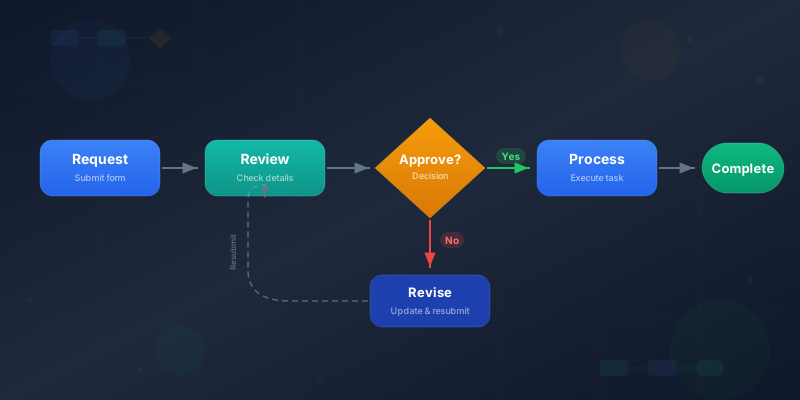
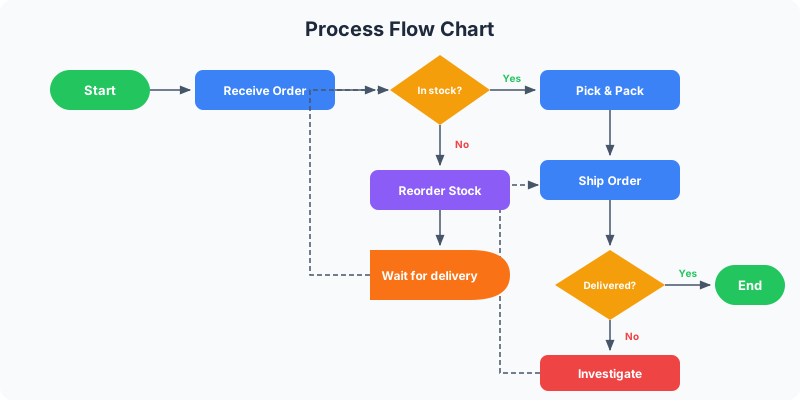
A process flow chart is a visual diagram that shows the steps in a process from beginning to end. Each step is represented by a shape — rectangles for actions, diamonds for decisions, ovals for start and end points — connected by arrows that show the order of operations.
Process flow charts are one of the oldest and most widely used diagramming tools in business. They are used in manufacturing, software development, healthcare, finance, HR, and virtually every industry where repeatable processes exist. If a process has more than three steps, it benefits from a flow chart.
The power of a process flow chart is that it makes invisible work visible. The steps, decisions, handoffs, and bottlenecks that live in people's heads get put on paper where they can be analyzed, optimized, and communicated. You cannot improve a process you cannot see.
Process Flow Chart vs Flowchart: Is There a Difference?
In everyday usage, "process flow chart" and "flowchart" are used interchangeably. Technically, a flowchart is the broader category — any diagram using shapes and arrows to show a flow of steps or logic. A process flow chart is a flowchart specifically focused on documenting a real-world process.
A programming flowchart maps algorithm logic. A system flowchart maps data flow between systems. A process flow chart maps the steps a person or team takes to complete a task. The symbols are the same (see our flowchart symbols reference), but the subject matter differs.
For this guide, we focus on business process flow charts — the kind you create to document how work gets done in your organization. If you need to map decision logic or algorithm steps, see how to make flowchart for a more general flowcharting guide.
The Essential Symbols
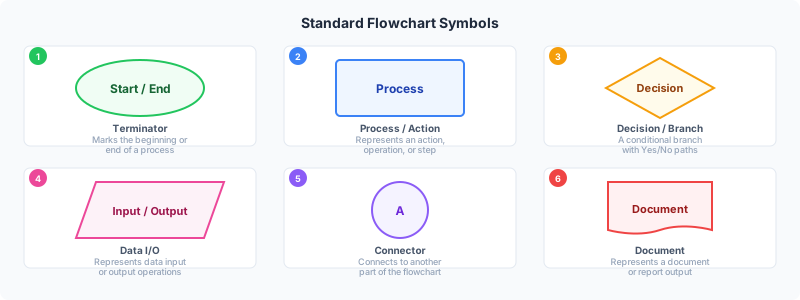
You need only four symbols for most process flow charts. Oval: marks the start and end of the process. Rectangle: represents an action or task ("Review application," "Send invoice," "Package order"). Diamond: represents a decision point where the process branches ("Approved?" "In stock?" "Amount over $500?"). Arrow: shows the direction of flow between steps.
Two additional symbols are useful for complex processes. Parallelogram: represents data input or output ("Customer fills form," "System generates report"). Cylinder: represents a database or storage system the process reads from or writes to.
Do not use more symbols than you need. A process flow chart with six different shape types is harder to read than one with three. If you are unsure which symbol to use, use a rectangle. See flowchart symbols for the complete reference with meanings and examples.
Step 1: Define the Process Scope
Before you draw anything, define exactly which process you are mapping. Write down three things: where the process starts (the trigger), where it ends (the outcome), and who is involved.
A clear scope prevents the most common mistake in process mapping: trying to document everything at once. "Employee onboarding" is too broad — narrow it to "IT equipment setup for new employees" or "First-week orientation schedule." You can always create separate flow charts for related processes.
Example: Process: Customer return handling. Starts: Customer requests a return. Ends: Refund issued or replacement shipped. Involved: Customer, support team, warehouse team, finance.
Step 2: List All Steps in Order
Walk through the process from start to finish and write down every step. Talk to the people who actually do the work — not the people who designed the process. The real process almost always differs from the documented one.
For each step, write a short action phrase: "Verify customer identity," "Check inventory levels," "Approve discount request." Keep descriptions to 3-6 words. If a step needs a paragraph to explain, it is actually multiple steps.
Do not worry about decisions and branches yet. First, map the happy path — the process when everything goes smoothly. You will add decision points and exception handling next.
Step 3: Add Decision Points
Review your step list and identify every point where the process branches. These become diamond shapes in your flow chart. Common decision points: approvals ("Manager approves?"), conditions ("Order over $100?"), validations ("All fields complete?"), and quality checks ("Passes inspection?").
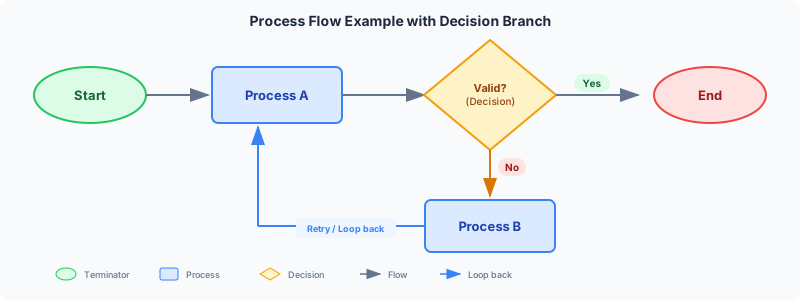
For each decision, define what happens on each path. A decision with no "No" path is not really a decision — it is just a step. Every diamond must have at least two outgoing arrows with clear labels.
Limit decisions to yes/no or two-three options. If a decision has five possible outcomes, break it into multiple sequential decisions. "Which department?" with five options is better handled as a series of "Is it department X? Yes/No" checks.
Step 4: Build the Flow Chart
Open the process diagram maker for a linear process or flowchart maker for processes with decision branches. Both are free with no signup required.
Start with an oval labeled "Start" or with your specific trigger ("Customer calls support"). Add each step as a rectangle. When you reach a decision point, add a diamond. Connect everything with arrows flowing top-to-bottom.
Keep the main flow moving in one direction — top to bottom is standard. Branches from decisions can go left or right, but the primary path should continue downward. If a branch loops back to an earlier step, route the arrow along the outside edge of the diagram to avoid crossing other arrows.
Ready to build?
Open the free editor and start creating — no signup needed.
Step 5: Validate with Stakeholders
Show the flow chart to someone who performs the process daily. Ask them: "Is anything missing? Is anything wrong? Is this the order things actually happen in?" This validation step typically catches 3-5 issues.
Pay special attention to the exception paths. The happy path is easy to get right. The real value of process mapping is revealing what happens when things go wrong — a request is denied, a system is down, a customer provides incomplete information.
After validation, simplify. Look for steps that can be combined, redundant approvals that can be eliminated, and loops that indicate rework (a sign the process has a quality issue upstream).
Process Flow Chart Best Practices
One process per chart. Do not try to map "everything the support team does" in one diagram. Map "handle customer return" as one chart and "escalate technical issue" as another. Focused charts are readable charts.
Use color to show responsibility. If multiple people or teams are involved, assign each a color. All support team steps in blue, all warehouse steps in green, all finance steps in orange. Readers can scan by color to see their responsibilities. Check color psychology infographics for palette guidance.
Label every decision arrow. An unlabeled arrow leaving a diamond is ambiguous. Always write "Yes," "No," or the specific condition on every arrow coming out of a decision.
Include a title and legend. A process flow chart without context forces readers to figure out what process it describes. Add a clear title and, if you use color coding, include a legend explaining what each color represents.
Common Mistakes to Avoid
Mapping the ideal process, not the real one. Every team has "how we think it works" and "how it actually works." Map reality first. A flow chart of an imaginary process helps nobody.
Too much detail. "Open email" → "Read email" → "Click reply" → "Type response" → "Click send" is five steps that should be one: "Reply to customer email." Each node should represent a meaningful unit of work.
No end point. Every process must terminate. If your flow chart has paths that lead nowhere, the process has gaps. Every branch from every decision must eventually reach an end oval or loop back to a known step.
Spaghetti arrows. If your arrows cross more than twice, your layout needs rearranging. Move nodes around until the flow is clean. Readers should be able to trace any path with their finger without lifting it.
Process Flow Chart Examples
Customer support ticket: Customer submits ticket → System assigns priority → Agent reviews → Can resolve immediately? Yes → Agent resolves and responds → Close ticket. No → Escalate to specialist → Specialist investigates → Resolved? Yes → Respond and close. No → Escalate to engineering.
Invoice processing: Invoice received → Enter into system → Matches purchase order? Yes → Route for approval → Approved? Yes → Schedule payment → Pay vendor → File record. No at matching: Flag discrepancy → Contact vendor → Corrected invoice received → Re-enter.
Content publishing: Writer submits draft → Editor reviews → Needs revision? Yes → Return to writer. No → Designer adds visuals → Final review → Approved? Yes → Schedule and publish. No → Revise and re-review.
Build Your Process Flow Chart in GraphMake
Start at process diagram maker for straightforward linear processes — add steps, customize colors, and export as PNG in minutes. For processes with decision branches, use flowchart maker instead.
Need to learn the standard symbols first? Check our flowchart symbols reference page for a visual guide to every shape and its meaning.
Want the process flow chart as part of a larger infographic? Open the full editor and combine it with stat cards showing process metrics, timeline widgets for milestones, or tables for RACI matrices. Export the complete document as a single PNG — free, no watermark.