The Most Loved and Most Abused Chart Type
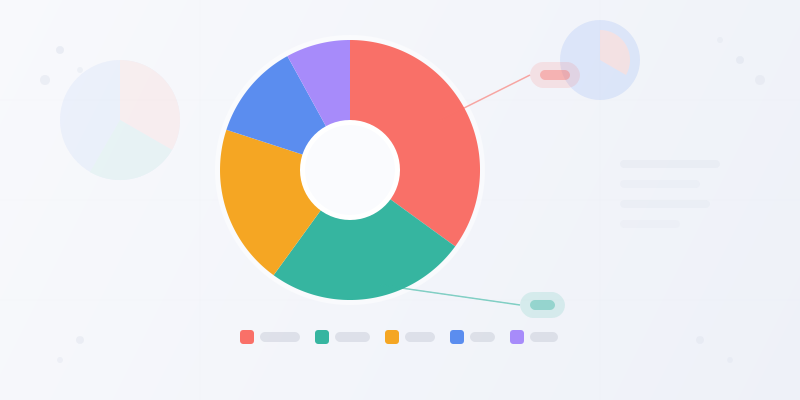
Pie charts get a bad reputation in data visualization circles. "Never use pie charts" is practically a meme among analysts. But the criticism is aimed at misuse, not the format itself.
A pie chart does one thing well: it shows parts of a whole when you have 2-5 categories and the proportions are meaningfully different. Market share. Budget allocation. Survey responses. Time distribution. These are all legitimate pie chart territory.
The problems start when people use pie charts for the wrong data. These 15 good examples and 5 anti-patterns will help you tell the difference. Build any of them at pie chart maker.
1-3: Market Share, Budget Allocation, and Survey Results
Market share (1): The classic pie chart use case. "Company A holds 35%, Company B holds 28%, Company C holds 20%, Others hold 17%." Four slices, clear differences, and the whole equals 100% of the market. This is what pie charts were made for.
Budget allocation (2): "Engineering 40%, Marketing 25%, Operations 20%, Admin 15%." Each slice represents a department's share of total spend. Stakeholders grasp proportions instantly without reading numbers.
Survey responses (3): "Strongly Agree 42%, Agree 31%, Neutral 15%, Disagree 8%, Strongly Disagree 4%." Works because the categories are ordered and the differences are visible. If "Agree" and "Neutral" were both 27%, the slices would be indistinguishable — that is when you switch to a bar chart maker.
4-7: Time Breakdown, Revenue Sources, Demographics, and Device Usage
Time breakdown (4): How employees spend their day — "Meetings 30%, Deep Work 25%, Email 20%, Admin 15%, Breaks 10%." This resonates because everyone has opinions about meeting overload. The visual makes the problem undeniable.
Revenue sources (5): "Subscriptions 55%, One-time Sales 25%, Services 15%, Other 5%." Shows which revenue streams dominate. A donut chart variant works well here — the center can display total revenue.
Demographics (6): Age groups, gender distribution, or geographic breakdown of your user base. "18-24: 15%, 25-34: 35%, 35-44: 28%, 45-54: 14%, 55+: 8%." Five slices with clear differentiation.
Device usage (7): "Mobile 58%, Desktop 34%, Tablet 8%." Three slices — perfect for a pie chart. This data appears in every analytics dashboard and presentations. See bar chart examples for when you need to show device usage over time instead of a snapshot.
8-11: Project Status, Content Mix, Energy Sources, and Expense Categories
Project status (8): "Completed 45%, In Progress 30%, Not Started 20%, Blocked 5%." Color-code with green, blue, gray, and red. The pie immediately shows whether the project is on track.
Content mix (9): "Blog Posts 40%, Video 25%, Social Media 20%, Podcasts 10%, Other 5%." Shows your content strategy at a glance. Useful for quarterly reviews and content planning documents.
Energy sources (10): "Natural Gas 38%, Coal 22%, Renewables 20%, Nuclear 12%, Other 8%." This is a common infographic topic and a natural fit for pie charts. The whole is "total energy production." Use with other widgets in editor for a full energy infographic.
Expense categories (11): "Housing 35%, Food 15%, Transportation 12%, Healthcare 10%, Entertainment 8%, Savings 10%, Other 10%." Personal finance pie charts work because they make spending patterns visceral. Seeing that housing is a third of your income hits differently than reading a spreadsheet.
12-15: Vote Distribution, Skills Assessment, Portfolio Allocation, and Customer Segments
Vote distribution (12): Election results or board votes. "Yes 62%, No 28%, Abstain 10%." Three slices, decisive visual. The pie chart makes it obvious whether a vote passed — no number-reading required.
Skills assessment (13): Team capabilities — "Frontend 30%, Backend 25%, DevOps 20%, Design 15%, QA 10%." Shows where your team is heavy and where it needs reinforcement. Pair with a chart maker bar chart for individual proficiency levels.
Portfolio allocation (14): "Stocks 50%, Bonds 30%, Real Estate 10%, Cash 10%." The donut variant is especially popular in finance — the center can show total portfolio value. Standard recommendation: no more than 5-6 asset categories.
Customer segments (15): "Enterprise 40%, Mid-Market 35%, SMB 20%, Individual 5%." Shows revenue concentration by segment. If one slice is 70%+, you have a concentration risk that the pie chart makes immediately visible.
5 Pie Chart Anti-Patterns (What NOT to Do)
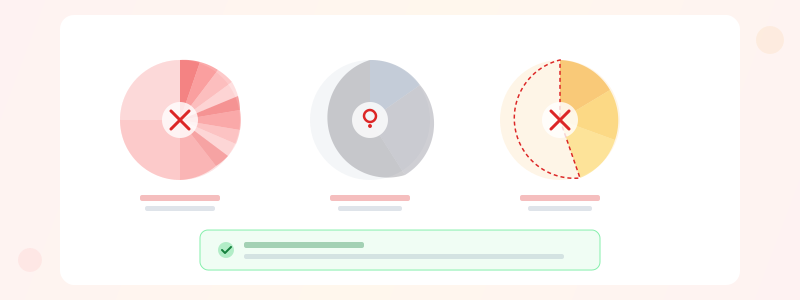
Anti-pattern 1: Too many slices. More than 6-7 slices makes a pie chart unreadable. If you have 12 categories, use a bar chart. The human eye cannot compare thin slices accurately.
Anti-pattern 2: Similar-sized slices. If three categories are all around 33%, the pie looks like it is evenly split even if the actual values are 31%, 33%, and 36%. Bar charts show small differences; pie charts hide them.
Anti-pattern 3: Data that does not sum to 100%. Pie charts represent parts of a whole. If your categories overlap or do not form a complete set, the chart is lying. "Features customers like" is not pie chart data because customers can like multiple features.
Anti-pattern 4: Comparing across time. Two pie charts side by side for "2024 vs 2025" is hard to compare. Your eye cannot tell if a slice grew from 22% to 28%. Use a bar chart maker grouped bar chart instead — see bar chart examples for examples.
Ready to build?
Open the free editor and start creating — no signup needed.
Anti-Pattern 5 and When to Choose a Different Chart
Anti-pattern 5: 3D pie charts. Three-dimensional pie charts distort proportions — slices in the "front" appear larger than slices in the "back" due to perspective. There is no scenario where 3D improves communication. Use flat 2D pie charts always.
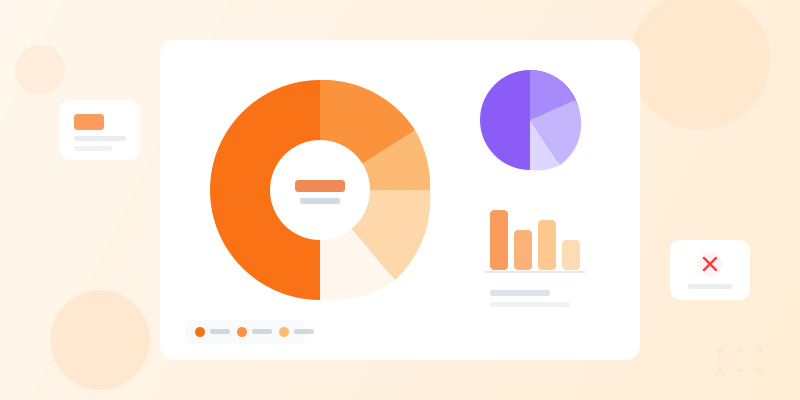
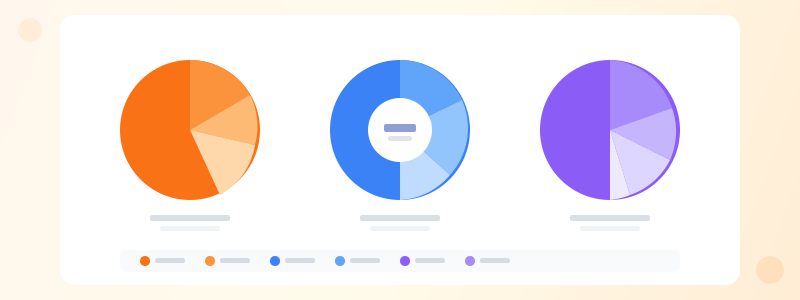
Use a donut chart when you want a pie chart but need to display a total value in the center. Build donut charts at pie chart maker by adjusting the inner radius.
Use a bar chart when you have more than 5 categories, when values are close together, or when you need to compare across time. Use a treemap for hierarchical part-to-whole data. Use a stacked bar when you need to show composition across multiple groups.
The decision is simple: if you have 2-5 categories that sum to 100% and the proportions are meaningfully different, use a pie chart. Everything else, use chart maker to find the right alternative.
Composite: Pie + Breakdown Table
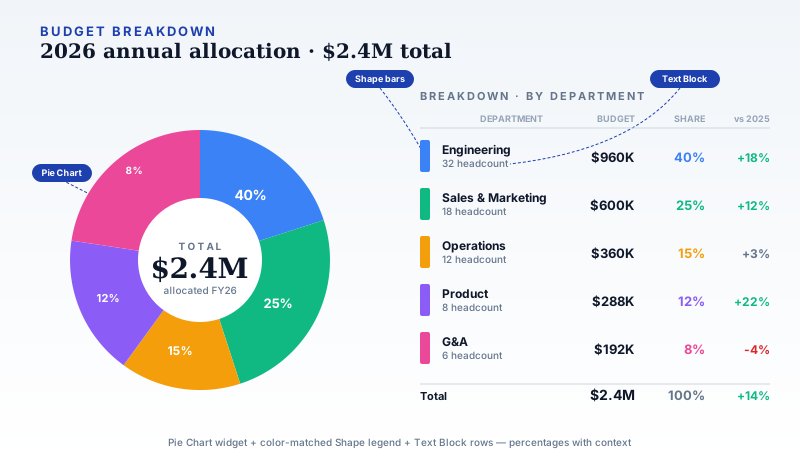
A pie chart shows proportions. A composite breakdown table shows proportions WITH dollar values, headcount, and year-over-year change. Pair a donut chart (with the total in the center) on the left with a color-keyed breakdown row table on the right. Each row matches a pie slice by color and adds the supporting numbers the pie cannot carry.
The example above shows a $2.4M 2026 budget split by department. The pie answers "what proportions?"; the table answers "which departments grew?" Engineering is 40% of the budget AND up 18% from last year. Product is only 12% AND up 22% (fastest grower). G&A is 8% AND down 4% (cost discipline). Built on the editor canvas by combining the Pie Chart widget + matching-color Shape bars as legend keys + Text Block rows for values.
Composite: Before vs After Comparison Pies
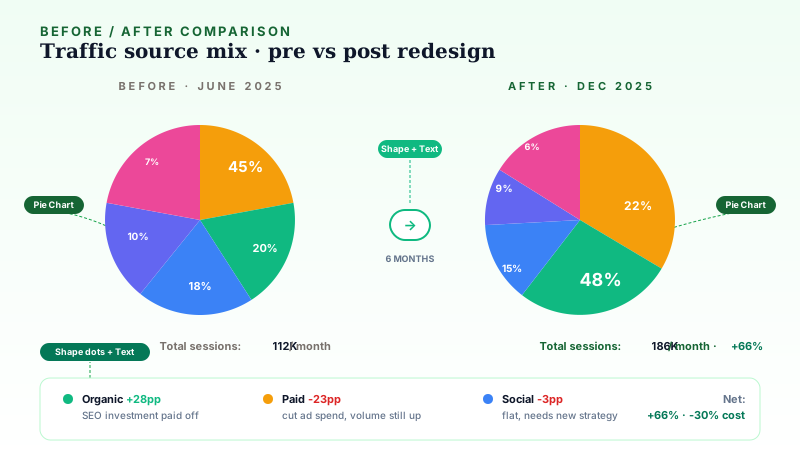
The hardest thing to show with a single pie is CHANGE. Composite before/after pies do it clearly — two donuts side by side, same colors for the same categories, with a delta callout row below highlighting the shifts. Readers can visually compare which slice grew, which shrank, and which stayed flat.
The example above shows website traffic source mix before and after a 6-month redesign. Paid traffic dropped from 45% to 22% of the mix but overall sessions grew 66% — meaning organic did the heavy lifting (+28 percentage points). The delta row below calls out exactly what changed per channel with a green/red label and a one-line explanation. This is the format for quarterly reviews, A/B test results, and any "here's what happened" narrative. Build it with two Pie Chart widgets + Shape dots for the legend + Text Blocks for the delta callouts.
Building Effective Pie Charts
Start the largest slice at 12 o'clock and go clockwise by size. This convention makes charts scannable. Always label percentages directly on the chart — do not force readers to match colors to a legend.
Use high-contrast colors for adjacent slices. If two slices touch, their colors must be visually distinct. Avoid using gradients or patterns — they reduce readability. GraphMake's built-in palettes handle contrast automatically.
For donut charts, the inner radius should be 40-60% of the outer radius. Smaller than that and you lose the center space. Larger than that and the slices become thin arcs that are hard to compare. Explore templates for pre-built pie chart infographic layouts.