
Why Most Flowcharts Fail
A flowchart is supposed to make a process easier to understand than a written description. But most flowcharts fail this test. They are larger than the screen, use shapes inconsistently, have arrows that cross each other at confusing angles, and contain text labels so long they spill out of boxes. The reader ends up more confused after looking at the chart than before.
The root problem is that most people treat flowchart-making as transcription — take the process, draw each step as a box, connect them with lines, done. They do not think about the reader. A good flowchart is designed, not just drawn. The ten rules below are the difference between a diagram that clarifies and one that decorates.
Use flowchart maker to build your flowchart, or read the how to make flowchart guide for a step-by-step walkthrough. The rules below apply regardless of what tool you use.
Rules 1–3: Use Standard Shapes Correctly
Rule 1: Use ovals (terminals) for Start and End, rectangles (processes) for actions, diamonds (decisions) for questions with two or more outcomes. These are the ANSI/ISO standard shapes and every reader knows them. Do not invent new shapes. Do not use rectangles for decisions because "diamonds take too much space." Consistency lets readers scan without decoding.
Rule 2: Every diamond must have labeled exit paths. A decision diamond with two arrows but no labels is useless — the reader cannot tell which path means Yes and which means No. Label every exit arrow: Yes/No, True/False, Pass/Fail, or the specific condition ("> $1,000", "User is logged in"). Never leave a decision unlabeled.
Rule 3: Use parallelograms for inputs and outputs if your process involves receiving data or producing results. Many flowcharts omit this distinction — they draw "Receive Order" and "Process Payment" both as rectangles. Using the correct shape immediately communicates what kind of step is happening. For a reference of all standard shapes, see flowchart symbols guide.

Rules 4–6: Control Your Layout
Rule 4: Flow top-to-bottom or left-to-right. Never mix directions. The reader's eye expects flow to go in one direction. Top-to-bottom works for sequential processes. Left-to-right works for horizontal workflows and swimlane diagrams. Pick one and stick to it across the entire chart.
Rule 5: Avoid crossing arrows. Arrow crossings force the reader to stop and trace which arrow goes where. If you have crossing arrows, reorganize the layout — move boxes, add a connector symbol (an on-page reference circle), or split the diagram into multiple sub-processes. There is almost always a rearrangement that eliminates the crossing. If you cannot eliminate all crossings, at least use perpendicular crossings (not diagonal) and add a bridge symbol (a semicircle bump) on one of the lines.
Rule 6: Keep consistent spacing between elements. Irregular spacing looks amateurish and makes the hierarchy unclear. Use a grid or alignment guides. Items that are at the same level in the hierarchy should be at the same horizontal position on a vertical flow (or same vertical position on a horizontal flow). The flowchart maker has snap-to-grid enabled by default.
Rules 7–8: Write Clear, Concise Labels
Rule 7: Use verb-noun phrases for process steps. "Review application," "Send confirmation email," "Calculate total cost." Not: "The application is reviewed by the admissions team and a decision is recorded in the system." The shape communicates that it is an action — the label just needs to name that action concisely. Aim for three to five words per box.
Rule 8: Ask questions in decision diamonds. "Is the budget approved?" "Has the user verified their email?" "Is the order value > $500?" The diamond shape already communicates that a decision is being made — the label just needs to state the condition clearly enough that the Yes/No exits are unambiguous. Vague labels like "Check" or "Verify" tell the reader nothing.
Rules 9–10: Manage Complexity
Rule 9: Break large processes into sub-processes. If your flowchart has more than fifteen to twenty shapes on a single diagram, it is too complex to read at a glance. Identify a step that is itself a multi-step process and replace it with a single "Sub-process" rectangle (a box with double vertical lines on the sides, per the ISO standard). Create a separate, linked diagram for that sub-process. This creates hierarchy without overwhelming the reader.
Rule 10: Add a title and a legend. The title tells the reader what process is being documented and its scope. The legend explains any non-standard shapes or color coding you have used. A flowchart without a title is unanchored — the reader has to infer context from the diagram content. A legend removes ambiguity for colors or shapes that might be interpreted differently.
These ten rules are not style preferences — they are design decisions that directly affect whether a reader can follow your process. A flowchart that breaks these rules will be printed out, stared at, and eventually ignored. One that follows them gets used.
Ready to build?
Open the free editor and start creating — no signup needed.
Common Flowchart Mistakes
Swimlanes used unnecessarily. Swimlanes are valuable when a process spans multiple people or systems and you need to show who does what. But many flowcharts add swimlanes for a single-actor process just to make the diagram look more "official." Unnecessary swimlanes force the reader to track lane boundaries that do not add information.
Loops without exits. If a process can repeat — "Send reminder, wait for response, repeat until confirmed" — the loop must have a clear exit condition. A loop drawn without an exit looks like an infinite loop and makes the reader wonder if you forgot something. Always show when the loop terminates: "After 3 reminders, escalate."
Color used decoratively instead of informationally. If blue boxes mean something (e.g., manual steps) and green boxes mean something (automated steps), the color is doing useful work. If you colored some boxes blue because "it looks nicer," the color creates false patterns that readers will spend time trying to decode.
Build a Swimlane Flowchart with Composite Widgets
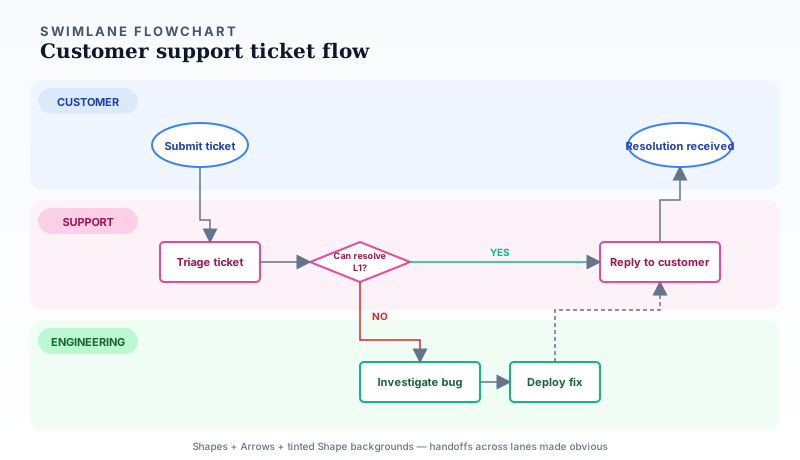
Standard flowchart widgets produce vertical or horizontal chains — but real processes cross roles. A support ticket passes from customer → support → engineering → back to the customer. A purchase order travels from requester → manager → finance → vendor. When hand-offs between roles matter, swimlane flowcharts make the choreography visible in a way a single-chain flowchart cannot.
Build a swimlane on the editor canvas from basic primitives: wide Shape widgets as tinted lane backgrounds (one band per role), standard flowchart Shapes (ovals, rectangles, diamonds) inside each lane for the steps that role performs, and Arrow widgets routing between them — including the crucial cross-lane handoffs that carry the process from one role to the next. The example above shows a three-lane support flow where the diamond "Can L1 resolve?" branches either to a same-lane reply or a cross-lane handoff down to Engineering and back. Dashed arrows indicate handoffs vs. same-lane flow.
Flowchart + Metrics: Process with Live Health
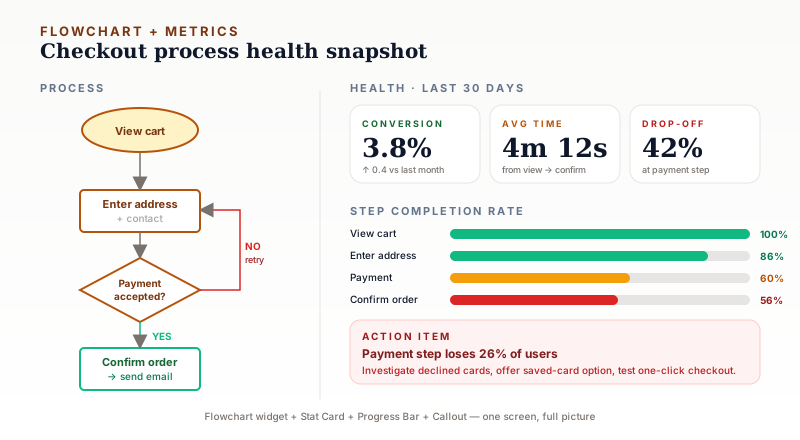
A second composite pattern — pair the flowchart with data about the process itself. The left side shows the four steps of a checkout flow as standard flowchart shapes; the right side answers "how is this process performing right now?" with three stat cards (conversion, average time, drop-off), progress bars showing completion rate at each step, and a callout highlighting the biggest drop.
This layout is the format product managers and ops leads actually want for weekly reviews. The flowchart alone shows how something is supposed to work. The metrics alone show performance without context. Together, they reveal where to focus — in this example, 26% of users bail at the payment step, so that is where you invest optimization effort. Build it from the standard flowchart widget + stat card maker + progress bar maker on the editor canvas.
Build Your Flowchart with GraphMake
Open flowchart maker for a clean, purpose-built flowchart editor. The tool provides the standard shape library (ovals, rectangles, diamonds, parallelograms), snap-to-grid alignment, and automatic arrow routing. Apply these ten rules as you build — the tool will not prevent you from breaking them, but it makes it easy to follow them.
For complex, multi-swimlane process diagrams as part of a larger document, use the full editor. The Flowchart widget supports multi-lane layouts, sub-process references, and can be exported alongside other infographic elements as a single PNG. Browse the how to make flowchart guide for a step-by-step tutorial, and the flowchart symbols guide for the complete shape reference.



