What Do Flowchart Symbols Mean?
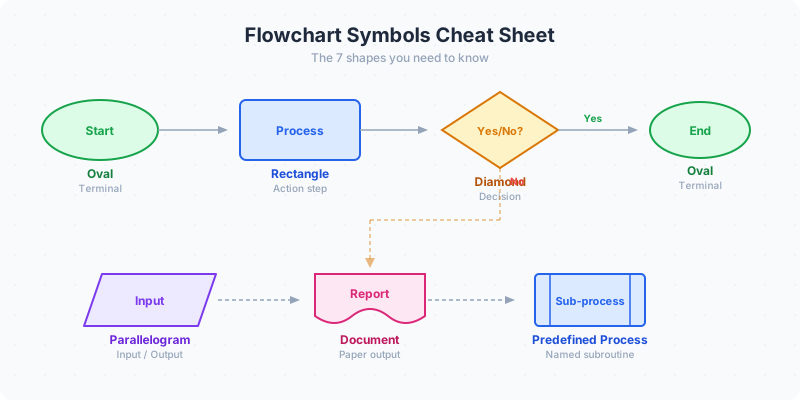
Flowchart symbols are standard shapes that give each step in a process a clear meaning. Ovals mark start and end points, rectangles show actions, diamonds show decisions, parallelograms show inputs or outputs, and arrows show the direction of flow.
That quick visual language is why flowcharts work: someone can scan the shapes before reading every label and still understand where the process starts, where it branches, and where it ends. Build a flowchart with the right symbols at flowchart maker.
The original flow chart symbols were standardized in the 1960s for computer programming flowchart notation. Sixty years later, the same core shapes appear in business process mapping, UX flows, engineering diagrams, and DevOps runbooks. Whether you call them flowchart icons, flowcharting symbols, or flow diagram symbols — they all trace back to the same standard set.
You don't need to memorize dozens of obscure shapes. Five core symbols cover 90% of flowcharts you'll ever build. This flowchart symbols explanation covers those five first, then the advanced symbols and their meanings for when you need them.
What Are the 5 Basic Flowchart Symbols?
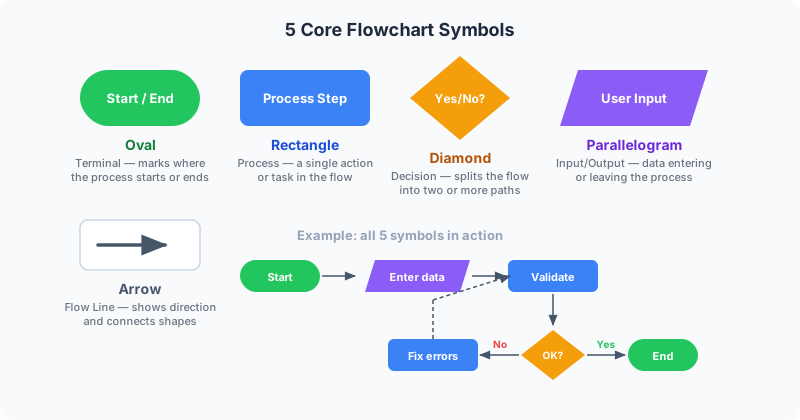
Oval (Terminal): the rounded pill shape that marks where a process starts and ends. Every flowchart should have exactly one start oval and at least one end oval. Label them "Start" and "End" — or use specific labels like "Customer submits form" and "Order fulfilled."
Rectangle (Process): the workhorse of flowcharting. A rectangle represents a single action or step — "Calculate total," "Send email," "Update database." If your flowchart only had one shape besides arrows, this would be it.
Diamond (Decision): the shape that creates branches. A diamond asks a yes/no question — "Is payment valid?" "Does user have account?" — and splits the flow into two or more paths based on the answer. Always label the outgoing arrows with the conditions ("Yes," "No," or specific values).
Parallelogram (Input/Output): the slanted rectangle represents data entering or leaving the process. "User enters password," "System displays report," "Print invoice." Any time information flows in from the outside world or out to a user, use a parallelogram.
Arrow (Flow line): connects shapes and shows direction. Arrows are the most important symbol because without them, shapes are just a pile of boxes. Flow should generally move top-to-bottom or left-to-right. Avoid crossing arrows whenever possible — if arrows cross, your layout needs rearranging.
Which Advanced Flowchart Symbols Are Used in Complex Flows?
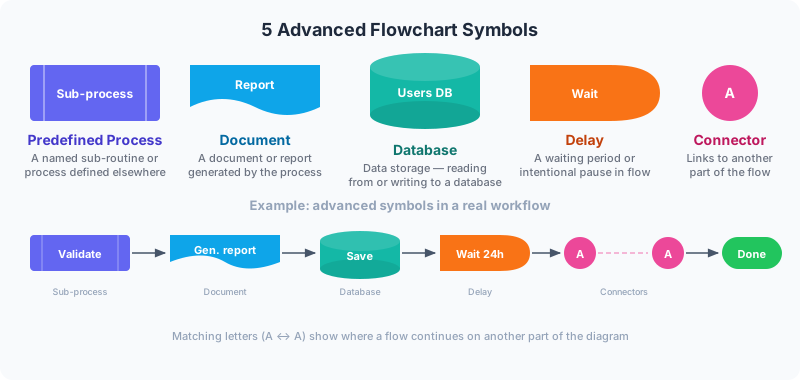
Predefined Process (rectangle with vertical side lines): represents a subprocess that's defined in detail elsewhere. Use this when a step is complex enough to warrant its own separate flowchart — "Run KYC verification," "Execute payment gateway flow." It tells readers "there's more detail here, but it would clutter this diagram."
Document (rectangle with a wavy bottom edge): represents a document or report generated by the process. "Generate PDF invoice," "Create audit log." If your process produces paperwork or files, this shape makes that output explicit.
Database/Cylinder: represents data storage — a database, file system, or data warehouse. Use it when the process reads from or writes to persistent storage. "Save to PostgreSQL," "Read from S3 bucket."
Delay (half-oval or D-shape): indicates a waiting period in the process. "Wait for approval," "Hold for 24 hours," "Queue for processing." This is useful in business processes where handoffs and wait times are bottlenecks you want to make visible.
Connector (small circle): a labeled circle that links one part of a flowchart to another without drawing a long arrow across the entire diagram. Use connectors when your flowchart spans multiple pages or when direct arrows would create a tangled mess. Label both connector circles with the same letter or number.
Which Flowchart Symbols Do You Actually Need?
Here's the honest answer: most flowcharts only need four symbols — oval, rectangle, diamond, and arrow. That covers start, end, actions, decisions, and flow. If your audience is a business team, a project manager, or a client, stick with these four. Nobody will be confused, and the flowchart stays clean.
Add parallelograms if your process has meaningful inputs and outputs that readers need to distinguish from processing steps. Add the database cylinder if you're documenting a technical system where data persistence matters. Add connectors only if your flowchart is genuinely too large for one page.
The mistake people make is using advanced symbols to look thorough. A flowchart with eight different shape types is harder to read than one with three. Simplicity is a feature, not a shortcut. Use the minimum number of distinct symbols that accurately represent your process.
Which Flowchart Symbols Are Used in Software Development?
Developers use flowcharts constantly — during code reviews, system design interviews, architecture docs, and incident runbooks. Understanding coding flowchart symbols is essential because each shape maps directly to a programming concept. Rectangles are function calls or assignments. Diamonds are if/else or switch statements. Parallelograms are API requests and responses, console output, or user prompts.
For backend workflows, the database cylinder appears constantly: "Query user table," "Write to cache," "Read from message queue." The predefined process symbol maps perfectly to microservice calls — "Call Auth Service" or "Invoke Payment API" — where the internal logic is defined in a separate repo entirely.
In DevOps and CI/CD pipelines, flowcharts document deploy flows, rollback procedures, and incident response runbooks. A typical deploy flowchart: Start → Build (rectangle) → Tests pass? (diamond) → Yes → Deploy to staging (rectangle) → Smoke tests pass? (diamond) → Yes → Deploy to production → End. The delay symbol is useful here for manual approval gates between staging and production.
When documenting error handling, use diamonds for each error check and connectors to route multiple error paths to a shared error-handling block without turning your diagram into spaghetti. Label the error paths with specific conditions ("404," "timeout," "auth failed") rather than generic "Error" labels.
Which Flowchart Symbols Are Used for Business Process Mapping?
Business analysts live in flowcharts. Every ERP implementation, CRM workflow, and procurement process starts as a flowchart before it becomes software. The symbols are the same core set — ovals, rectangles, diamonds, arrows — but business process mapping adds a few conventions that are worth knowing.
BPMN (Business Process Model and Notation) extends standard flowchart symbols with swim lanes, message flows, and event markers. Swim lanes divide the diagram into horizontal or vertical bands, each representing a department or role — "Sales," "Finance," "Warehouse." When a process step sits inside the Sales lane and the next step sits in the Finance lane, the arrow crossing the lane boundary makes the handoff explicit. This is where most business processes break down, and swim lanes make the bottleneck visible.
For ERP and CRM workflow mapping, the predefined process symbol (rectangle with vertical side lines) becomes essential. Steps like "Run SAP invoice verification" or "Trigger Salesforce lead scoring" represent entire subprocesses that live inside another system. Drawing them as predefined processes tells readers "this is automated — the detail lives in the ERP config, not in this diagram." The delay symbol is equally important in business flows for approval queues, SLA wait times, and batch processing windows.
Build your business process flowchart in the flowchart maker with decision diamonds for approval gates and process rectangles for each department's tasks. For linear processes without branching decisions — like onboarding checklists or standard operating procedures — the process flow maker gives you a cleaner layout with numbered steps and icons.
Ready to build?
Open the free editor and start creating — no signup needed.
What Is the Quick Reference Table for Flowchart Symbols?
Here is every symbol covered in this guide, organized for quick lookup. Oval (Terminal): a rounded pill shape, used to mark the start and end of a process — example: "Start" or "Order Complete." Rectangle (Process): a standard box, used for any action or step in the flow — example: "Calculate total" or "Send confirmation email." Diamond (Decision): a rotated square, used for yes/no or conditional branching — example: "Is payment valid?" with "Yes" and "No" paths.
Parallelogram (Input/Output): a slanted rectangle, used when data enters or leaves the process — example: "User enters email" or "Display search results." Arrow (Flow Line): a directed line with an arrowhead, used to connect shapes and show the sequence of steps — example: any connection between two symbols. Predefined Process (Subroutine): a rectangle with vertical lines on each side, used for a subprocess documented elsewhere — example: "Run credit check" or "Call Auth API."
Document: a rectangle with a wavy bottom edge, used when the process generates a file or report — example: "Generate PDF invoice." Database (Cylinder): a cylinder shape, used for reading from or writing to persistent storage — example: "Save to PostgreSQL" or "Query user table." Delay: a D-shape or half-oval, used for waiting periods — example: "Wait for manager approval" or "Hold for 24 hours." Connector: a small labeled circle, used to link distant parts of a flowchart without long crossing arrows — example: labeled "A" on both ends of a jump.
What Common Flowchart Symbol Mistakes Should You Avoid?
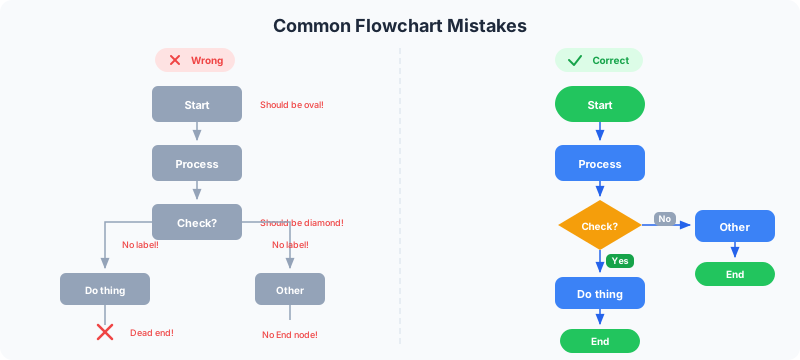
Using rectangles for everything. This is the most common mistake. When every step is a rectangle — including decisions and inputs — readers lose the visual cues that make flowcharts scannable. A diamond stands out instantly as "something branches here." A rectangle doesn't.
Missing arrow labels on decision diamonds. A diamond with two outgoing arrows and no labels is ambiguous. Which path is "Yes"? Always label every outgoing path from a decision. If the diamond asks "Is amount > $1000?" label the paths "Yes" and "No," not "Left" and "Right."
Inconsistent sizing. When some rectangles are tiny and others are enormous because of long text, the flowchart looks chaotic. Keep all shapes at a consistent size and trim the text to fit. "Validate input" is better than "Check whether the user's input meets all validation requirements."
Arrows flowing in random directions. Standard flowchart convention is top-to-bottom for the main flow, left-to-right for branches. When arrows go up, loop back diagonally, and cross other arrows, readers get lost. If your flow loops back, route the return arrow clearly along the outside edge of the diagram.
How Do You Read a Flowchart?
Reading a flowchart is straightforward once you know the entry point and the rules. Find the oval labeled "Start" — that is always your starting position. From there, follow the arrow to the next shape. Read what is inside the shape, perform or understand that step, then follow the outgoing arrow to the next shape. Repeat until you reach an oval labeled "End." If there is no start oval, look for the shape with no incoming arrows — that is your de facto starting point.
When you hit a diamond, read the question inside it. The outgoing arrows will be labeled with the possible answers — typically "Yes" and "No." Follow the arrow that matches the condition for your scenario. Each branch may lead through several more shapes before either ending or merging back into the main flow. If both branches eventually converge at the same shape downstream, that means the process continues the same way regardless of the decision outcome.
Loops are the one pattern that trips people up. If an arrow points back to a shape you have already passed through, that is a loop — the process repeats until a decision diamond breaks out of it. For example: "Check inbox" → "New message?" → Yes → "Process message" → arrow back to "Check inbox." The loop continues until the diamond's "No" path leads forward. For a hands-on tutorial on building flowcharts with proper loops and branches, read how to make flowchart.
What Are Standard Flowchart Symbol Standards?
Two formal standards define flow chart symbols and their meanings: ANSI/ISO 5807 (international) and the older ANSI X3.5 (US). In practice, they define the same core shapes with minor differences in how certain advanced symbols look.
Unless you're working in a heavily regulated environment that specifies a standard (aerospace, medical devices, some government agencies), you don't need to worry about which standard you're following. The five core symbols — oval, rectangle, diamond, parallelogram, arrow — are identical across both standards.
What matters more than formal compliance is internal consistency. Pick a style and use it throughout your organization. If your team uses rectangles with rounded corners for processes, always use rounded corners. If you use a cylinder for databases, never switch to a different shape mid-diagram.
How Do You Build a Flowchart in GraphMake?
Open the flowchart maker to create your flowchart with properly styled decision diamonds, process rectangles, and terminal ovals — no signup needed. Add nodes, customize colors and labels, and export as PNG.
New to flowcharting? Read how to make flowchart for a step-by-step tutorial that walks through building a complete flowchart from scratch. For processes without decision branches, try the process flow maker or the process diagram maker instead.
Need to visualize organizational or tree structures instead? The hierarchy chart maker handles parent-child relationships — perfect for org charts, file trees, and category breakdowns. For reporting lines specifically, see how to make org chart.
For binary yes/no logic, the decision tree maker is purpose-built — simpler than a full flowchart when every branch is a two-way split. For repeating processes with no end point, see how to make cycle diagram instead — cycles use circular layouts rather than linear flow.
Want your flowchart as part of a larger infographic? Open the full editor and combine it with stat card maker widgets, charts, list infographic maker blocks, and any of our 60+ widget types. Check the how it works template for a pre-built process layout, or the poster maker for a print-ready layout you can customize.