What Is a Flowchart?
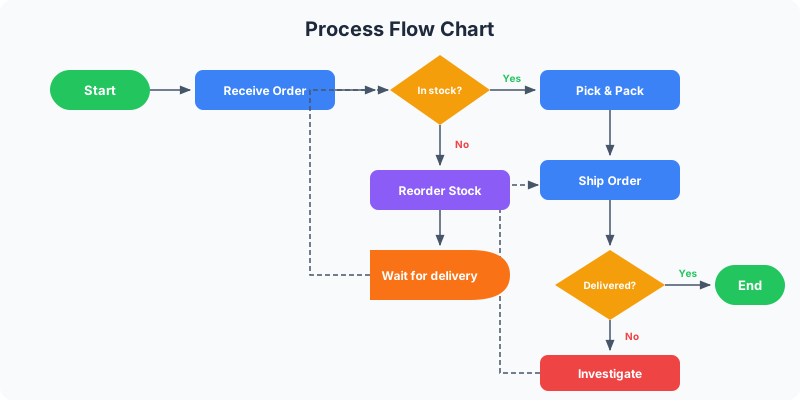
A flowchart is a visual diagram that maps out a process, decision, or workflow using standardized shapes connected by arrows. Unlike a simple list of steps, a flowchart shows what happens when the path branches — when there's a yes/no decision, an approval gate, or an error condition that changes what comes next.
Flowcharts were invented in the 1920s for industrial engineering, but they've become a universal tool. Software developers use them for algorithms. Managers use them for approval processes. Support teams use them for troubleshooting scripts. HR uses them for onboarding. If you've ever said "it depends" when explaining a process, that process probably needs a flowchart.
The power of a flowchart is that it forces clarity. You can't draw a vague flowchart — every path needs to go somewhere, every decision needs clear outcomes. That act of mapping it out often reveals gaps, bottlenecks, or unnecessary complexity that you'd never notice in a written description.
Flowchart Symbols: The Shapes That Matter
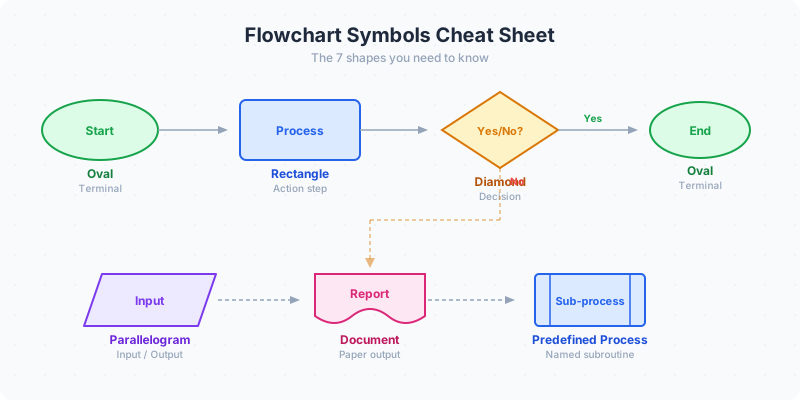
Flowcharts use a small set of standardized shapes, each with a specific meaning. You don't need to memorize dozens — four shapes cover 95% of use cases.
Oval (rounded rectangle): start and end points. Every flowchart begins and ends with an oval. Label them clearly — "Customer submits request" is better than just "Start."
Rectangle: a process step. Something happens — an action is performed, a task is completed, a calculation runs. "Send confirmation email," "Calculate total," "Review application." Most of your nodes will be rectangles.
Diamond: a decision point. This is what makes a flowchart different from a simple process diagram. A diamond asks a yes/no question, and the flow splits into two or more paths based on the answer. "Is the order over $500?" "Did the test pass?" Label each outgoing arrow with the condition.
Arrow: the connector between shapes. Arrows show direction of flow and should always point clearly. Avoid crossing arrows whenever possible — if your arrows cross frequently, your flowchart layout needs rethinking.

Best Way to Make a Flowchart
The best way to make a flowchart is to write the process in plain language first, mark every decision point, then draw only the steps that change what happens next. Start with one trigger, one clear end state, and a short list of actions. Turn actions into rectangles, questions into diamonds, start and end points into ovals, and connect everything with arrows.
If you are trying to create a flowchart online, resist the urge to start by decorating boxes. The useful order is: define the start and end, list the steps, identify branches, connect the paths, then simplify. A clear flow chart with ten nodes is better than a beautiful chart with thirty unclear steps.
Use flowchart maker when the process has decisions, yes/no paths, loops, or exception handling. Use process diagram maker when the process is just step 1, step 2, step 3. If you are unsure which symbols to use, keep flowchart symbols guide open as a reference while you build.
When to Use a Flowchart vs Other Diagrams
Not every process needs a flowchart. If your process is a straight line from step A to step B to step C with no branching, a process diagram is simpler and clearer. Try our process diagram maker for linear step-by-step flows.
Use a flowchart when your process has decision points — moments where the path changes based on a condition. Approval workflows, troubleshooting guides, conditional logic, error handling, and any "if this, then that" scenarios are flowchart territory. For pure binary decision logic — where every step is a yes/no question with no loops — a decision tree is a better fit. See how to make decision tree for a dedicated guide.
Use a timeline when the sequence is driven by dates or chronology rather than logic. "What happened in order" is a timeline (timeline maker). "What to do based on conditions" is a flowchart.
Use a cycle diagram when the process repeats indefinitely — sprint cycles, seasonal planning, feedback loops. A flowchart has a clear start and end. A cycle doesn't.
How to Make a Flowchart in 5 Steps
Step 1: Define the start and end. What triggers the process? What does "done" look like? Write these down before you draw anything. A flowchart without a clear endpoint will sprawl endlessly.
Step 2: List every step in the process. Write them as action verbs: "Review document," "Send notification," "Escalate to manager." Don't worry about order yet — just get every step on paper.
Step 3: Identify the decision points. Look for moments where the answer is "it depends." These become your diamond nodes. For each decision, write out the possible outcomes — usually yes/no or pass/fail, but sometimes there are three or four paths.
Step 4: Connect everything with arrows. Start from the beginning, follow each path through decisions and steps, and make sure every path eventually reaches an end point. If a path leads nowhere, you've found a gap in your process.
Step 5: Simplify. Your first draft will probably have too many nodes. Combine steps that always happen together. Remove decision points where only one outcome is realistic. A good flowchart has 8-15 nodes — enough to be useful, few enough to be scannable. Build yours at flowchart maker.
Ready to build?
Open the free editor and start creating — no signup needed.
Flowchart Examples for Common Use Cases
Employee onboarding: Start → Submit paperwork → HR reviews → Approved? → Yes: Schedule orientation → Complete training → Assign mentor → End. No: → Request corrections → loop back to Submit paperwork.
Bug triage: Start → Bug reported → Reproducible? → No: → Request more info → End. Yes: → Severity assessment → Critical? → Yes: → Assign to senior dev → Hotfix → Deploy → End. No: → Add to sprint backlog → End.
Customer support escalation: Start → Customer contacts support → Issue resolved in tier 1? → Yes: → Close ticket → End. No: → Escalate to tier 2 → Requires engineering? → Yes: → Create engineering ticket → End. No: → Resolve in tier 2 → Close ticket → End.
Content approval: Start → Draft created → Manager review → Approved? → Yes: → Legal review → Approved? → Yes: → Publish → End. No (either): → Return with feedback → loop back to Draft created.
Flowchart Design Tips
Flow direction: keep it top-to-bottom or left-to-right. Mixing directions makes the flowchart confusing. Top-to-bottom is the most natural reading direction for English speakers and works well for vertical infographics.
Limit the node count. If your flowchart has more than 15 nodes, it's probably too complex for a single diagram. Break it into sub-flowcharts — one overview chart that links to detail charts for complex branches.
Color-code your node types. Use one color for process steps, another for decisions, and a third for start/end points. This visual distinction helps readers parse the flow without reading every label. For color advice, see our guide on color psychology infographics.
Use clear, short labels. "Send email" is better than "The system sends an automated email notification to the customer." Save the detail for documentation — the flowchart should communicate the high-level flow at a glance.

Common Flowchart Mistakes
Too many decision branches. If every other node is a decision diamond, your flowchart becomes a maze. Group related decisions together, or consider whether some branches can be simplified. Not every edge case needs its own path.
Unclear labels. "Process data" tells the reader nothing. "Validate credit card" tells them exactly what happens. Every node should answer the question "what action is being performed?" in specific terms.
No end node. Every path through the flowchart must reach a clear ending. Dead-end paths — where a branch just stops — confuse readers and usually indicate a gap in the process itself.
Mixing flowcharts with process diagrams. If half your chart is a linear sequence and the other half has decision branches, consider splitting it into a process diagram for the linear part and a flowchart for the branching part. Each format works best when used for its intended purpose.
Build Your Flowchart in GraphMake
Open the flowchart maker and start building immediately — no signup needed. Add your process nodes, decision diamonds, and connections in the visual editor. Customize colors, fonts, and node styles to match your brand or presentation.
If your process is purely linear with no branching, the process flow maker gives you a cleaner numbered-step format. For hierarchical structures like org charts or category trees, try the hierarchy chart maker instead. Learn the visual symbols at flowchart symbols guide.
Need the flowchart as part of a larger infographic? Open the full editor, add a Flowchart widget alongside stat cards, timelines, and charts. Combine your process flow with supporting data to create a comprehensive visual document.
Export as PNG when you're done — free, no watermark. Your flowchart is ready for presentations, documentation, wikis, or anywhere you need to communicate a process clearly.