What Is a Decision Tree?
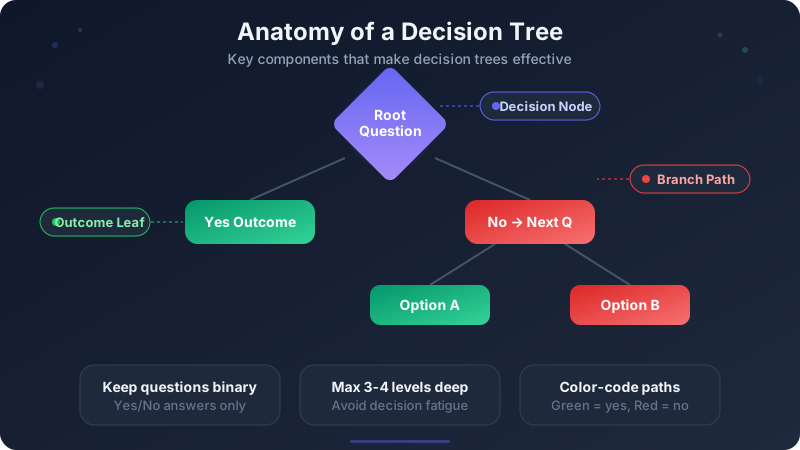
A decision tree is a diagram that maps decisions and their possible outcomes in a branching structure. Each internal node represents a question (usually yes/no), each branch represents an answer, and each leaf represents an outcome or action. Decision trees make complex logic visual and easy to follow.
Decision trees are used everywhere: customer support scripts, medical diagnosis, business strategy, software troubleshooting, hiring processes, and machine learning classification. Any scenario where a series of questions leads to different outcomes is a candidate for a decision tree.
Unlike flowcharts, which can have loops, parallel paths, and multiple node types, decision trees are strictly hierarchical — each question leads to exactly two (or sometimes more) branches, and the tree never loops back. This simplicity is their strength: anyone can read a decision tree without training.
When to Use a Decision Tree
Troubleshooting guides are the most common use case. "Is the device powered on?" → Yes: "Check the display" / No: "Plug it in." IT support, hardware diagnostics, and customer service scripts all benefit from decision trees because they turn expert knowledge into a step-by-step guide anyone can follow.
Business decisions with clear criteria — go/no-go checklists, vendor selection, project prioritization — map perfectly to decision trees. Instead of a 10-page document, a single-page tree shows stakeholders exactly how the decision was made and what criteria were applied.
Process logic with conditional branching — approval workflows, eligibility checks, risk assessments — can be documented as decision trees. They are easier to audit than narrative descriptions because every path is visible. If a process has 4 binary decisions, you can see all 16 possible outcomes at a glance.
How to Build a Decision Tree Step by Step
Start with the root question — the first thing you need to know to make the decision. This should be the most important or most filtering question. In troubleshooting, it is usually "Is the system working at all?" In business, it might be "Does this meet our minimum criteria?"
For each answer (Yes/No), ask: does this lead to a final outcome, or does it lead to another question? If it is final, create a leaf node with the action. If not, add another decision node and repeat. Keep going until every branch ends in a clear outcome.
Open decision tree maker to build your tree interactively. Add questions, define yes/no outcomes, and see the tree rendered instantly. For complex trees with more than 4-5 levels, use the full editor with the hierarchy or flowchart widget for more control.
Decision Tree Best Practices
Keep questions binary. "Is X true?" with Yes/No answers is easier to follow than multi-way branches. If a question has more than two answers, break it into a sequence of binary questions. "Is the budget under $10K?" then "Is it under $5K?" is clearer than a three-way split.
Limit depth to 3-4 levels. Trees deeper than 4-5 questions become hard to follow and suggest the process might need simplification. If your tree is 7 levels deep, consider whether some branches can be collapsed or some questions eliminated.
Use consistent formatting: diamonds for questions, rounded rectangles for outcomes, green for "yes" branches, red for "no" branches. This visual language is nearly universal and makes the tree immediately scannable. The decision tree maker applies this formatting automatically.
Every leaf must have an actionable outcome — not another question. "Contact support" is a good leaf. "Maybe?" is not. If you find yourself writing vague outcomes, the tree is not detailed enough or the process needs clarification.
Decision Tree Examples
IT Troubleshooting: "Is the computer on?" → No: "Press power button" → Still no? "Check power cable" → "Replace PSU." Yes: "Is the screen working?" → No: "Check monitor cable" → Yes: "Is the software loading?" — and so on. Each branch isolates a specific failure point.
Project Approval: "Does it align with strategy?" → No: "Reject." Yes: "Is the budget under $50K?" → Yes: "Manager approval only." No: "Is it under $200K?" → Yes: "VP approval." No: "Board approval." Clear criteria, clear escalation path.
Customer Support: "Is the customer a premium subscriber?" → Yes: "Route to dedicated team." No: "Is the issue billing-related?" → Yes: "Route to billing." No: "Route to general support with estimated wait time." Trees like this reduce routing errors and response times.
Ready to build?
Open the free editor and start creating — no signup needed.
Decision Tree vs Flowchart
Decision trees are a subset of flowcharts. A flowchart can have loops (repeat until condition), parallel paths (do A and B simultaneously), multiple node types (process, I/O, delay, database), and complex routing. A decision tree has only questions and outcomes, with no loops.
Use a decision tree when: every step is a binary question, there are no loops, and you want a clean hierarchical view. Use a flowchart when: steps include actions (not just questions), paths can merge or loop, or you need to show the full process including non-decision steps. See our how to make flowchart for flowchart guidance.
In practice, many diagrams labeled "decision trees" are actually flowcharts with decision nodes. That is fine — the goal is communication, not taxonomy. If your diagram helps people make decisions, it is working regardless of what you call it. Use flowchart maker for more complex diagrams.
Common Decision Tree Mistakes
Ambiguous questions. "Is the performance acceptable?" is subjective — different people will answer differently. Replace with measurable criteria: "Is response time under 200ms?" Binary questions with objective answers make the tree reliable and consistent.
Missing branches. Every question must have both a Yes and a No path — no dead ends. Walk through every possible combination of answers to verify that every scenario reaches an outcome. If you find paths that lead nowhere, the tree is incomplete.
Too much detail. A decision tree should guide decisions, not document every edge case. If a branch applies to 0.1% of cases, consider a footnote or a separate sub-tree rather than adding 3 more levels of depth to the main tree.
Create Your Decision Tree with GraphMake
Open decision tree maker to start building immediately — it is a free online decision tree maker that requires no signup. Add your questions, define yes/no outcomes, customize colors, and download as PNG with no watermark. It works as a decision tree generator for quick one-off diagrams and a full decision chart maker for detailed trees.
Need a head start? Use the decision tree template — a pre-designed layout with placeholder questions and outcomes that you can replace with your own data in seconds. It is the fastest way to create a professional-looking decision tree without starting from a blank canvas.
For more complex trees, click "Customize in Editor" to open the full editor. Use the hierarchy widget for multi-level branching, add icons and colors, and combine your decision tree with stat cards, charts, and other widgets to build a complete decision-support infographic.
If your decision tree has loops, merge points, or process steps between decisions, you may need a flowchart instead. See our how to make flowchart guide for flowchart-specific techniques and when to use each format.



