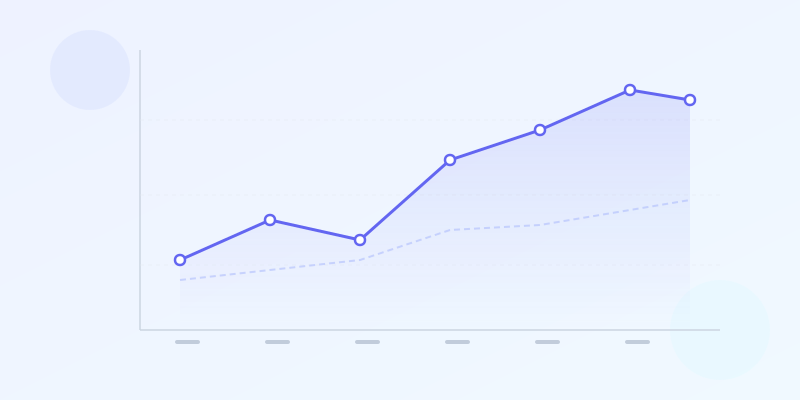
The Chart That Shows Direction
A line chart plots data points along a horizontal axis — usually time — and connects them with a line. That line tells a story no other chart type tells as well: direction. Are things going up, going down, staying flat, or spiking unpredictably? One glance and you know.
They're everywhere because trends are everywhere. Stock prices, website traffic, monthly revenue, temperature records, user signups. Anywhere you have values measured at regular intervals, this format is almost certainly the right choice. For a broader overview, see chart types guide.
When to Use a Line Chart
Use it when your horizontal axis represents a continuous sequence — time is most common. The key question: does the order of data points matter? If rearranging them would change the meaning, this is the right format.
Lines beat bars when you have many data points. 30 bars are cluttered; a line with 30 points is clean. But for 5-8 categories with no natural order, use bar chart maker instead.
Versus an area chart: area charts fill the space below the line, emphasizing volume or magnitude. Use this format when trend direction matters most, or when you have multiple overlapping series.
Don't use it for categorical data with no inherent order. "Revenue by department" is a bar chart. The line implies connection between adjacent points.
Single Line vs. Multi-Line
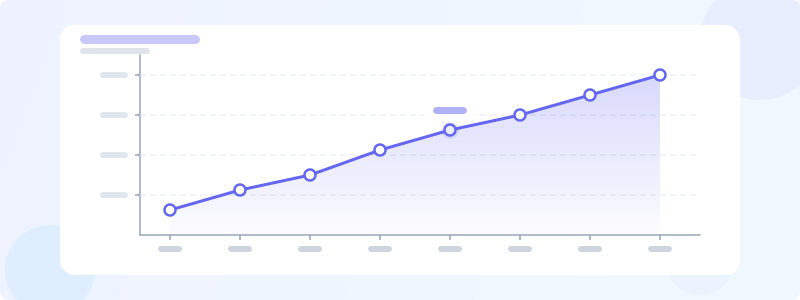
Single-line is the simplest: one metric over time. Monthly revenue, daily temperature, weekly active users. One line, one story. This is your default.
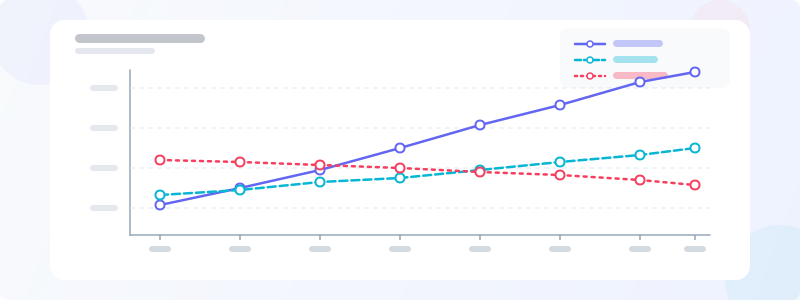
Multi-line overlays two or more datasets for comparison. Two or three lines work well. Four is the practical limit. Beyond that, use small multiples — separate charts with the same axes.
Differentiate multiple lines with distinct colors (not three shades of blue), visible labels, and consider different dash patterns. For color guidance, see color psychology infographics.
Useful technique: highlight the main line (bold, saturated) and fade comparison lines (thinner, lighter). This guides the eye without removing context.
Step-by-Step: Build a Line Chart
Open line chart maker. You'll see one with sample data. Click to open the properties panel and replace it with your own — labels for the horizontal axis and values for each point.
To add a second line, add another data series with a contrasting color. Stick to 2-3 series for clarity.
Customize: toggle gridlines, show/hide data point markers, adjust line thickness, pick straight vs curved. For most data, straight segments between points are more honest — curves imply trends that may not exist.
Export as PNG when done. Free, no watermark.
Ready to build?
Open the free editor and start creating — no signup needed.
Real-World Examples
Stock prices: a single line showing closing price over 12 months communicates volatility, trend direction, and inflection points instantly.
Website analytics: monthly pageviews over a year reveal seasonal patterns, traffic spikes from campaigns, and the impact of redesigns. See dashboard design tips for layout advice.
SaaS metrics: MRR, signups, churn rate tracked as trend lines. Investors expect these as lines because direction matters more than individual months.
Scientific data: temperature records, CO2 concentration, infection rates — datasets with hundreds of points that rule out bar charts entirely.
Design Tips
Label your axes. A surprising number of charts lack axis labels. Include units — "Revenue ($K)" not just numbers.
Start the Y axis at zero — or clearly indicate if you don't. Truncating can make small changes look dramatic.
Use gridlines sparingly. Light horizontal gridlines help; vertical gridlines often add clutter.
Add annotations for context. "Launched new feature" at an inflection point tells the complete story. A spike with no explanation leaves readers guessing.
Pick the right time interval. Daily data over 3 years is noisy — aggregate to weekly. Monthly over 6 months may lack granularity — use weekly. See data visualization best practices.
Build Your Line Chart
Open line chart maker — enter data, add multiple lines if needed, customize colors, and export as PNG. No signup, no watermark.
Need it in a bigger story? Open the editor and combine with stat cards, bar charts, timelines, and any of our 60+ widget types. Browse templates for ready-made layouts.



