What Is a Radar Chart?
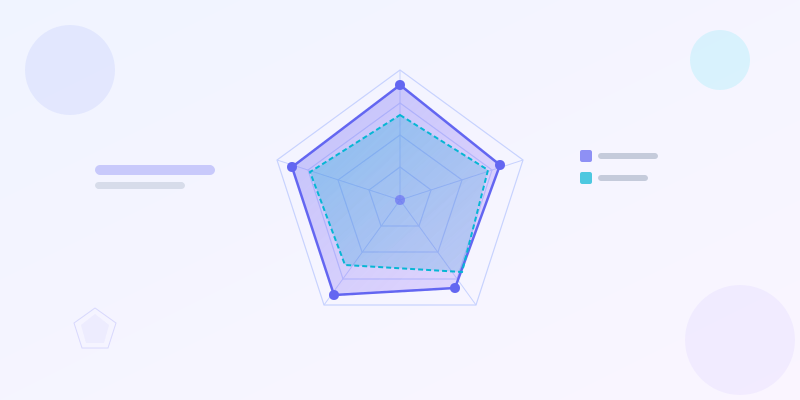
A radar chart — also called a spider chart, web chart, or radial chart — is a two-dimensional visualization that displays multiple variables on axes radiating from a central point. Each axis represents one variable, and data values are plotted along those axes. Connect the plotted points and you get a polygon whose shape instantly communicates the overall profile of your data.
The chart gets its name from how it looks: multiple spokes extending outward like the spokes of a wheel, or the lines on a radar screen. Spider chart and web chart are equally common names — they all describe the same shape.
Radar charts are most useful when you want to compare multiple attributes of one or more items simultaneously. A single polygon gives you a profile; two overlapping polygons let you compare those profiles at a glance. Unlike a bar chart that shows values side by side, a radar chart shows balance or imbalance across dimensions.
When to Use a Radar Chart
Radar charts shine when you need to show how something scores across several dimensions that do not naturally rank against each other. The classic examples: employee performance reviews (communication, technical skills, leadership, initiative, reliability), product comparisons (price, features, ease of use, support, scalability), or athlete assessments (speed, strength, endurance, agility, technique).
The chart is most effective with five to ten axes. With fewer than four, a bar chart communicates the same information more clearly. With more than ten, the polygon becomes hard to read — axes crowd together and the shape loses meaning. Eight axes is often the sweet spot.
Avoid radar charts when your variables have very different scales — a score of 8 out of 10 and a revenue figure of $8M look identical on separate axes unless you normalize them first. Also avoid them when you need exact values; radar charts communicate patterns and relative strengths, not precise numbers.

Understanding the Anatomy of a Radar Chart
Every radar chart has three main components: axes, rings (or concentric polygons), and data polygons. The axes radiate from the center — one per variable, spaced evenly. The rings mark the scale: the innermost ring is the minimum value, the outermost is the maximum. If you have five rings, each represents 20% of the total scale.
The data polygon connects the data points plotted on each axis. The further a point sits from the center on an axis, the higher the value for that variable. A large, full polygon means high scores across all dimensions. A small, lopsided polygon reveals weak spots.
When comparing two datasets, you overlay two polygons with different colors and transparency. The area of overlap shows where they are similar; the areas that do not overlap reveal the differences. For a chart types guide overview of when radar charts beat other formats, that guide covers the full decision tree.
How to Prepare Your Data
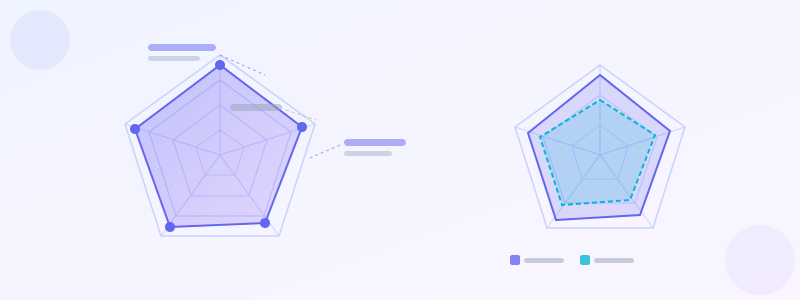
Radar charts require normalized data — all variables on the same scale. If you are comparing a product across "ease of use (1-5)", "price (1-5)", and "support response time (hours)", you need to convert them to the same range before plotting. The standard approach: convert everything to a 0-100 scale or a 1-10 scale.
For performance comparisons, you often have raw scores already on a common scale (e.g., 0-10 rating from reviewers). For financial or operational metrics, create an index: divide each value by the maximum possible value and multiply by 100. Document what your scale means so readers can interpret the chart correctly.
Keep your variable list to eight or fewer. If you have twelve attributes, group related ones or pick the most meaningful. More axes does not mean more insight — it often means less clarity. Prioritize variables where differences between subjects are actually meaningful to the reader.
How to Create a Spider Chart Step by Step
Step 1: Decide what you want to compare. Is it two products? Five employees? One athlete against a league average? The comparison drives everything else.
Step 2: Pick 5-8 dimensions. These are the variables you will plot on the axes. For a smartphone comparison: battery, camera, screen, performance, price, durability. For an employee review: communication, technical skills, leadership, problem-solving, reliability, teamwork. Keep dimensions relevant to your audience.
Step 3: Normalize your values to a common scale. The standard is 0-100 or 1-10. If you are mixing raw scores (like dollars and ratings), convert everything to the same scale before plotting. Otherwise the polygon shape will be misleading.
Step 4: Plot the values. Open radar chart maker, type your axis names, and enter the normalized values for each. The polygon renders automatically.
Step 5: Add a second dataset if you are comparing two subjects. Click "Add Series" and enter the comparison values. The chart overlays the two polygons with contrasting colors so you can spot strengths and weaknesses at a glance.
Step 6: Style and export. Adjust fill opacity (20-40% works best), choose colors that contrast well, and export as PNG. For a full infographic with supporting stat cards and text, use the editor instead.
Ready to build?
Open the free editor and start creating — no signup needed.
Building a Radar Chart in GraphMake
Open radar chart maker and you will see an interactive radar chart with six default axes. Click any axis label to rename it to your variable. Click the data point on each axis and drag it to your value, or type the value directly in the data panel on the right.
To add a second dataset for comparison, click "Add Series" and enter the values for your second subject. The chart automatically adds a second polygon with a contrasting color and dashed stroke so you can distinguish the two profiles clearly. Adjust colors, stroke width, and fill opacity in the style panel.
For a complete infographic combining a radar chart with stat cards and narrative text, open the full editor instead. Add a Radar Chart widget from the Data category, position it alongside other widgets, and export the whole layout as PNG. Browse templates for layouts that already include radar charts.
Customization Tips for Cleaner Radar Charts
Keep the fill opacity between 20% and 40%. Too opaque and overlapping polygons obscure each other. Too transparent and the shape loses visual weight. A light fill with a solid stroke border is the standard approach.
Label axis endpoints clearly. The reader needs to know what each axis represents without scanning a legend. Place labels at the tips of the spokes, outside the outermost ring. Keep labels short — three words maximum. If the label needs more explanation, add a footnote or subtitle.
Use gridlines sparingly. Three to five rings is enough for most radar charts. More rings create a cluttered web of lines that competes with the data polygon. Match your ring count to the precision your audience needs — for general pattern communication, three rings (low/medium/high) are often sufficient.
For two-series comparisons, choose colors from opposite ends of the spectrum: blue and orange, green and purple. Avoid red/green combinations for accessibility. The data visualization best practices post covers accessible color choices in detail.
Radar Chart Examples Across Industries
Product managers use radar charts to compare competing products across feature dimensions in roadmap presentations. A six-axis chart showing "your product" vs "competitor A" makes trade-offs immediately visible to non-technical stakeholders.
HR teams use spider charts in performance review dashboards. Each employee gets a polygon showing strengths and development areas. Managers can overlay a "target profile" polygon (dashed line) to show what an ideal score looks like for the role.
Sports analytics teams use radar charts to compare athletes. A striker's polygon might be heavy on the "shooting" and "speed" axes, light on "defending." Comparing two players' polygons instantly shows who is the better fit for a given tactical system. For building a full sports stats infographic, the templates gallery has sports-themed layouts ready to customize.
Start Building Your Radar Chart
Head to radar chart maker for a standalone radar chart generator — no signup, free to use, and exports as PNG. Enter your axes and values and download in seconds.
For a full infographic with a radar chart as one component alongside stat cards, titles, and annotations, open the editor and drag in a Radar Chart widget. The full editor gives you the complete canvas experience: multiple widgets, drag and drop, custom colors, and clean export.
Need inspiration? Check the chart types guide to see when radar charts beat bar charts and pie charts, and browse the templates gallery for multi-chart infographic layouts you can customize with your own data.



