What Is a Histogram?
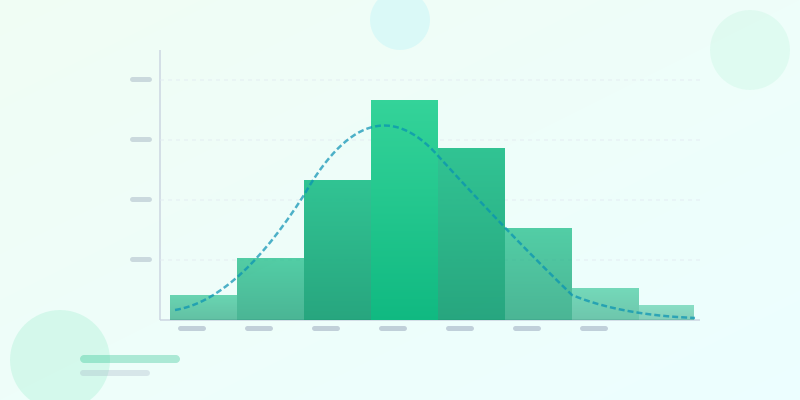
A histogram is a chart that shows the distribution of a continuous numerical variable by dividing the range of values into intervals (called bins) and displaying the frequency of values in each bin as a bar. The height of each bar shows how many data points fall within that range. Unlike a bar chart, the bars in a histogram touch each other — there are no gaps — because the data is continuous.
Histograms answer one fundamental question: how is this data distributed? Is it centered and symmetric (a bell curve)? Skewed to one side? Bimodal with two peaks? Uniform across the range? These patterns are invisible in a list of numbers but immediately obvious in a histogram.
You will see histograms in statistics, quality control, finance, healthcare, and anywhere that involves analyzing distributions of measured values — exam scores, customer ages, transaction amounts, product defect sizes, website load times, or any continuous dataset.
Histogram vs Bar Chart: The Key Difference
The most common confusion in data visualization: histograms and bar charts look similar but represent fundamentally different types of data. A bar chart shows discrete categories — sales by region, users by device type, revenue by product. Each bar represents a separate category with no mathematical relationship to adjacent bars.
A histogram shows the distribution of a single continuous numerical variable. The x-axis is a continuous scale — not categories — and the bars represent ranges (bins) on that scale. The bars touch because the ranges are adjacent on a number line. There are no gaps in a continuous distribution.
The practical test: if your x-axis labels are names or categories (North, South, East, West), use a bar chart. If your x-axis is a number range (0-10, 10-20, 20-30), use a histogram. For a detailed comparison of chart types, the how to make bar chart guide covers bar charts in depth, and the chart types guide shows when to use which format.

Choosing the Right Bin Size
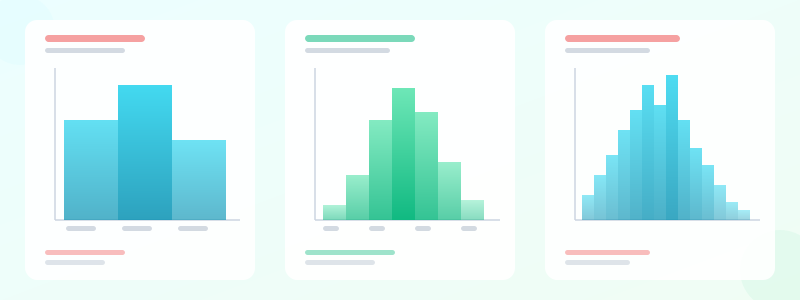
Bin size (also called bin width or class width) is the single most important decision when building a histogram. Too few bins and you lose the shape of the distribution — everything looks flat. Too many bins and random noise creates a spiky, unreadable chart that hides the underlying pattern.
A practical starting point: take the square root of your sample size and round to the nearest integer. For 100 data points, that is 10 bins. For 400 data points, about 20 bins. This is not a rule — it is a starting point. Always look at the resulting chart and adjust.
If the chart looks jagged and erratic, increase the bin width (fewer, wider bins). If it looks like a flat plateau with no visible shape, decrease the bin width (more, narrower bins). You are looking for a smooth shape that reveals the data's underlying distribution without hiding it in noise.
Equal-width bins are the default and work for most cases. Unequal bins (wider bins in sparse areas, narrower in dense areas) can be useful for data with long tails, but require extra care in labeling — the y-axis should show density rather than frequency to avoid misleading readers.
How to Prepare Your Data
Start with your raw data as a list of numbers. Sort it to find the minimum and maximum values — these define your range. Decide on bin width, then create bin boundaries. For exam scores from 0 to 100 with a bin width of 10: 0-9, 10-19, 20-29, and so on.
Count how many values fall into each bin. Be clear about boundaries — is a score of 10 in the 0-9 bin or the 10-19 bin? The standard convention is that each bin includes its left boundary and excludes its right boundary (except the last bin, which includes both). Document this so readers can verify the counts.
If you are working with raw data in a spreadsheet, use COUNTIFS in Excel or Google Sheets to count values in each bin automatically. The histogram maker accepts raw comma-separated numbers and calculates bin counts automatically — paste your data and the tool handles the binning.
How to Create a Histogram Step by Step
Step 1: Collect your raw numeric data. A histogram needs continuous values — test scores, ages, transaction amounts, response times. The more data points the better, but 30+ is usually enough to see a meaningful distribution.
Step 2: Find your range. Identify the minimum and maximum values in your dataset. This defines the span the histogram will cover on the x-axis.
Step 3: Decide the bin count. A good starting point is the square root of your sample size, rounded to a whole number. 100 data points → 10 bins. 400 data points → 20 bins. Adjust until the shape of the distribution is clear.
Step 4: Assign each value to a bin. Each bin typically includes its left boundary and excludes its right boundary (so 10 goes in the 10-20 bin, not the 0-10 bin). Count the values in each.
Step 5: Plot the bars. Each bar's height equals the count in that bin. Unlike a bar chart, the bars touch — the data is continuous, so there are no gaps.
Step 6: Label everything. X-axis = your measured variable (with units). Y-axis = frequency (or density if bins are unequal). Add a title that tells the reader what the chart is about.
Step 7: Open histogram maker, paste your comma-separated data, and the tool handles binning, plotting, and styling automatically. Export as PNG when it looks right.
Ready to build?
Open the free editor and start creating — no signup needed.
Building a Histogram in GraphMake
Open histogram maker and paste your raw numeric data (comma-separated) into the data field. The tool auto-calculates a reasonable bin size using the square-root rule and renders the histogram immediately. Adjust the number of bins using the slider to see how the chart shape changes.
Customize the bar color, axis labels, and chart title. Toggle the normal distribution curve overlay if you want to compare your data to a theoretical bell curve — useful for checking if your data is approximately normally distributed. Export as PNG when you are satisfied.
To use a histogram in a larger infographic, open the full editor and add a Histogram widget from the Data category. Double-click the widget to edit its data, adjust bin count, and set the color scheme to match your infographic's theme. Combine it with stat cards showing the mean, median, and standard deviation for a complete statistical summary.
Reading Distribution Shapes
A symmetric bell curve (normal distribution) means most values cluster around the center and fall off evenly on both sides. This is common for natural measurements like height or weight in a population.
A right-skewed distribution (long tail to the right) means most values are low but a few are very high. Income data looks like this — most people earn moderate amounts, but a small number earn much more. A left-skewed distribution is the mirror: most values are high, with a few low outliers.
Bimodal distributions (two peaks) suggest your data comes from two distinct groups that you might want to analyze separately. A histogram of website session duration showing peaks at "under 30 seconds" and "5-10 minutes" suggests two types of users: bouncers and engaged readers.
A uniform distribution (all bins roughly equal height) means values are spread evenly across the range. Rare in natural data — if you see it, check whether your data collection method introduced artificial uniformity.
Create Your Histogram Now
Go to histogram maker — paste your numbers and get a clean histogram in seconds. No signup needed. Adjust bin size, colors, and title, then export as PNG.
For a full statistical infographic with a histogram alongside a mean/median comparison, standard deviation callout, and distribution summary, use the full editor. Drag a Histogram widget from the Data panel, add Stat Card widgets for key statistics, and build a complete data story. Check the how to make bar chart guide if you are also considering bar charts for categorical comparisons.



