What Is a Process Infographic?
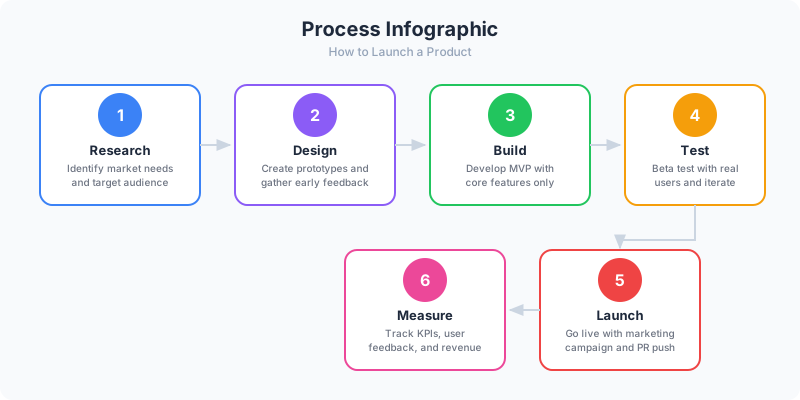
A process infographic is a visual diagram that shows a sequence of steps from start to finish. Unlike a plain numbered list, a process infographic uses shapes, arrows, icons, and color to show the flow and progression of a process — making it immediately clear how one step leads to the next.
Process infographics are everywhere: recipe instructions, onboarding flows, manufacturing steps, tutorial guides, customer journey maps, and how-it-works explainers. Any time you need to show "do this, then this, then this," a process infographic is the right format.
What makes a process infographic different from a list infographic is the emphasis on flow and sequence. In a list, items can often stand alone. In a process, the order matters — step 3 depends on step 2, and skipping step 4 breaks the result. The visual design should reinforce this sequential relationship.
Process Infographic vs Flowchart
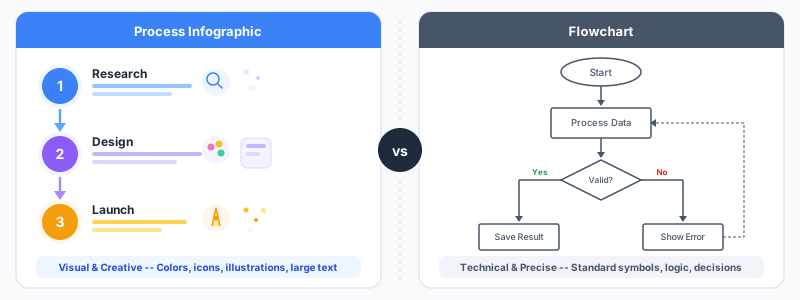
A process infographic shows a linear sequence of steps — typically without branching. A flowchart includes decision points (diamonds) where the path splits based on conditions. If your process is a straight line from A to Z, use a process infographic. If it has yes/no decisions, use a flowchart (flowchart maker).
Process infographics are designed for general audiences — customers, new employees, website visitors. They prioritize visual appeal and clarity. Flowcharts are designed for operational documentation — they prioritize completeness and handle edge cases.
Many real-world processes are a hybrid: a mostly linear flow with one or two decision points. For these, you can use a process infographic for the overview and link to a detailed flowchart for the branching logic.
Choosing the Right Layout
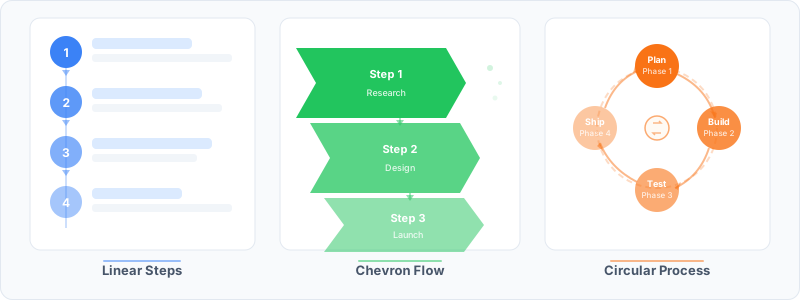
Vertical process (top to bottom): the most common layout. Steps flow downward with arrows or connecting lines between them. Works for any number of steps and fits the standard tall infographic format. Build this with the Process Steps widget in GraphMake.
Horizontal process (left to right): works for 3-6 steps when you want a compact, wide format. Good for presentations, headers, and website sections. The reading direction matches natural left-to-right scanning.
Circular/cycle process: steps arranged in a circle, showing that the process repeats. Use this for ongoing processes like agile sprints, content calendars, or feedback loops. Build this with the Cycle widget at cycle diagram maker.
Radial/star process: steps arranged as petals around a central point. Works when all steps connect to a core concept rather than flowing sequentially. Build this with the Star Steps widget in the editor.
Step 1: Define the Process
Write down the process in plain language first. What is the starting point? What is the end result? What happens in between? Do not overthink it — a sticky note per step works fine at this stage.
Aim for 4-8 steps. Fewer than 4 and the process is too simple to need an infographic. More than 8 and the infographic becomes crowded. If your process has 12 steps, look for steps that can be grouped into phases (3 phases of 4 steps each).
Give each step a short action title: "Research keywords," "Draft content," "Design visuals," "Publish." These titles will be the primary text readers see. Add a one-sentence description for each step to provide detail.
Step 2: Decide on Visual Style
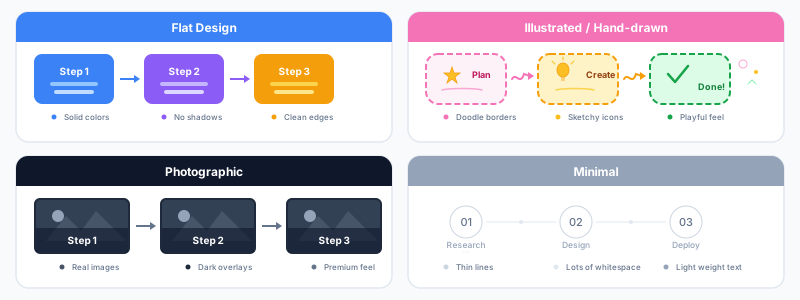
Numbered steps with icons: each step gets a large number, an icon, a title, and a short description. This is the most versatile style and works for almost any process. Use the Process Steps widget in GraphMake.
Connected cards: each step is a card or box connected by arrows or lines. This emphasizes the flow between steps and works well when you want to include more detail per step.
Timeline style: steps are placed along a horizontal or vertical line with alternating positions (left/right or above/below the line). This works well for processes that happen over time. Use the Timeline widget at timeline maker.
Icon-focused: minimal text with large, prominent icons for each step. Best for simple processes where the icon alone communicates the step (e.g., shopping cart → credit card → truck → house for an e-commerce delivery process).
Step 3: Build the Infographic
Open process diagram maker for a focused experience, or the full editor for complete flexibility. Add a Process Steps widget and enter your step labels and descriptions.
Customize colors for each step. Using a gradient progression (light to dark, or cycling through a palette) reinforces the sense of moving through stages. Use the brand color picker in the widget panel to set a base color.
Add connecting elements — arrows, lines, or numbered circles — that visually link each step to the next. The Process Steps widget handles this automatically. For manual layouts, use Arrow widgets between cards.
Ready to build?
Open the free editor and start creating — no signup needed.
Step 4: Add Context and Polish
Add a title heading that names the process: "How We Onboard New Clients" or "Content Publishing Process in 6 Steps." Readers should understand what the process is before they start reading the steps.
Include a brief intro below the title if the audience needs context: "Our onboarding process ensures every new client is set up within 48 hours." Keep it to one sentence.
Add stat cards or metrics alongside the process if relevant: "Average time: 48 hours," "98% completion rate," "5 teams involved." Numbers add credibility and make the infographic more informative.
Process Infographic Best Practices
Show progression visually. Use numbered badges, progress arrows, or a color gradient that gets darker with each step. Readers should feel the forward momentum even before reading the text.
Keep all steps at the same level of detail. If step 1 says "Research" and step 4 says "Schedule the social media posts across all platforms for the next two weeks and monitor engagement metrics," the inconsistency is jarring. Match the granularity.
Use icons consistently. If step 1 has an icon, all steps need icons. Mismatched visual treatment makes the infographic look unfinished.
Test the flow by reading only the step titles in order. If the titles alone tell the story ("Research → Plan → Create → Review → Publish"), the infographic works. If the titles are vague ("Step 1 → Step 2 → Step 3"), rewrite them.
Common Mistakes
Too many steps. A 15-step process infographic overwhelms readers. Group steps into 3-5 phases, then show sub-steps within each phase if needed. Or create separate infographics for each phase.
No visual flow. Steps floating on a page with no arrows, lines, or numbering do not communicate sequence. The connecting elements are not decoration — they are essential to showing that this is a process, not a list.
Mixing process types. A single infographic should show one process at one level of detail. Do not combine "Company overview" (high-level) with "How to submit an expense report" (detailed) in the same diagram.
Forgetting the audience. A process infographic for customers should be simple and visual. One for internal operations should be detailed and precise. Design for who will actually read it.
Build Your Process Infographic
Start at process diagram maker for linear step-by-step processes. For processes with decision branches, use flowchart maker. For cyclical processes, try cycle diagram maker.
Browse templates for inspiration: how it works for a classic process layout, or project proposal for a process embedded in a larger infographic.
Need help choosing the right process layout? Read how to make process flow chart for detailed process mapping guidance, or how to make workflow chart for operational workflows. Export everything as PNG — free, no watermark.



